Guide updated: 29 October 2026.
VizMaker for Blender connects a 3D viewport to AI image generation, editing, upscaling, video creation and image-to-3D tools. For visualisation artists and designers, it offers a way to develop a scene’s visual direction while keeping modelling, scene organisation and final production decisions in Blender.
A blockout may already explain an interior’s proportions but still feel far from a client-facing image. A personal project may need several art directions before one is worth developing. VizMaker gives those working views another use: they become inputs for a set of visual studies that can guide the next modelling and rendering decisions.
Install the Blender integration and send a view
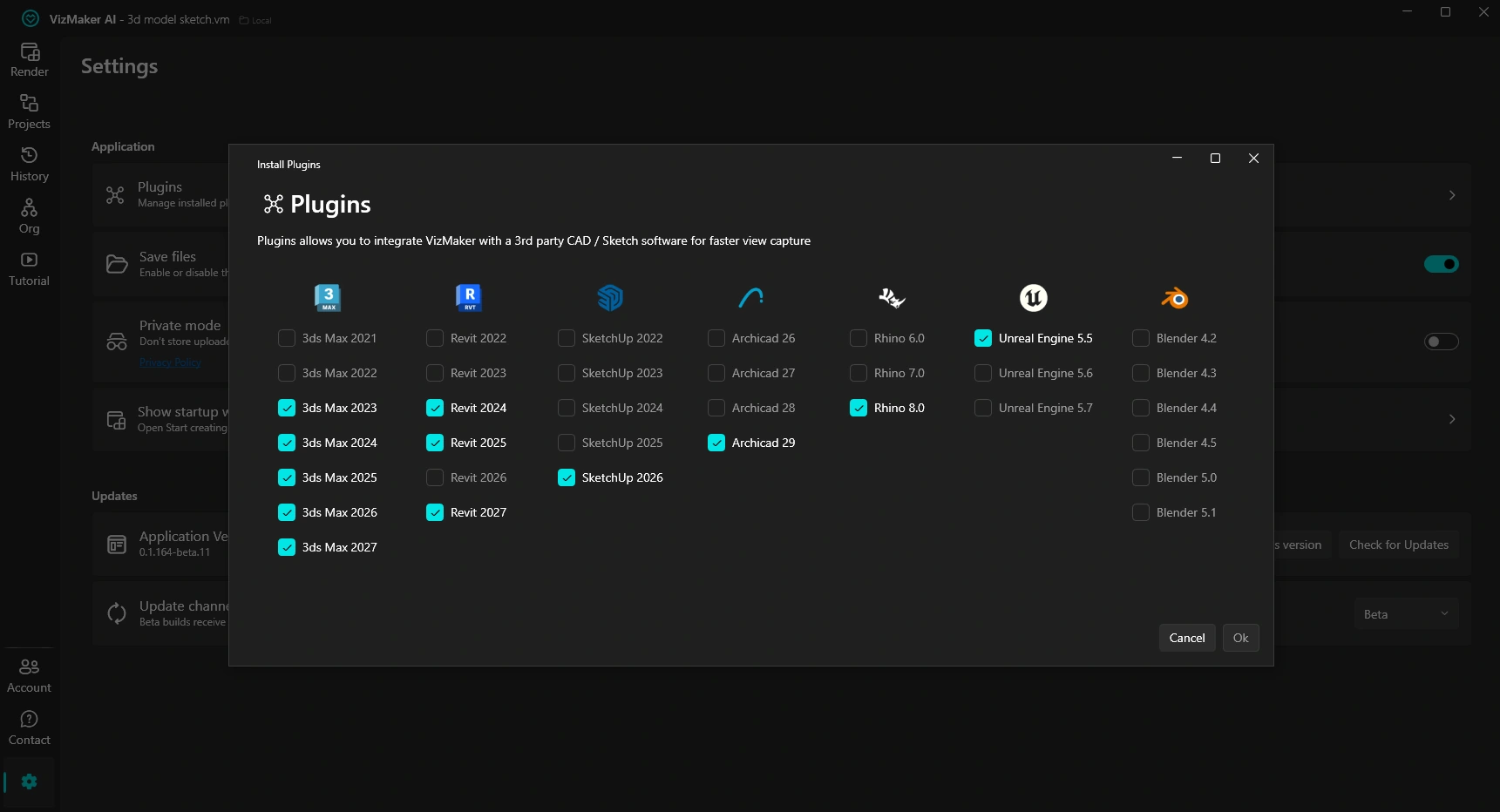
In VizMaker, open Settings > Plugins and select the Blender version offered for your installed setup. Confirm the installation and reopen Blender if needed. The ebook shows Send view to VizMaker in the 3D Viewport’s View menu, alongside a VizMaker toolbar icon.
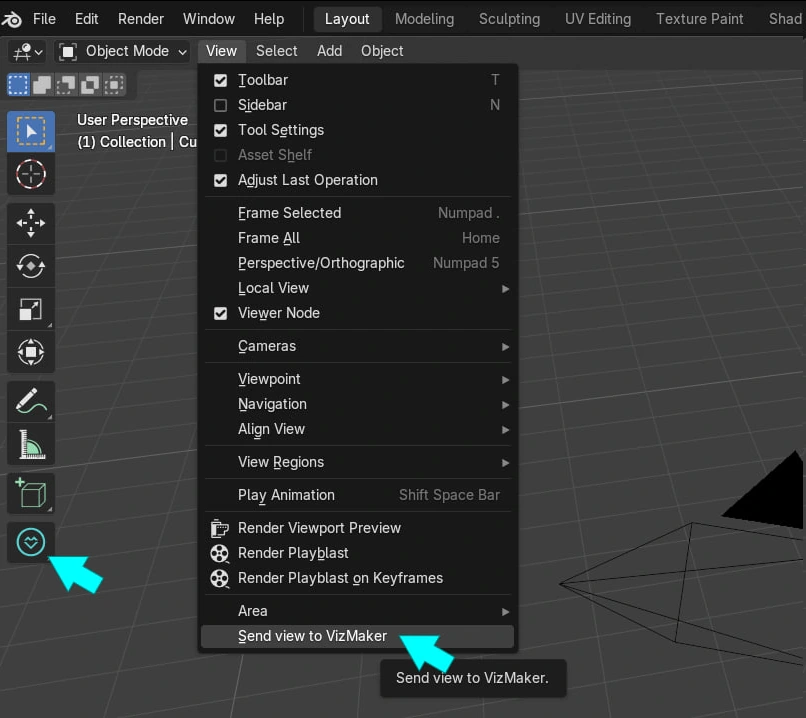
This transfers the working view to the VizMaker desktop workspace, where the AI operations take place. The documented workflow is therefore a connection between the two applications; it is not a new option selected from Blender’s native render-engine menu.
Use a blockout to explore the visual direction
Start with a clear composition and readable forms. A room blockout should communicate openings, major furniture and the intended camera. A product scene should make the object’s silhouette understandable. Remove distracting overlays before capture so the source concentrates on the visual information that matters.
Choose Image Editor in VizMaker, select an available image engine and use a preset or your own brief. For example: “Develop this loft interior with warm concrete, dark metal details and soft late-afternoon daylight; preserve the camera, window rhythm and seating arrangement.” This can begin an AI look development study; it does not guarantee that every generated detail matches the underlying scene.
Keep different art directions as separate branches. Compare the strongest candidates, decide what each contributes and bring approved choices back into Blender. The source view is useful throughout that process because it gives you a reference for checking proportion and composition.
Create a starting point for furniture and prop assets
VizMaker’s AI 3D asset generation can help when a concept depends on an object that is not already in your library. The supplied example turns a chair sketch into a developed image and then a Tripo 3D model. The guide also documents Meshy AI and a multi-image workflow for supplying additional object views.
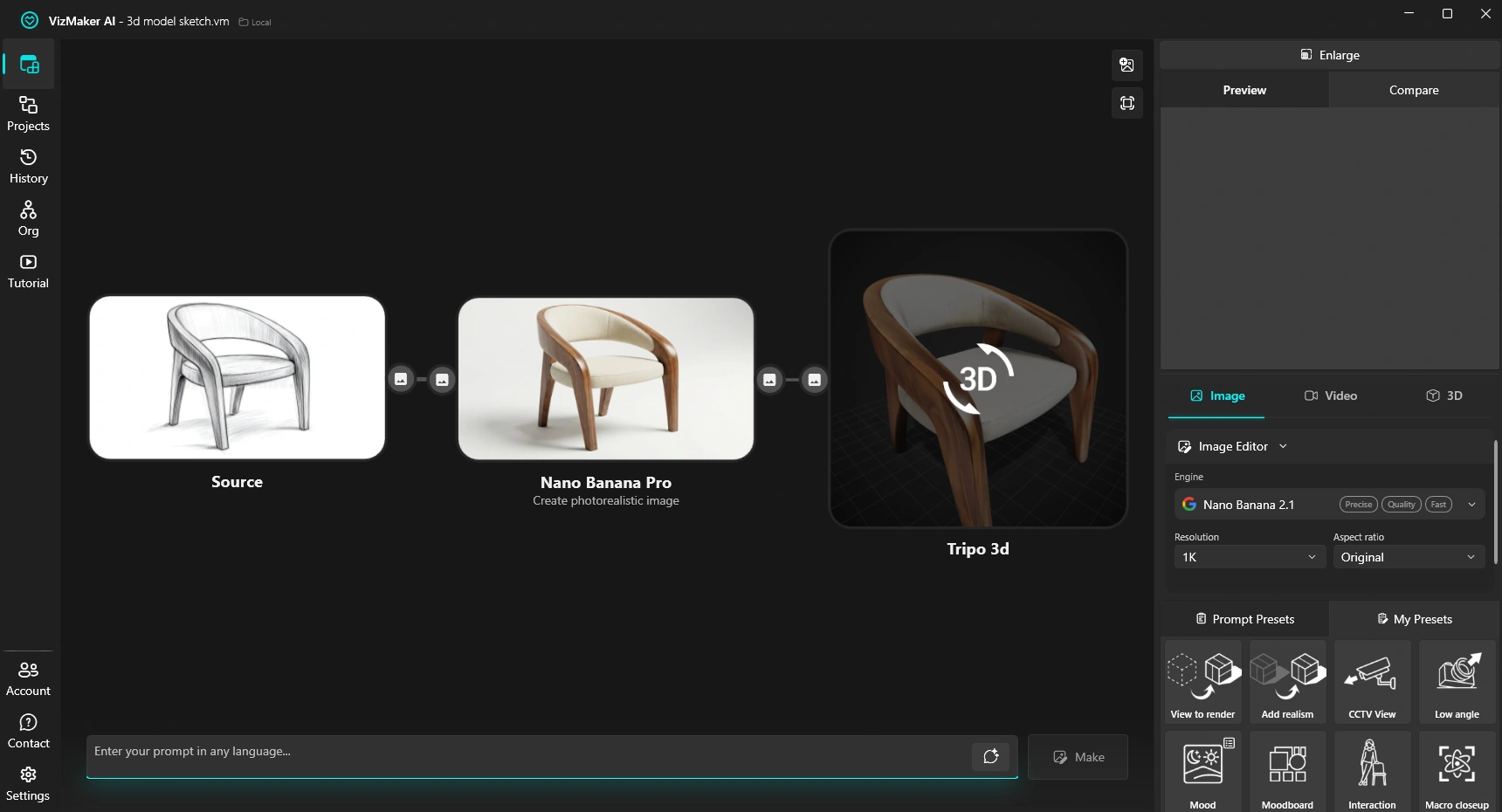
Isolate the object on a neutral background, select 3D Model Creator and generate a mesh. Inspect it from more than one side before export. An attractive front view can hide missing structure or weak geometry on the back, underside or inside of an object.
Import a supported format into Blender and check the asset’s scale, topology, normals and materials. Decide whether it can be used as a background prop, needs cleanup or should serve as a modelling reference. A hero object seen close to the camera deserves more scrutiny than a small element in an early concept image.
Develop images into short AI animations
After choosing a still, use VizMaker Video Creator to develop a shot. A slow reveal, a small approach to the subject or a change in atmosphere can support a design presentation. Available engines include families such as Kling, Seedance and Veo; the options depend on the installed version and selected model.
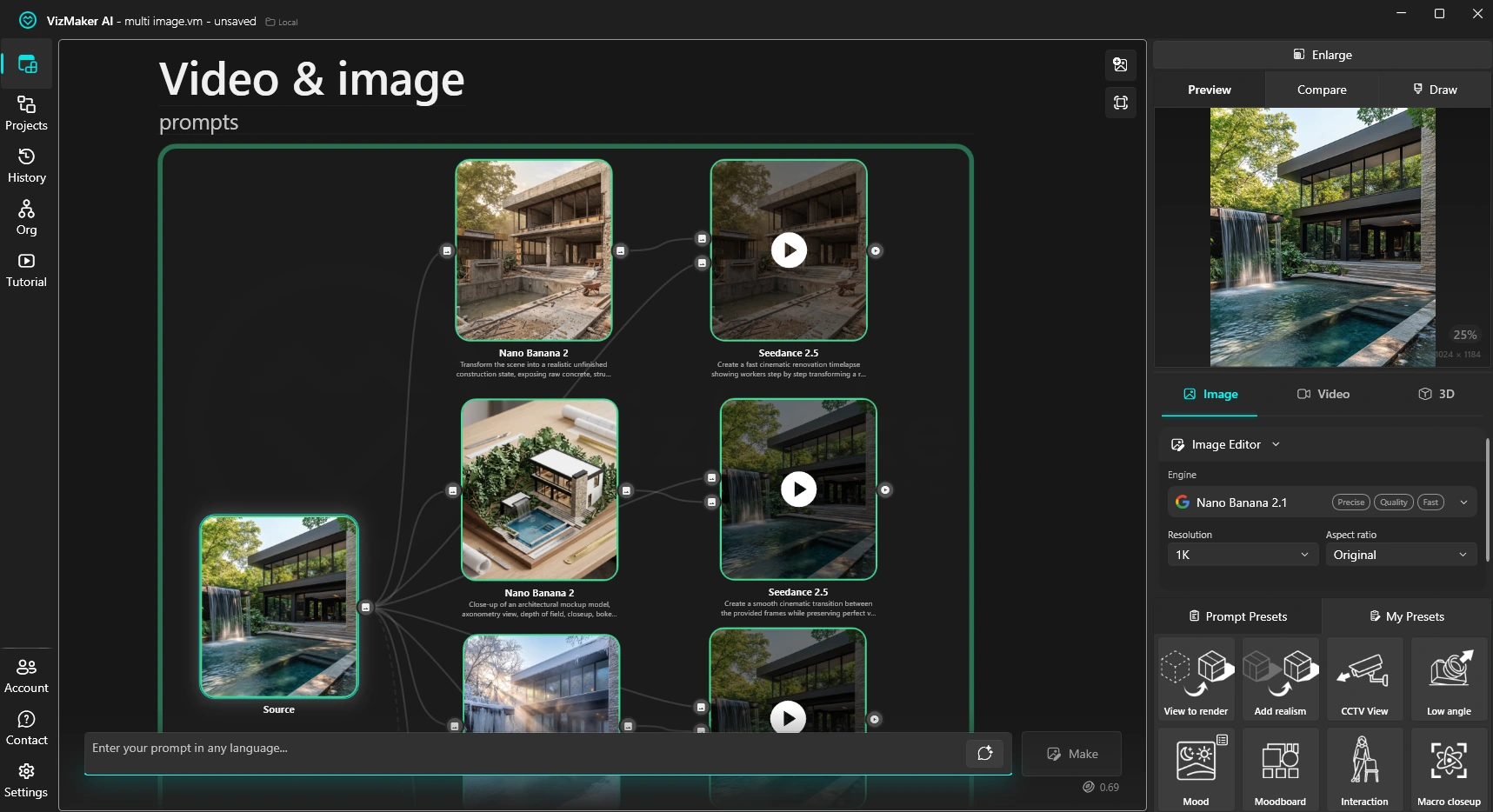
Where supported, first and last frames provide two visual anchors for a transition. Review the movement between them: furniture can drift, materials can change and reflections can become inconsistent. Keep the brief focused on one action so it is easier to judge the result.
A generated video does not automatically include Blender keyframes, rigs or an editable scene. For a delivery that requires precise object motion or a repeatable camera path, build those controls in the 3D animation workflow. AI video is useful for presentation clips and motion studies within a broader production process.
Upscale and refine the selected render
AI upscaling for Blender renders can be used on a developed concept image or an existing rendered still. The ebook documents Pro Upscaler and Magnific tools, with comparison controls for assessing detail and similarity. Choose the degree of enhancement around the subject.
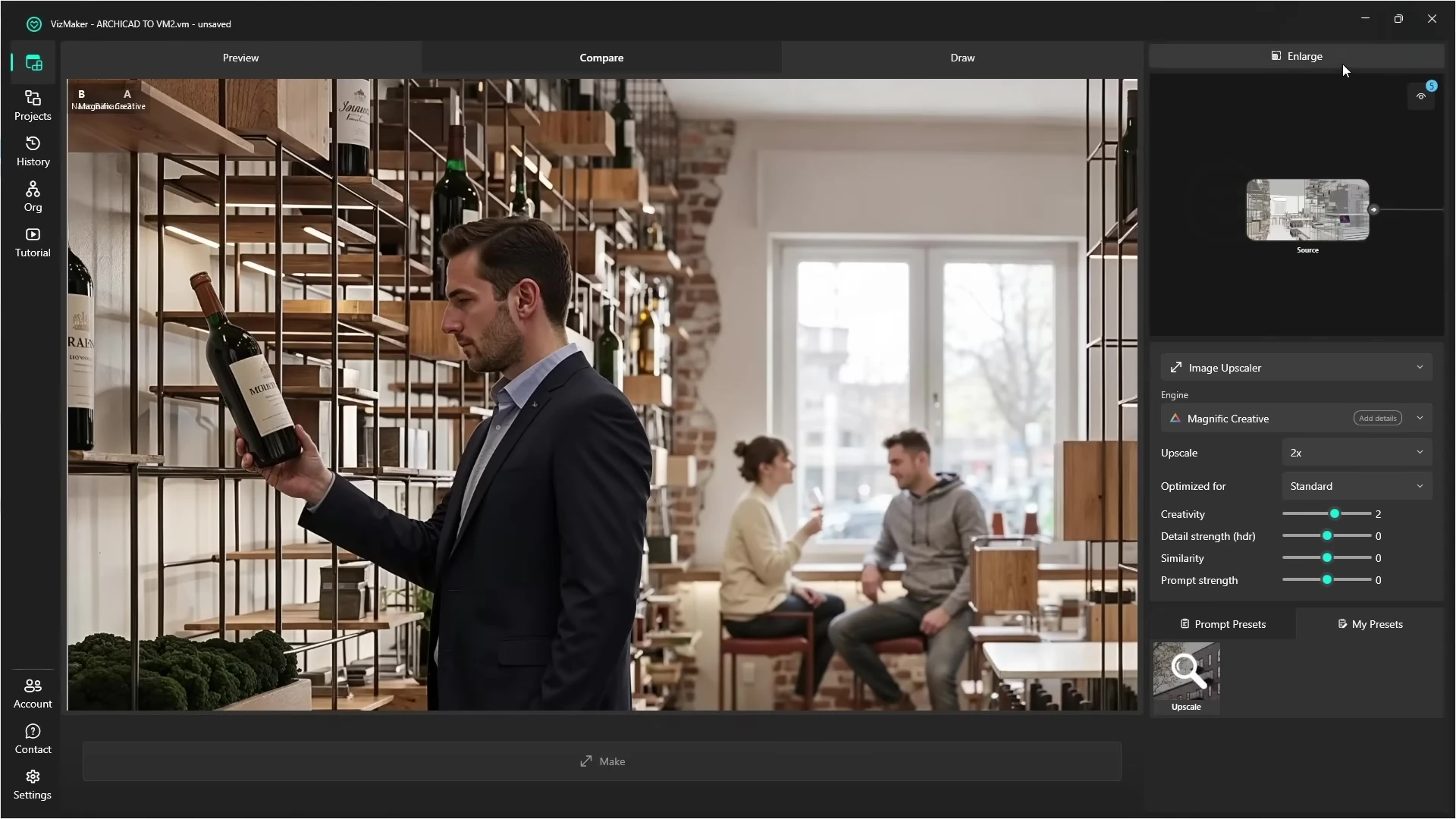
The accompanying video demonstrates the shared upscaling stage using an Archicad-sourced interior. For Blender work, inspect fabric, foliage, hard edges and any feature that identifies a specific product. Review at full size before approving the output; added detail should reinforce the intended image rather than introduce a new design.
Fit AI into an artist’s rendering workflow
If you are searching for a Blender AI rendering plugin, define the bottleneck first. VizMaker can help explore an image direction, edit a presentation still, develop a short clip or generate an asset starting point. Blender remains the place to resolve the scene, its reusable geometry and the controlled production work that follows.
The video below uses Archicad for the initial view transfer and then demonstrates the common VizMaker image, animation and upscaling workspace. The Blender-specific menu is shown in the ebook screenshot at the start of this guide.
Frequently asked questions
Where is Send view to VizMaker in Blender?
The supplied guide shows the command in the 3D Viewport's View menu, alongside a VizMaker toolbar icon. Install the integration for the Blender version available in your VizMaker installer.
Is VizMaker selected as a native Blender render engine?
The documented integration sends a view to the VizMaker desktop app. AI generation and editing then happen in VizMaker's workspace.
Can I use AI-generated models in a Blender workflow?
VizMaker can generate and export mesh assets from reference images. Import a supported format, then inspect scale, topology, normals and materials before relying on the result.
Does an AI video contain editable Blender animation?
A generated video is a presentation output. It does not automatically provide Blender keyframes, rigs or a reconstructed animation scene.
Continue your VizMaker workflow
Explore other VizMaker integrations: 3ds Max · Revit · Archicad · SketchUp · Rhino · Unreal Engine
Bring your next Blender view into VizMaker
Download VizMaker, install the integration for your setup and explore AI rendering, image editing, upscaling, animation and 3D creation from one workspace.
Download VizMakerAbout this guide: VizMaker was created by designer Wojciech Jurkowski. This article draws on the supplied VizMaker Guide Ebook, original application screenshots and the VizAcademy UK Archicad tutorial. The cover is an AI-generated editorial illustration; the in-article software screenshots and video frames show the real application. Interface details, available engines and supported host versions can change. Check the current plugin manager and VizMaker website for your setup.

VizMaker for Unreal Engine: AI Visuals for Architectural Storytelling
Add VizMaker to Unreal Engine for AI architectural look development, image-based animation, upscaling and 3D asset concepts alongside your real-time scene.

Photorealistic 3D rendering is used in many professional disciplines – design and architecture among them. 3D renderings are an excellent way to communicate the intended structure and operation of a scenario, building or machine online quickly.
VizMaker for Rhino: AI Rendering for Architecture and Product Design
Develop Rhino views into AI architectural and product visuals with VizMaker. Explore materials, animate concepts, upscale images and generate 3D mesh assets.