VizMaker can generate a 3D model from a photograph or a rendered sketch, using integrated engines such as Meshy AI and Tripo 3D. For architectural visualisation, this offers a practical route from a furniture reference to a scene asset that you can inspect, export and refine.
In this tutorial, Wojciech Jurkowski works through a sofa, a table, a generated character, an architectural sketch and a building photograph. The examples show where image-to-3D generation can help—and why the model still needs a designer’s review.
Turn a furniture photograph into a usable starting model
Finding an exact furniture asset can take longer than composing the room itself. If you have a useful reference photograph, the tutorial shows another starting point: drag it into VizMaker, choose 3D Model Creator and generate an asset with the available engine.
The first example uses a sofa photograph and compares results from Tripo 3D and Meshy AI. The reported generation times differ in this particular run, but the more useful comparison is visual: inspect the silhouette, cushions, underside and geometry with and without textures.
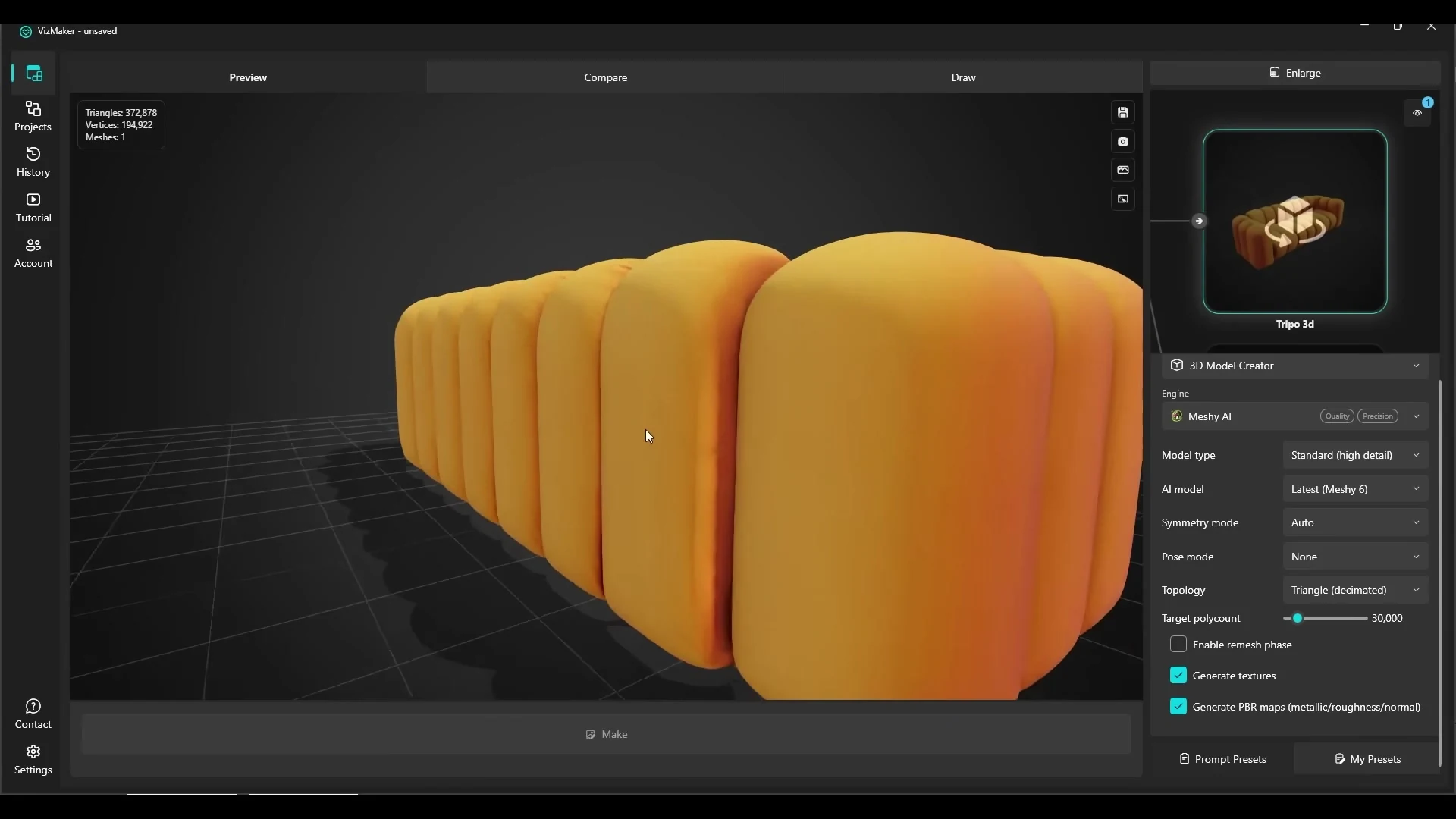
A convincing texture can hide a weak shape. Rotating the model and checking its untextured form helps reveal whether it is suitable for the camera angles you plan to use.
Export the asset and finish it in your design software
The recording demonstrates exporting generated models in GLB and OBJ formats, then bringing them into SketchUp or 3ds Max. It also shows material adjustments and an interactive render in a scene.
For the sofa, the workflow uses the generated texture with a Corona material, adjusts the surface appearance and corrects the scale in the scene. This is an important part of using AI-generated furniture models: generation provides a starting asset, while scale, material setup and placement determine whether it belongs in the project.
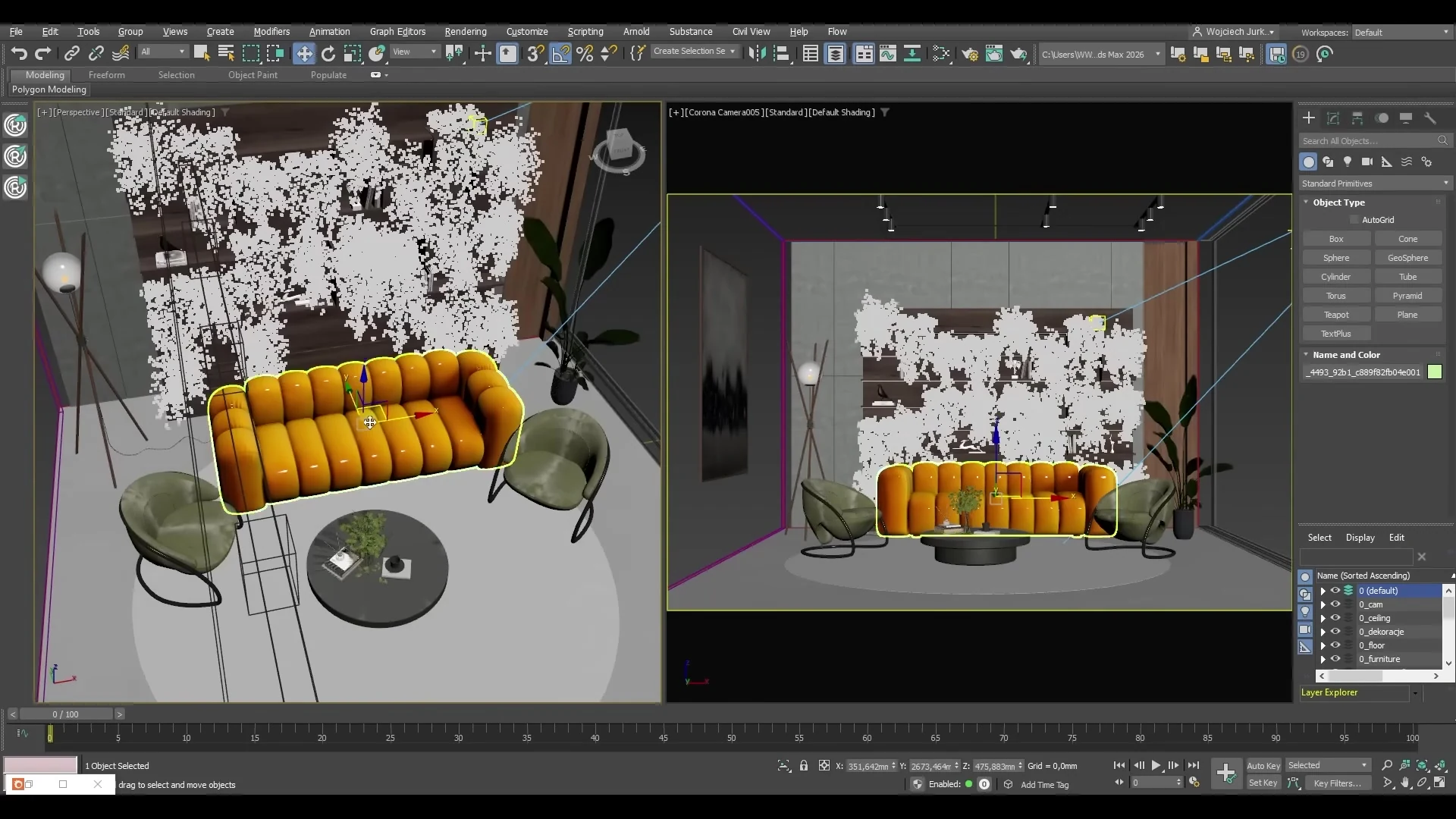
Before using an asset in a client deliverable, check its proportions against reliable dimensions. A model reconstructed from one image does not establish the hidden geometry or exact manufacturer specification.
Isolate an object before generating its geometry
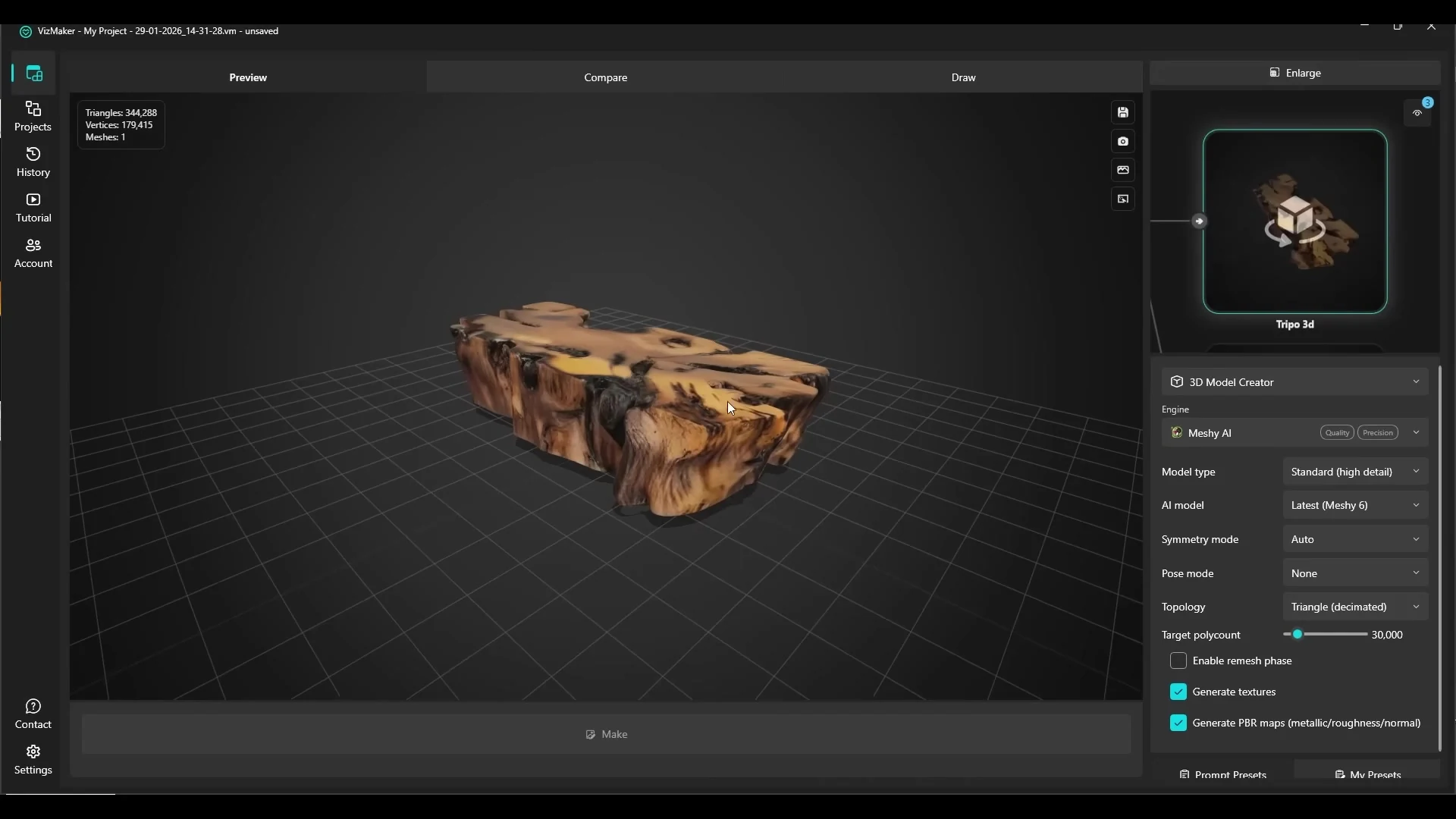
An object embedded in a busy interior photograph can be harder to interpret. The tutorial isolates a table onto a plain white background with the Image Editor before sending that image to the 3D model tools.
This gives the generator a clearer visual subject and reduces distracting surroundings. The resulting table is inspected as geometry, then exported for further use. The same principle can help with chairs, lighting, decorative objects and other scene assets, provided the source shows their form clearly.
Move from a sketch to a rendered concept and then to 3D
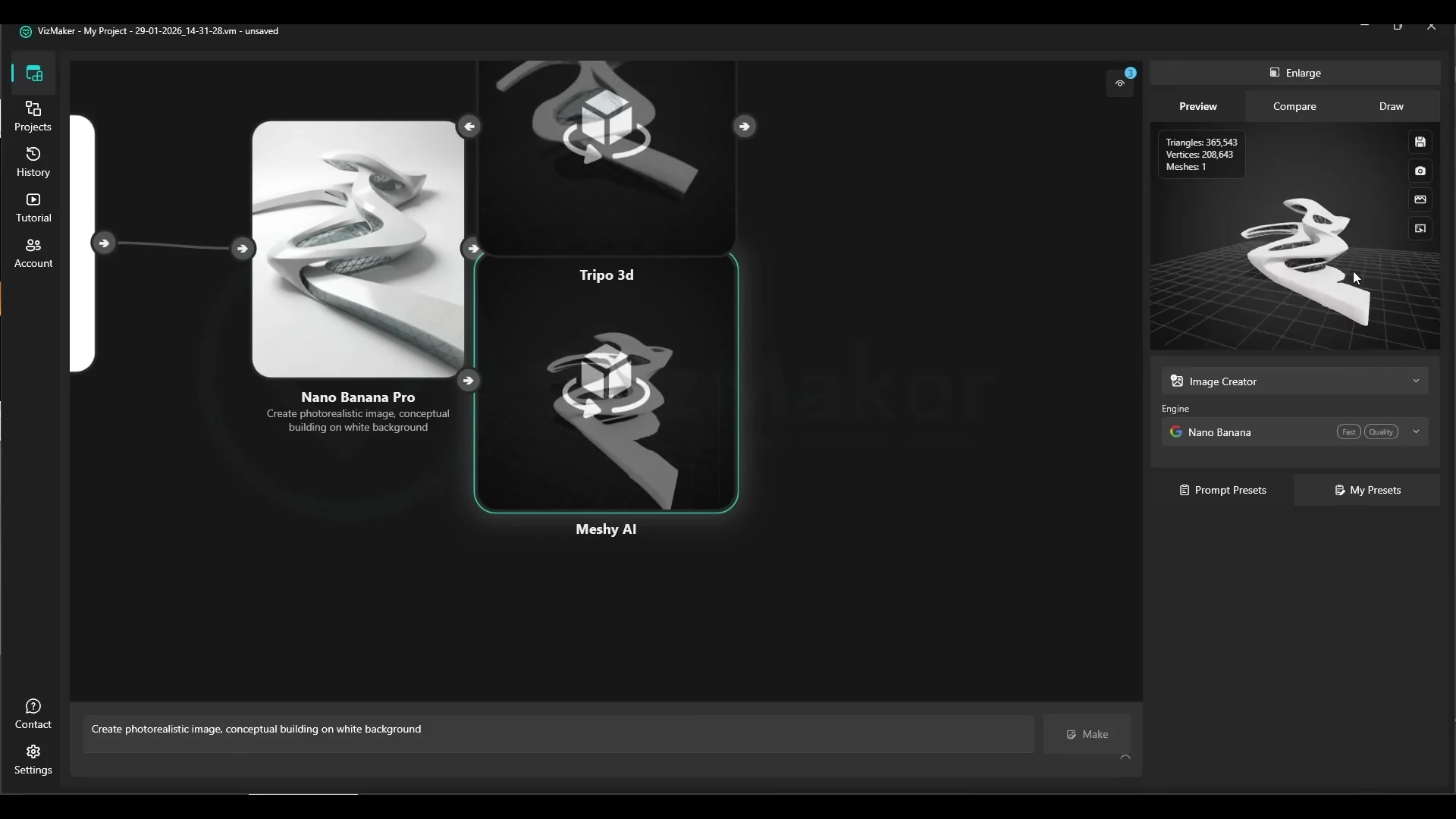
The architectural example uses a two-stage process. First, a sketch becomes a more descriptive rendered image. That image then provides the input for sketch-to-3D modelling.
This can help explore a concept’s massing or produce a starting object for further work. It does not turn an illustrative sketch into verified construction geometry. Continue modelling and checking the result in your design software, especially if the project depends on precise dimensions, façades or connections.
Choose the engine by the asset, not by one universal ranking
The tutorial’s comparisons vary by example. Both engines produce useful results for some furniture, while other subjects show a more noticeable difference in shape or detail. A building photograph also exposes problems with clutter and areas not clearly visible in the source.
For your own workflow, compare the output against the intended use. A background object, a hero furniture shot and a character close-up place different demands on geometry and textures. Time saved during generation is only useful if the asset remains economical to finish.
A practical checklist before adding an AI asset to a scene
- Inspect the model from the angles that your cameras will show.
- Check its scale and overall proportions against the project.
- Review geometry without relying only on textures.
- Adjust materials for the renderer you are using.
- Keep the reference image available while refining the model.
Frequently asked questions
Can VizMaker generate a 3D model from one photo?
Yes. The tutorial demonstrates single-image model generation with the integrated Tripo 3D and Meshy AI engines, using furniture and other subjects.
Which export formats are shown?
The recording demonstrates GLB and OBJ exports and shows models being brought into SketchUp and 3ds Max for further work.
Are generated models ready to use without adjustment?
They need review. The tutorial checks geometry and demonstrates scale and material adjustments before using a generated asset in an architectural scene.
Continue your VizMaker workflow
- From 3D Viewport to Client Presentation: An AI ArchViz Workflow
- From Architectural Drawings to an AI Skyscraper Presentation
Try this workflow in VizMaker
Start with a source image or project that you know well, follow the demonstration and compare the result against your design brief.
Download VizMakerVideo source: 3d model generator. Incredibly good, published 29 January 2026. Video by Wojciech Jurkowski; voice by Michał Wojcieszczyk. All screenshots above were extracted from this recording. This guide describes the demonstrated workflow; available models, interface details and offers may change. Visit the official VizMaker website for current product information.

Build a consistent AI avatar, product photoshoot, edited images, video ad and posters in VizMaker with Anna Jurkowska's practical campaign workflow.
5 Reasons to Use VizMaker for Architectural Visualisation
See how VizMaker supports architectural visualisation with design variants, connected AI tools, reusable prompts, visual branches and free tutorials.
VizMaker for Revit: AI Rendering from BIM Views to Client Presentations
Turn Revit views into AI architectural visuals with VizMaker. Explore facade options, interior concepts, animation, image upscaling and 3D asset workflows.