Guide updated: 29 October 2026.
VizMaker for 3ds Max connects your working views to AI rendering, image editing, upscaling, animation and 3D model generation. For an architectural visualisation artist, its most useful contribution is the shorter route from a camera view to a visual option that a client can discuss. Keep building the scene in 3ds Max, then use VizMaker to explore how that scene could look and how to present it.
A client asking for a warmer living room, a different chair or an evening version is asking a design question. You may want to explore several answers before investing in a final render setup. This guide follows the plugin tools documented in the VizMaker Guide Ebook and uses real screenshots from the app alongside a shared rendering demonstration.
Four plugin tools for a practical 3ds Max AI rendering workflow
The guide documents four separate commands. Understanding their roles helps you choose between a controlled image-editing session and a quicker set of concept outputs.
- Send Viewport to VizMaker transfers the current view so you can choose the next AI operation in the app.
- Instant Render sends the view and starts image generation using the configured settings.
- Batch Render lets you select multiple camera views and send them together, with an option to generate the images automatically.
- Render Settings lets you select an engine, write a prompt and adjust the available render options.
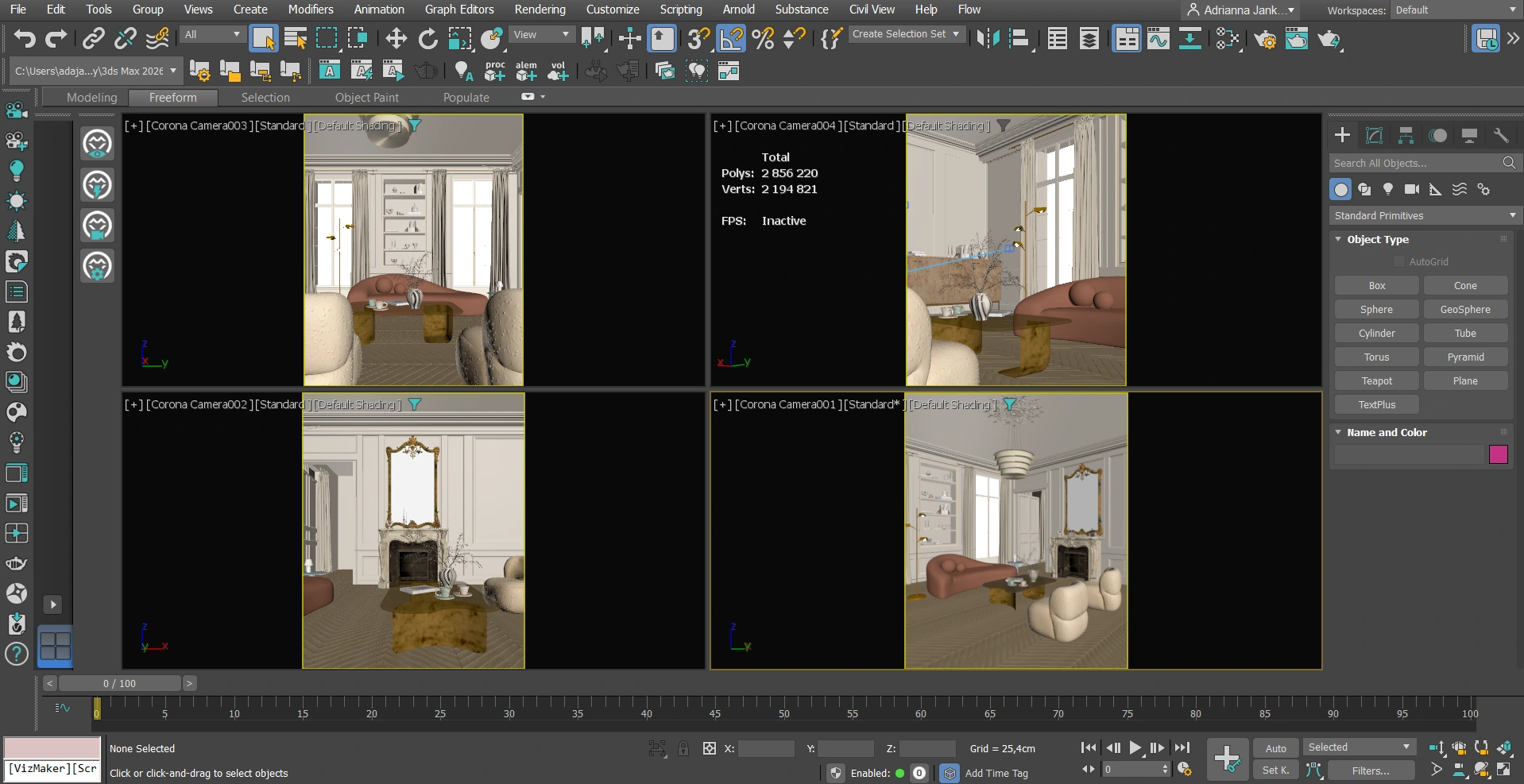
For an interior presentation, prepare a room overview, a second angle and a material close-up. Batch transfer keeps those views together, while the node workspace lets you retain each source and its alternatives. Use a consistent brief across the views, then check whether the furniture, finishes and lighting remain coherent.
Install the integration and prepare a useful source view
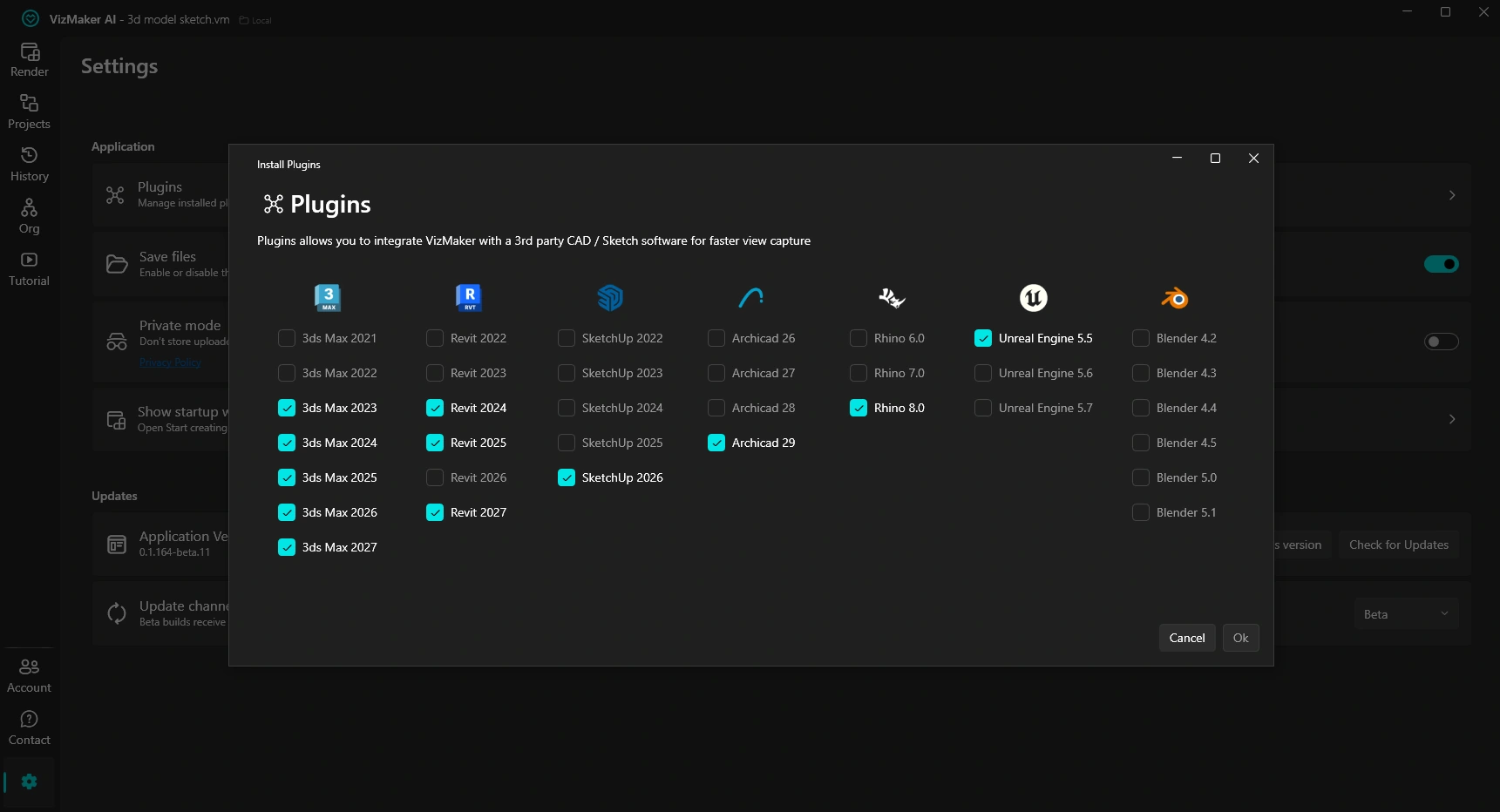
Open VizMaker and go to Settings > Plugins. Select the installed 3ds Max version offered by the plugin manager and confirm. If the host program was open, restart it so the installed tools can load. The available version list depends on the VizMaker build and the applications installed on the computer.
Before sending a view, compose the camera and remove distracting viewport overlays. Make the important forms legible: a window opening, a furniture arrangement or a ceiling feature should already read clearly. A material view can communicate the intended palette; a clay view can be useful when the form is settled but the finishes are still open.
In VizMaker, select the received image, choose Image Editor and an available image engine, then use the View to Render preset or write a specific instruction. A useful brief might be: “Develop this living room into a warm daylight presentation with oak joinery, pale limestone and cream upholstery; keep the camera, openings and furniture arrangement.” Review whether the result actually follows that brief.
Where AI fits when choosing a 3ds Max rendering engine
If you are searching for an AI rendering engine for 3ds Max, first decide which stage you need to accelerate. VizMaker is useful for visual exploration, presentation variants and image finishing. Its generated output is an interpretation of the supplied view and prompt. A scene-based renderer remains useful for repeatable geometry, exact object placement and controlled material and lighting calculations.
A productive sequence is to explore several looks with AI, approve one with the client and then resolve the selected design in the scene. You can also bring an existing finished render into VizMaker for a focused edit. This makes the app useful both before and after a conventional rendering stage.
Improve materials and presentation detail with AI upscaling
Once the image direction works, use Image Upscaler to prepare the selected version for a larger presentation. The ebook describes Pro Upscaler and Magnific options with different approaches to detail and similarity. Select the approach around the task: controlled refinement for a specified product, or more creative enhancement for an atmospheric concept.
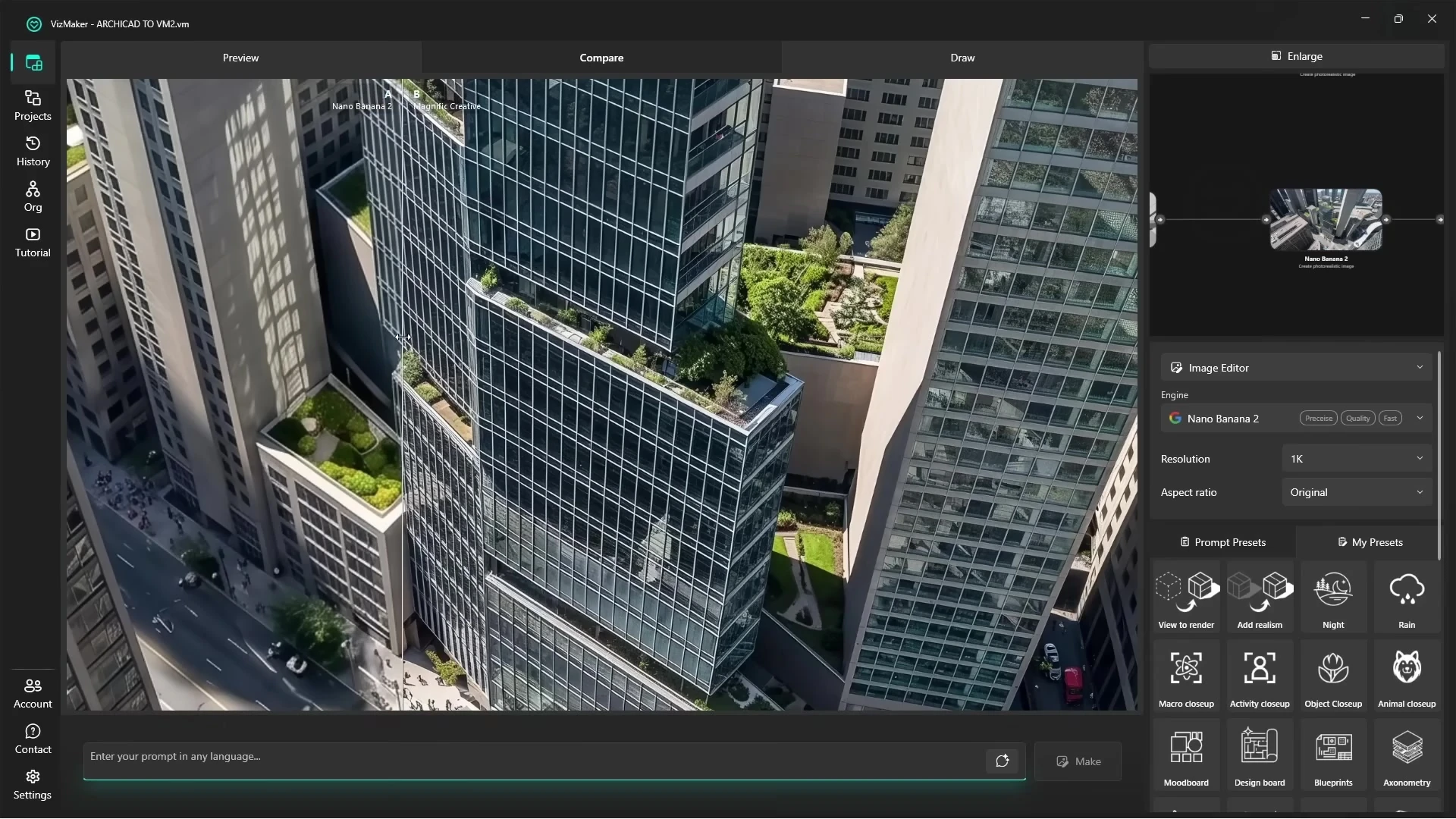
The supplied Archicad video shows the shared VizMaker upscaling workflow on façade texture, greenery and reflections. Those tools operate on the image in VizMaker, so the same finishing stage can follow a view transferred from 3ds Max. Compare the source and result at full size; more texture is useful only when it supports the intended design.
Create an architectural animation from selected images
AI architectural animation begins with a strong still. In Video Creator, choose an available engine such as Kling, Seedance or Veo, describe a deliberate camera move and review the generated shot. Engines supporting first and last frames can use two images to guide a transition, such as a room overview moving towards a seating detail.
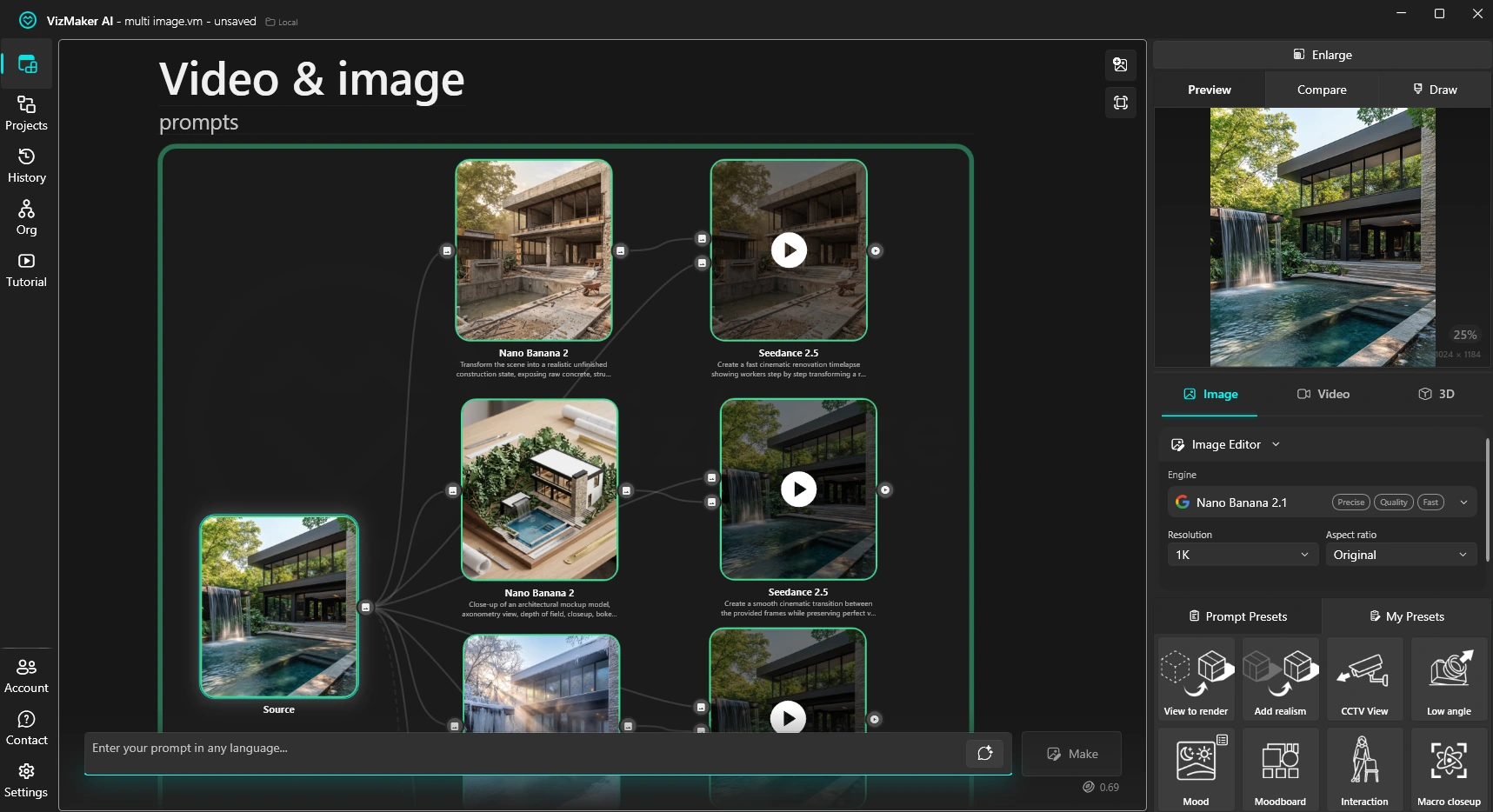
Plan the clip around one idea: reveal the glazing, approach the fireplace or show the atmosphere changing. A short shot is easier to review for drifting furniture, changing reflections and inconsistent geometry. If the delivery requires an exact camera path and frame-by-frame scene control, keep that requirement in the 3D animation pipeline.
Generate furniture and props for the next scene iteration
A distinctive chair in a sketch can be difficult to source as a ready-made asset. VizMaker’s 3D Model Creator offers an image-to-model route using engines such as Tripo 3D and Meshy AI. The supplied example develops a chair sketch into a more complete image and then a 3D object.
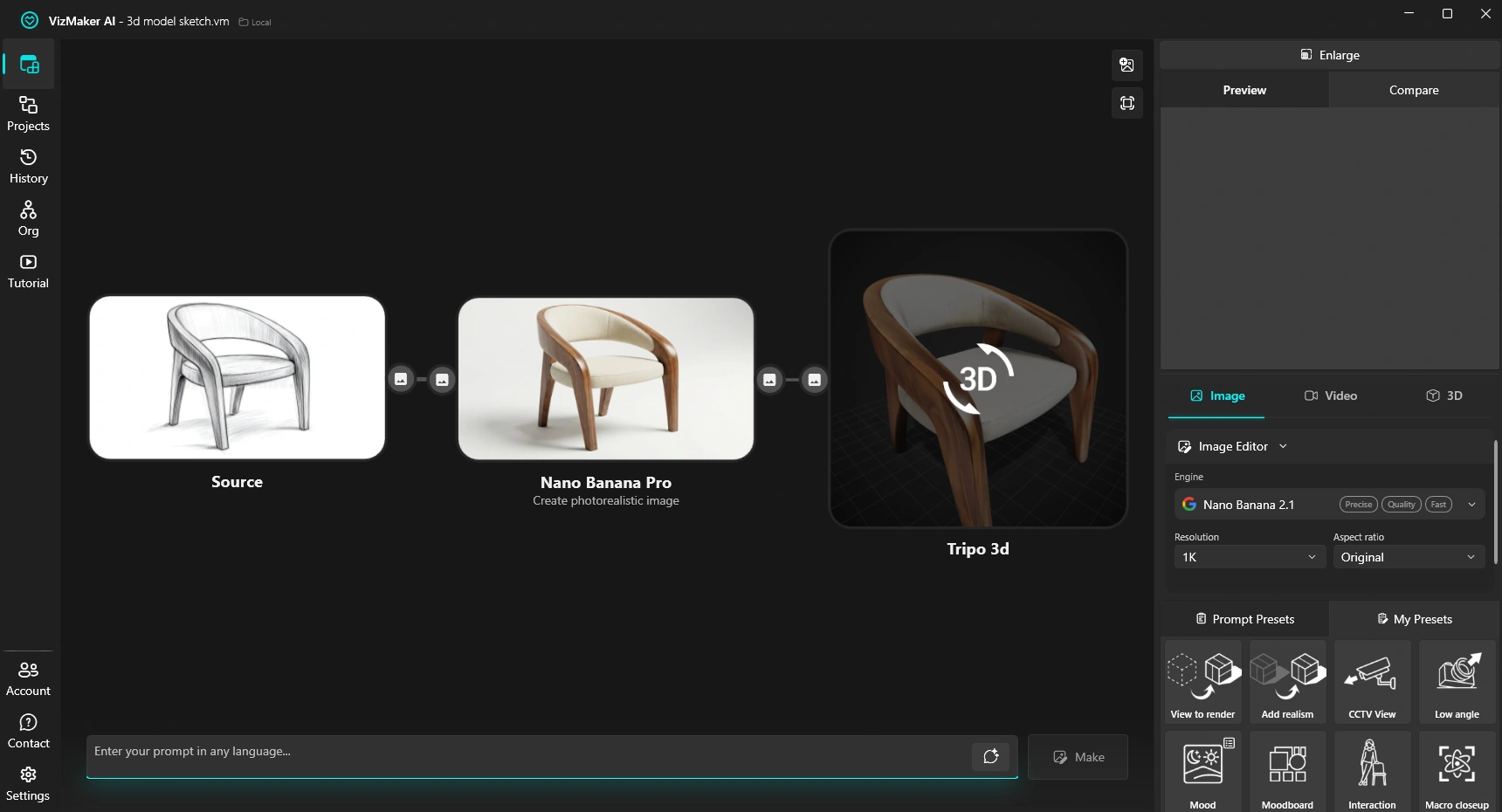
Start with an isolated object on a neutral background. Generate the model, inspect it from several angles and export an appropriate format; the guide demonstrates OBJ as one option. Before placing the asset in a production scene, check dimensions, topology and material appearance. This is particularly helpful for concept furniture and background props that would otherwise interrupt the visualisation process.
Watch the shared rendering and finishing workflow
The following tutorial uses Archicad as its source application. Its image-editing, upscaling and video stages demonstrate the VizMaker tools discussed here; the 3ds Max plugin controls are shown in the ebook screenshot above.
Frequently asked questions
What does the VizMaker plugin add to 3ds Max?
The guide documents four tools: Send Viewport, Instant Render, Batch Render and Render Settings. They connect 3ds Max views to VizMaker's AI image workflow.
Can I render several 3ds Max camera views with AI?
Yes. The documented Batch Render tool lets you select multiple views and send them to VizMaker, with an option to generate images automatically.
Can VizMaker generate furniture for a 3ds Max scene?
VizMaker's 3D Model Creator can turn an object image into a mesh using engines such as Tripo 3D or Meshy AI. Review the geometry, materials and real-world scale before using the asset.
Does AI rendering replace a physically based renderer?
AI rendering develops images from visual inputs and prompts. Keep a scene-based renderer when you need repeatable geometry, materials and lighting calculations for a final deliverable.
Continue your VizMaker workflow
Explore other VizMaker integrations: Revit · Archicad · SketchUp · Rhino · Blender · Unreal Engine
Bring your next 3ds Max view into VizMaker
Download VizMaker, install the integration for your setup and explore AI rendering, image editing, upscaling, animation and 3D creation from one workspace.
Download VizMakerAbout this guide: VizMaker was created by designer Wojciech Jurkowski. This article draws on the supplied VizMaker Guide Ebook, original application screenshots and the VizAcademy UK Archicad tutorial. The cover is an AI-generated editorial illustration; the in-article software screenshots and video frames show the real application. Interface details, available engines and supported host versions can change. Check the current plugin manager and VizMaker website for your setup.

Nowadays, modern technologies and innovative solutions are being used more and more willingly and boldly. A great example of this is computer graphics – special effects in movies and computer games are getting better and better every year, offering an unforgettable experience.
From Architectural Drawings to an AI Skyscraper Presentation
Follow an AI skyscraper case study from architectural drawings to 3ds Max, Google Earth, VizMaker renders and animation—with practical modelling lessons.

VizMaker for Archicad: AI Rendering, Upscaling and Animation
Install the VizMaker Archicad plugin and develop model views into exterior renders, interior concepts, AI animations, upscaled images and 3D asset ideas.