An AI ArchViz workflow can turn existing 3D views into a coordinated client presentation. In this VizMaker tutorial, the process moves from viewport captures to visualisations, detail enhancement, object editing, mood matching and short animated shots. The focus is on developing usable presentation material from a project you already have.
Wojciech Jurkowski demonstrates the workflow with exterior and interior scenes, using multiple cameras rather than treating each result as an isolated image.
Start with several views of the same design
One attractive image rarely answers every client question. A presentation may need an overall view, another angle, a material detail and a closer look at the focal point of a room.
The tutorial installs the appropriate VizMaker plugin from Settings and transfers camera views from 3ds Max into the workspace. SketchUp is also part of the demonstrated plugin workflow. In the Image Editor, Nano Banana Pro and a view-to-render preset develop the captured images into visualisations.
More than one generation can be made from the same view. Compare the candidates for composition, material quality and fidelity to the project, rather than selecting only the most dramatic image. The recording also demonstrates retrieving discarded versions from history.
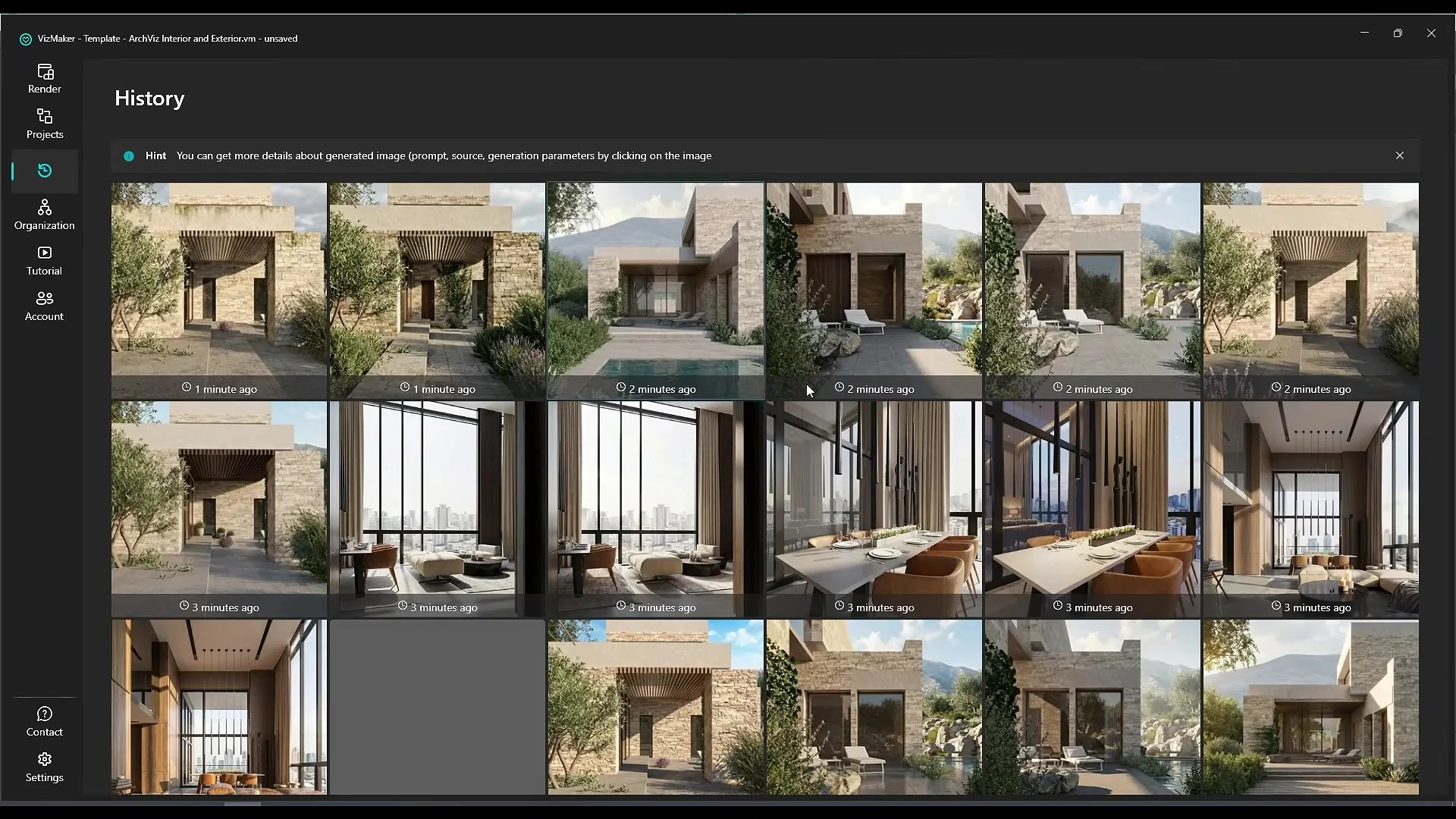
Enhance texture detail after choosing the composition
The next stage uses Magnific upscaling in VizMaker to refine selected renders. The video compares a Nano Banana Pro image against an upscaled result, then examines how different creativity and HDR settings affect surfaces, planting and distant details.
These controls change the interpretation of the image, not just its pixel dimensions. A stronger result in one area can introduce an unwanted change elsewhere. Inspect the image at full size and judge whether added texture still represents the intended stone, timber, fabric or vegetation.
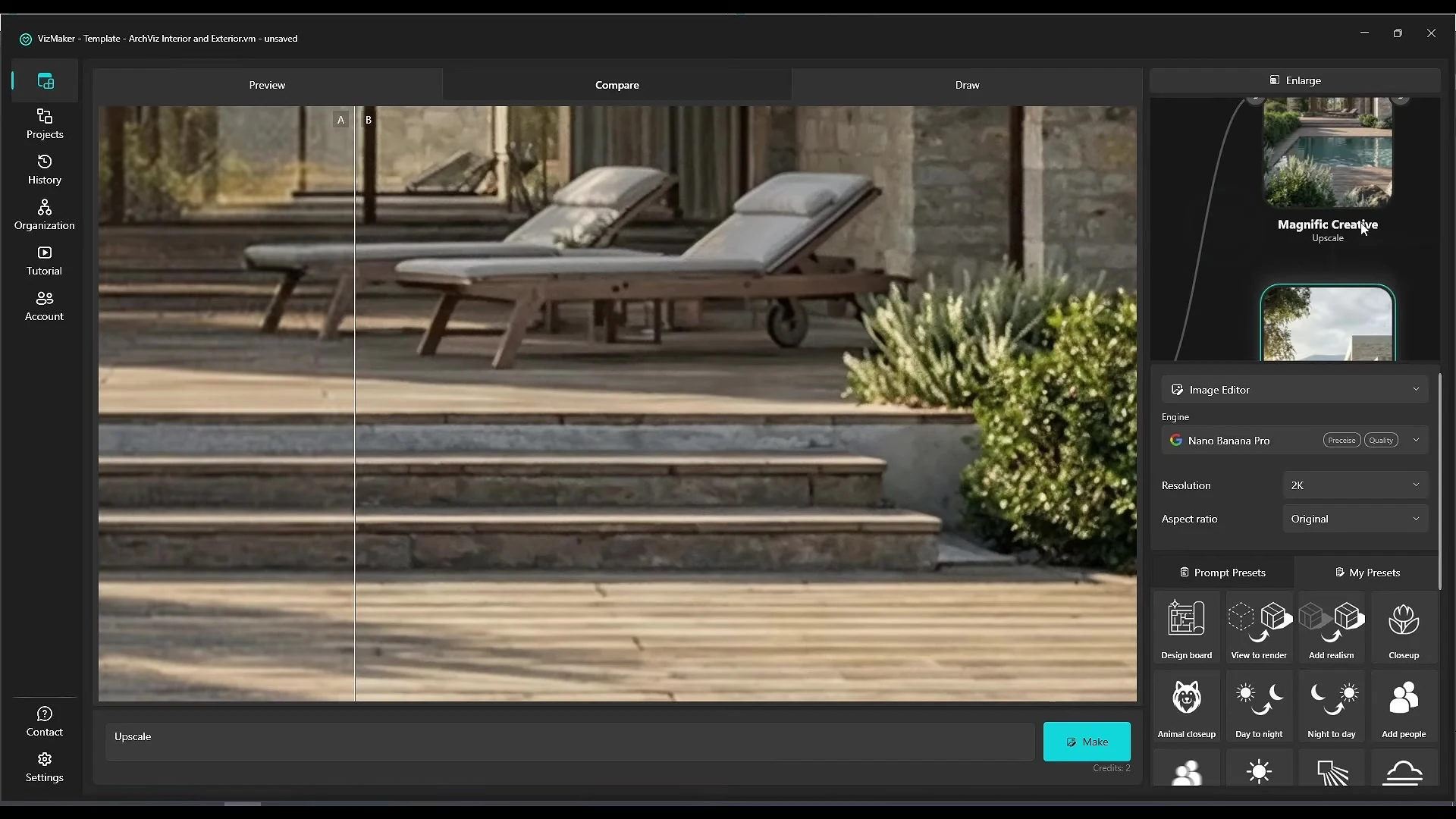
A practical approach is to settle the main composition first and then enhance the version you intend to present. That avoids spending finishing effort on alternatives that are unlikely to be used.
Build presentation variations from a selected render
The demonstration develops top views, close-ups, seasonal settings and design-board imagery from selected shots. These can help a designer discuss a project’s atmosphere and visual language across a presentation.
There is an important distinction in the video: generated plans, sections and dimensions are approximate. Use them for architectural concept presentation, and return to the model and project documentation whenever dimensional or construction accuracy matters.
Seasonal and close-up variations are especially useful when each image answers a specific question. A winter option might reveal the intended contrast of façade materials; a detail view might explain how a seating area should feel.
Make revisions with references and visual instructions
The tutorial replaces an armchair by connecting a reference image to the render. It then demonstrates coloured marks for adding and removing elements, and an arrow that identifies where a reference plant should appear.
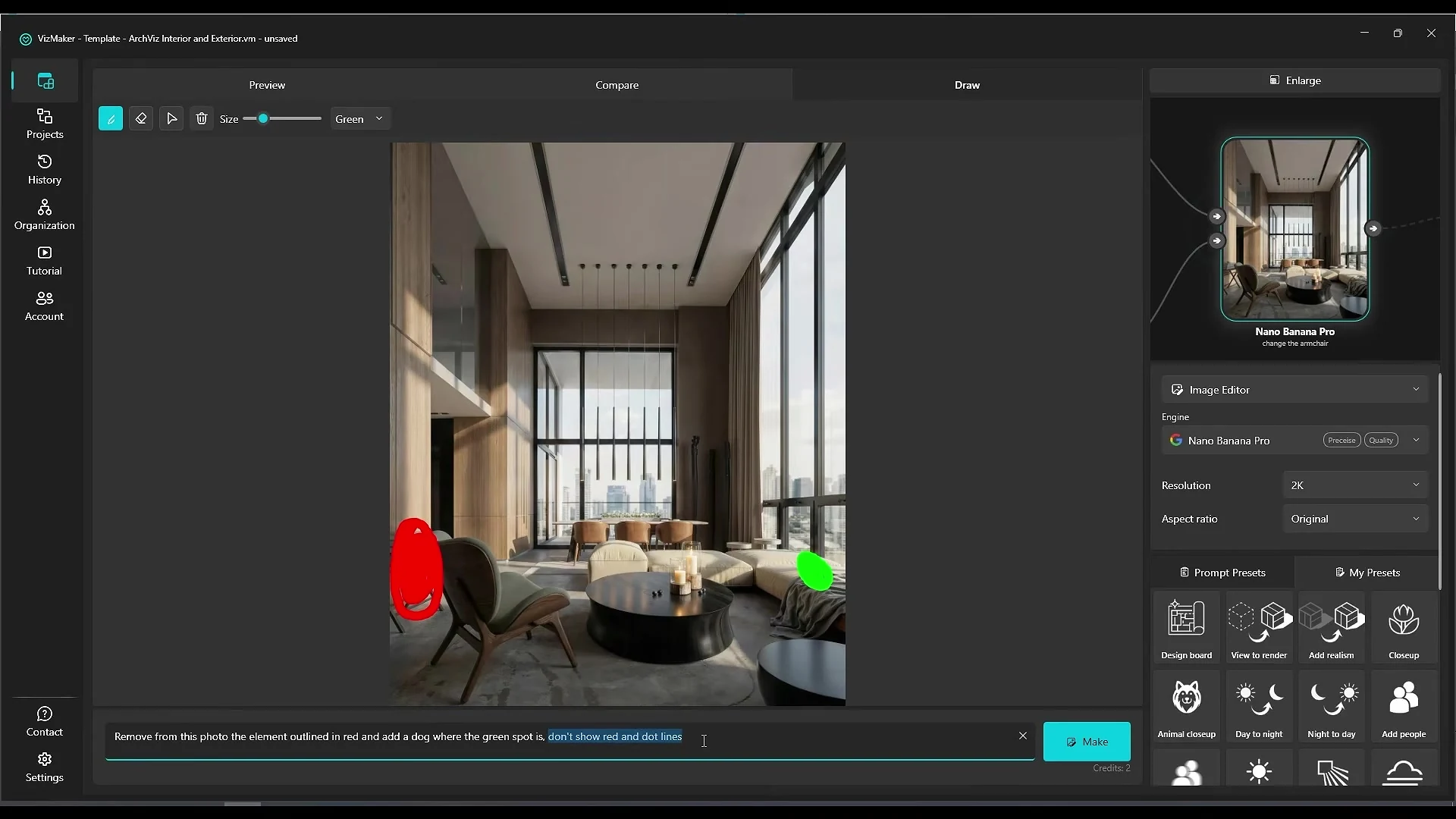
For AI image editing for interior design, these visual cues can communicate location more clearly than a long description. Combine related changes into a well-defined instruction when possible. The recording notes that repeated editing generations can degrade an image, so maintaining a good source and limiting unnecessary iterations is useful.
Guide lighting and match the mood of a reference
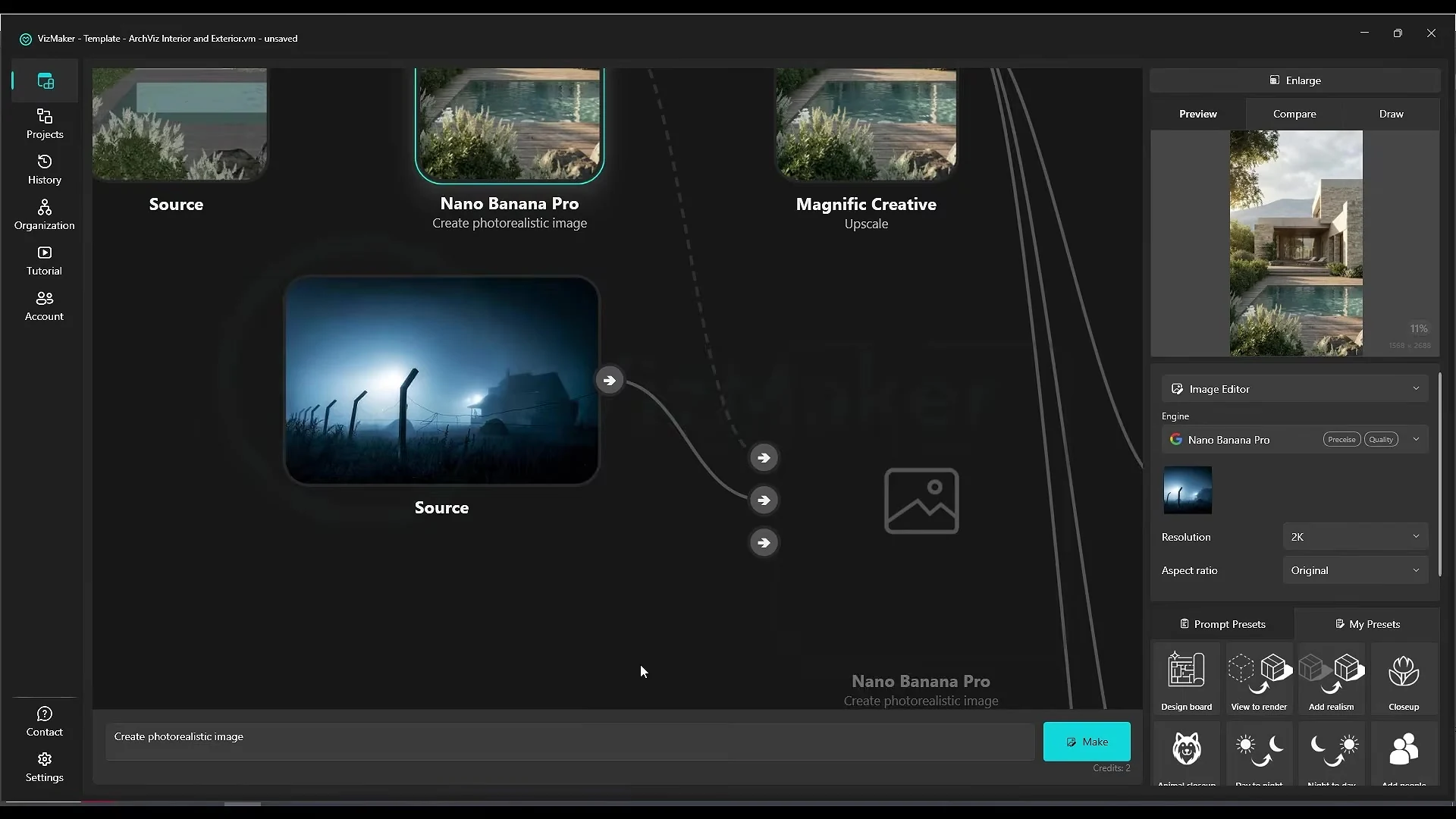
A viewport may not reveal windows that sit outside the camera frame. The video adds a separate lighting view as a reference to help communicate the room’s illumination. It also connects an inspiration image to an existing visualisation and asks VizMaker to match its mood.
Reference order matters: identify the image that contains the design and the image that supplies the atmosphere. Then review whether the result supports the project, rather than copying details from the inspiration unintentionally.
Turn selected shots into a presentation sequence
The final stage generates short camera movements from the chosen images and assembles them in a video editor. The demonstration uses CapCut for sequencing and speed changes after exporting from VizMaker.
For a coherent presentation, choose the order deliberately: establish the building or room, show another useful angle, then finish with a detail. The source tutorial demonstrates a complete workflow, but the appropriate number of images and clips depends on what your client needs to understand.
Frequently asked questions
What does the complete AI ArchViz workflow include?
The tutorial covers viewport capture, image generation, upscaling, presentation variations, reference-guided editing, mood matching and short animations.
Can generated plans and sections be used as technical drawings?
The video describes those outputs as approximate. Use them for concept exploration and rely on the project model and documentation for accurate dimensions and construction information.
Why review an image after upscaling?
Upscaling can introduce new texture and detail. Check that the result still represents the intended materials, objects and geometry rather than judging sharpness alone.
Continue your VizMaker workflow
- Image to 3D Model with VizMaker: Furniture, Sketches and Scene Assets
- VizMaker Live Preview: Turn 3D Viewport Motion into AI Animation
Try this workflow in VizMaker
Start with a source image or project that you know well, follow the demonstration and compare the result against your design brief.
Download VizMakerVideo source: This AI Tool should be banned – ArchViz on another level, published 12 February 2026. Video by Wojciech Jurkowski; voice by Michał Wojcieszczyk. All screenshots above were extracted from this recording. This guide describes the demonstrated workflow; available models, interface details and offers may change. Visit the official VizMaker website for current product information.
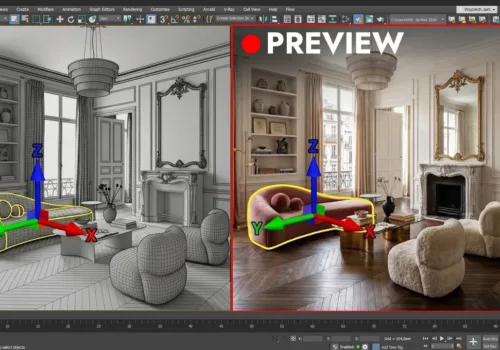
VizMaker Live Preview: Turn 3D Viewport Motion into AI Animation
Turn viewport recordings from 3ds Max, SketchUp and Revit into AI animation. Learn camera matching, reference frames and interior walkthroughs in VizMaker.
VizMaker for Revit: AI Rendering from BIM Views to Client Presentations
Turn Revit views into AI architectural visuals with VizMaker. Explore facade options, interior concepts, animation, image upscaling and 3D asset workflows.
VizAcademy PRO or LITE? How to Choose Your Online 3ds Max Training
Compare VizAcademy PRO and LITE: tutor-supported ArchViz training or self-paced study. Understand the support, resources and learning format before enrolling.