Guide updated: 29 October 2026.
VizMaker for Archicad connects a model view to an AI rendering and presentation workflow. Architects and interior designers can develop exterior and interior images, place visual elements, explore lighting and seasons, upscale selected results and create short animations within the VizMaker workspace.
The tutorial below follows that process from installation through finished presentation shots. It is particularly useful if you are looking for an Archicad AI rendering plugin that supports the work after the first image as well as the initial visualisation.
Install VizMaker for your Archicad version
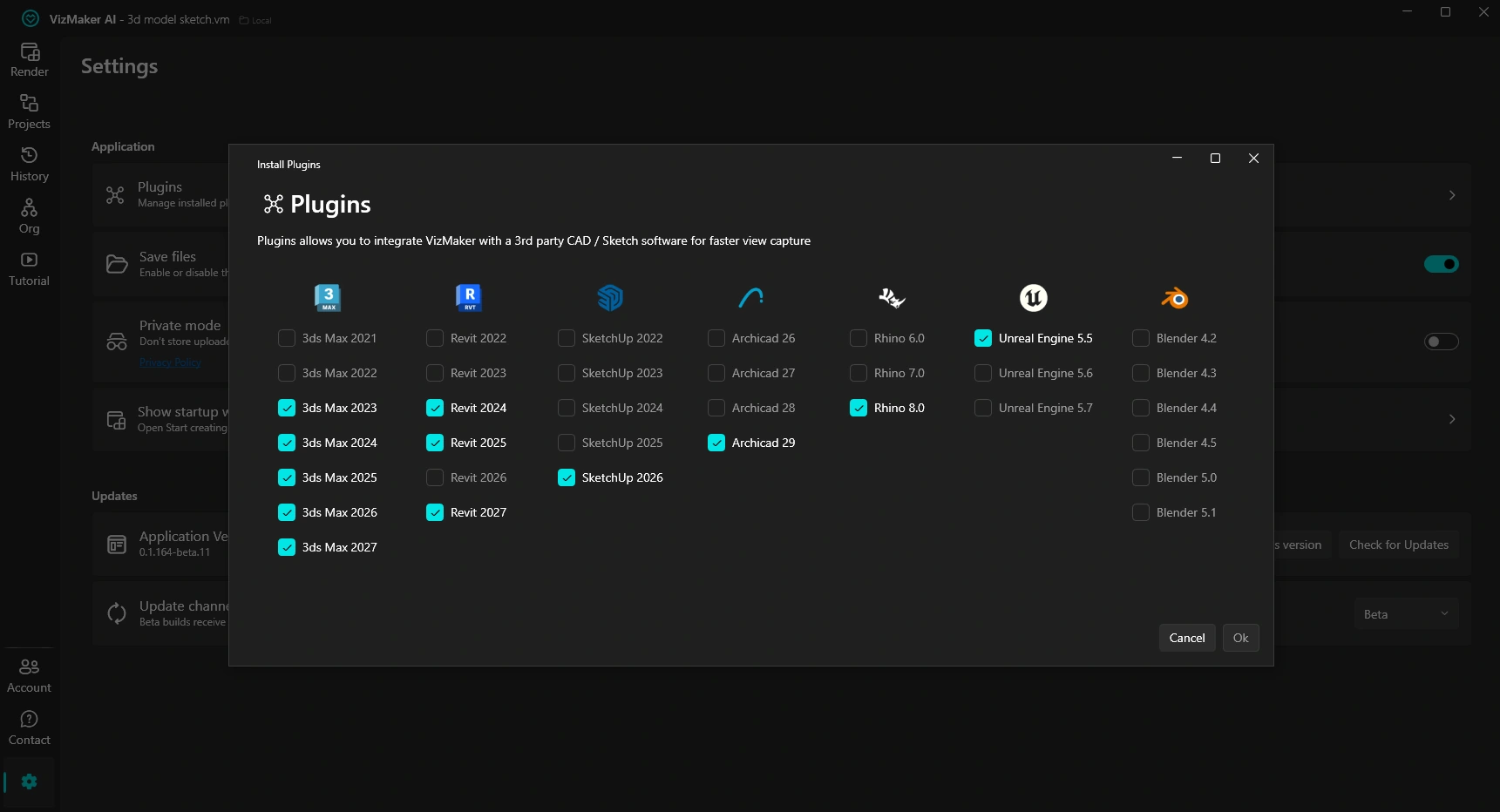
Open VizMaker, go to Settings > Plugins, select the Archicad version offered for your installed setup and confirm. The video explicitly recommends restarting Archicad if it was running during installation. Check the current version list in the app before starting a project.
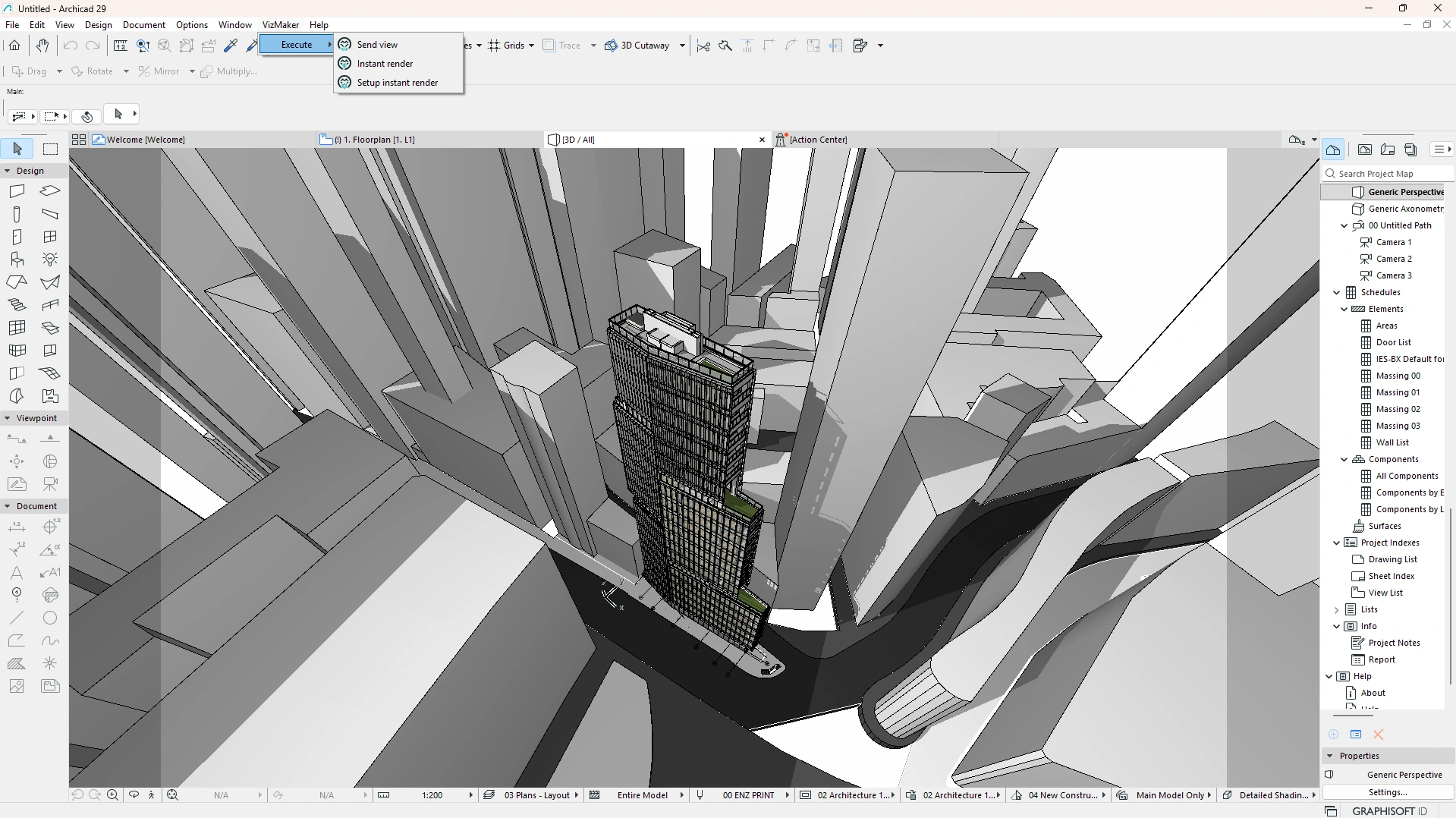
The supplied ebook shows the plugin under the VizMaker menu, with Send view, Instant render and Setup instant render commands. Send view transfers the working view into the app; the instant-render tools provide a more direct generation route with configurable settings.
Prepare the camera in Archicad first. Choose an angle that explains the building or room, and make sure the source view communicates its main volumes. The AI stage can develop the appearance, but a poorly composed source makes it harder to judge whether the proposed design is being represented clearly.
Compare several exterior renders before choosing a direction
In the recording, the presenter uses Nano Banana 2, a 2K output and a 16:9 format, generating two alternatives for each camera angle. These are the demonstrated settings rather than a compulsory recipe. Their practical value is the comparison: one view works better for lighting, another for greenery and another for its warmer atmosphere.
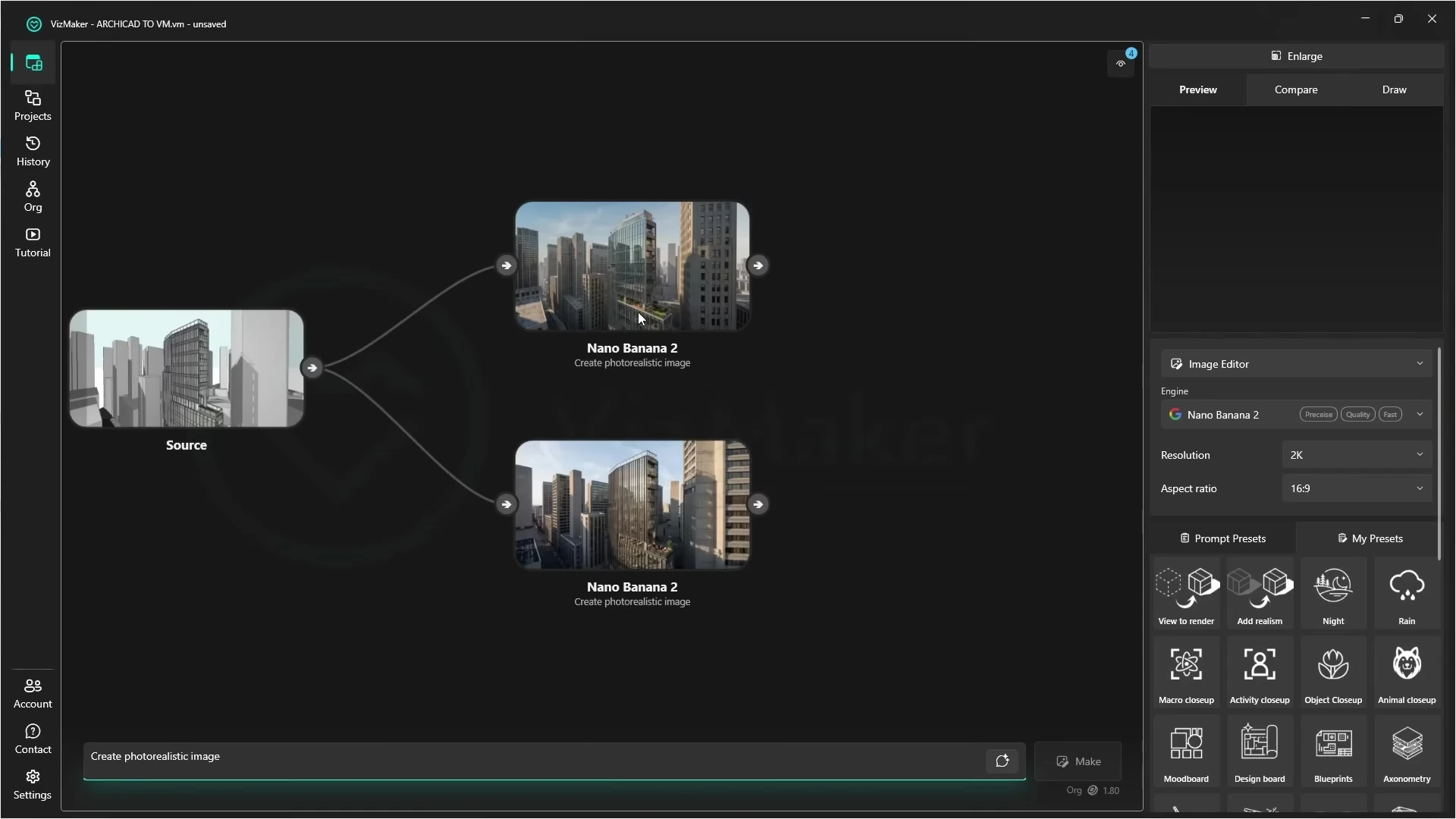
The tutorial also shows why review matters. A background skyscraper disappears from one generated option. Check neighbouring buildings, openings, rooflines and the relationship to the street before selecting a result. A visually attractive image still needs to describe the project you intend to present.
Add people, objects and seasonal atmosphere
The Image Editor can develop the activity and mood around the architecture. The video adds sharp or blurred people, places figures on a balcony and uses a drawn mark to guide a car into a chosen area. These operations help communicate scale and use when the initial model view feels empty.
Seasonal and lighting presets create autumn, winter and night-time alternatives. For a client presentation, use them to answer a question: how does the entrance read after dark, how does the landscape frame the building, or which view best communicates the design? Keep each option connected to its source so you can compare it with the original composition.
Blueprint-style and axonometric outputs can be useful presentation concepts. The recording itself includes imperfect results, so these images should not be presented as measured drawings. Keep Archicad’s model and coordinated documentation as the reference for dimensions and construction information.
Refine interiors with references and focused instructions
For the interiors, the presenter again generates alternatives and chooses the stronger result for mood, light distribution and shelving detail. People can be added with presets or rough drawn figures. This gives an interior designer a way to show how a hospitality, retail or residential space might feel in use.
A reference image can guide a styling change when a written description is not enough. Keep the reference relevant to the decision being made: a material palette, furniture character or atmosphere. Review the surrounding composition after the edit, rather than checking only the object you asked to change.
Upscale the selected render before delivery
AI render upscaling is a finishing stage, so apply it to a version worth developing. The tutorial demonstrates Magnific Creative, with a creativity setting of two for its example. That value is specific to the recording; choose your own settings around how much detail invention is appropriate.
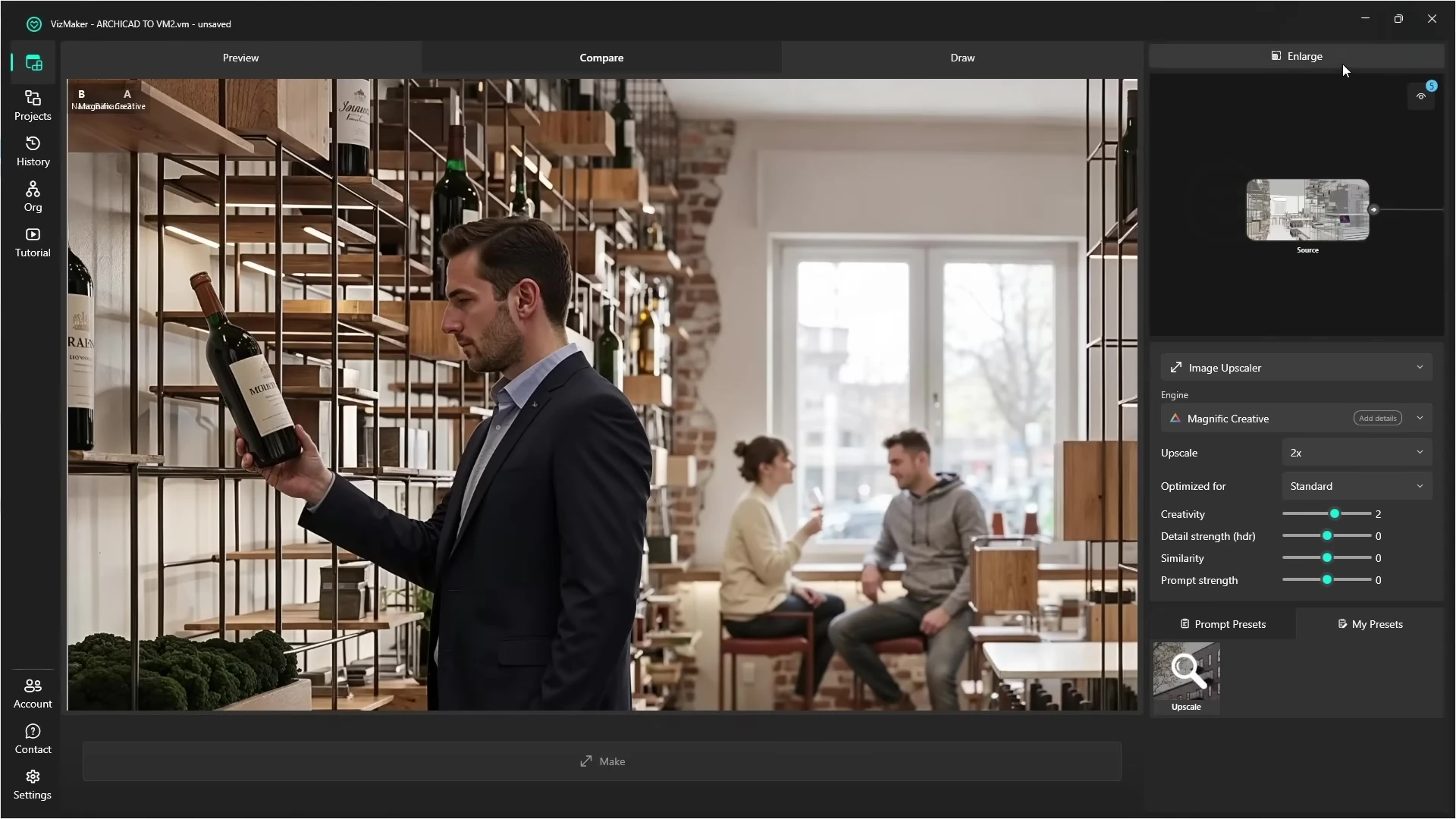
Compare before and after at full size. The video examines clothing, plants, surface texture and reflections. For architecture, also inspect repeated façade patterns and small details that could be mistaken for specified products. Use a more restrained approach when similarity matters more than creative enhancement.
Create exterior and interior AI animations
Archicad-to-AI animation can start from the images you have already approved. The exterior examples include a backward camera move, a first-to-last-frame transition and a rising aerial reveal. Interior examples explore people moving through the space and a close-up with depth of field.
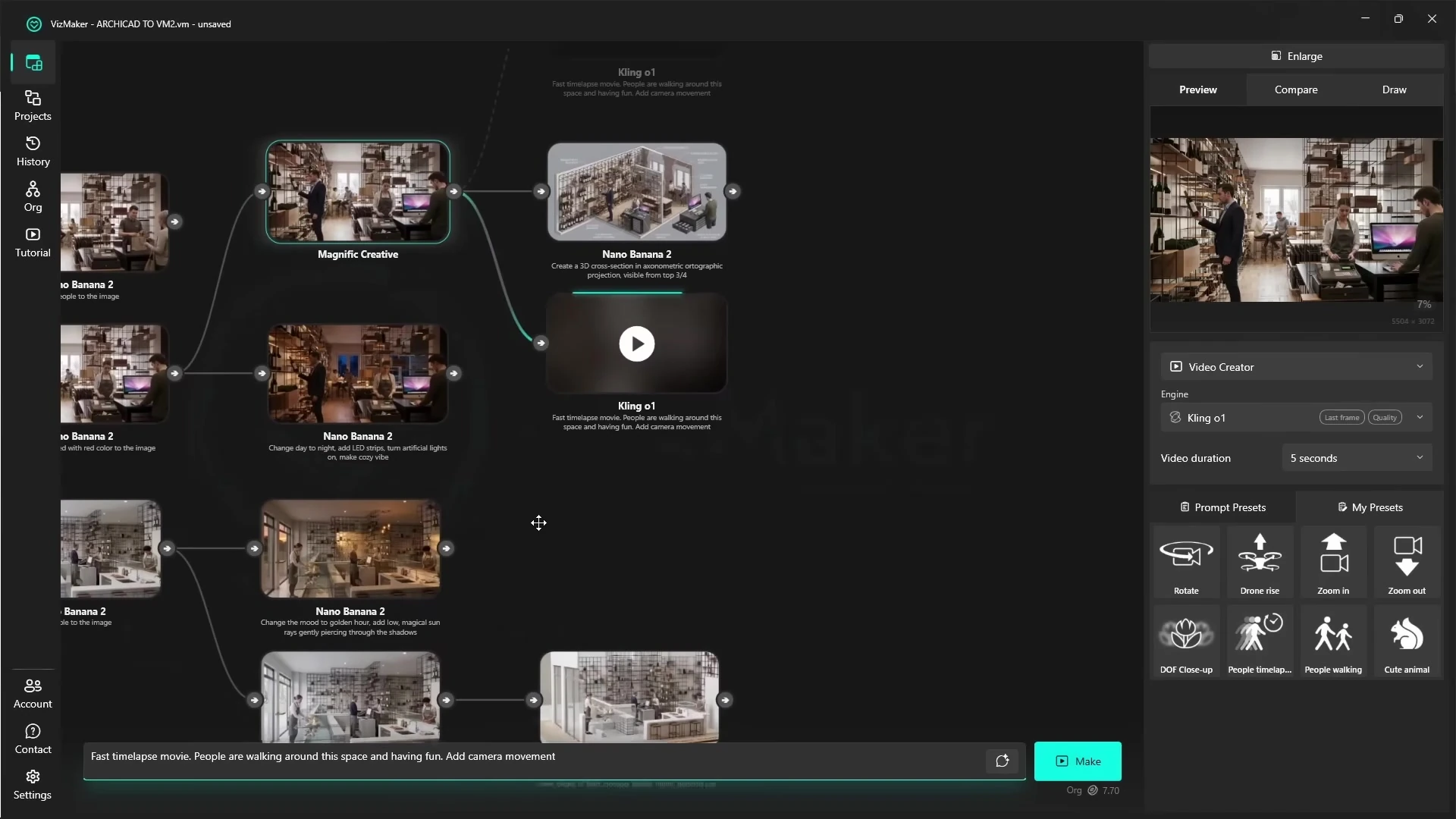
The tutorial contains shots that move too quickly as well as more convincing results. Plan a clear action, generate a short sequence and assess continuity before using it. VizMaker’s Video Creator offers several engines; available models and two-frame options depend on the version and selected engine.
Extend the workflow with AI-generated 3D objects
The ebook also documents 3D model generation from images, a separate capability beyond this Archicad video. Isolate an object on a neutral background, use Tripo 3D or Meshy AI, inspect the mesh and export an appropriate format. This can help develop furniture or decorative asset ideas for a visualisation.
A generated mesh does not automatically become a native parametric Archicad library object. Choose an appropriate import or authoring route for the intended use and verify dimensions. The main advantage is a faster way to explore a visual asset while keeping the model and documentation workflow under the designer’s control.
Frequently asked questions
How do I install the VizMaker plugin for Archicad?
Open VizMaker, go to Settings > Plugins, select the relevant Archicad version and confirm. Restart Archicad if it was open during installation, as shown in the tutorial.
Which Archicad plugin commands are shown in the guide?
The guide shows a VizMaker menu with Send view, Instant render and Setup instant render commands.
Can VizMaker animate Archicad renders?
Yes. The tutorial turns exterior and interior images into short AI videos, including camera moves, a first-to-last-frame transition and people in motion.
Can AI-generated blueprints replace Archicad documentation?
No. Blueprint-style images and generated axonometric views are presentation concepts. Use the Archicad model and properly produced drawings for dimensions, coordination and construction information.
Continue your VizMaker workflow
Explore other VizMaker integrations: 3ds Max · Revit · SketchUp · Rhino · Blender · Unreal Engine
Bring your next Archicad view into VizMaker
Download VizMaker, install the integration for your setup and explore AI rendering, image editing, upscaling, animation and 3D creation from one workspace.
Download VizMakerAbout this guide: VizMaker was created by designer Wojciech Jurkowski. This article draws on the supplied VizMaker Guide Ebook, original application screenshots and the VizAcademy UK Archicad tutorial. The cover is an AI-generated editorial illustration; the in-article software screenshots and video frames show the real application. Interface details, available engines and supported host versions can change. Check the current plugin manager and VizMaker website for your setup.
5 Reasons to Use VizMaker for Architectural Visualisation
See how VizMaker supports architectural visualisation with design variants, connected AI tools, reusable prompts, visual branches and free tutorials.

Computer graphics and various types of 3D visualisations, photographs and animations make use of all sorts of advanced software, applications and tools that enable people to work on their own projects much more easily and pleasantly.
Explore Japandi, biophilic and mid-century interiors from ArchiCAD images in VizMaker. Compare material and style options before revising your design model.