Guide updated: 29 October 2026.
VizMaker for SketchUp gives interior designers a direct route from a model view to AI rendering, image editing, animation and upscaling. Use the SketchUp model to establish the room, furniture arrangement and camera. Then develop the visual character in VizMaker: materials, lighting, styling and the presentation images that help a client make a decision.
This is particularly useful during an interior project when the layout is clear but the finishes are still being discussed. A kitchen can keep the same island and circulation while you explore pale oak, darker timber or a different stone direction. Instead of asking the client to imagine those differences, present a small set of comparable images.
Connect SketchUp to the VizMaker workspace
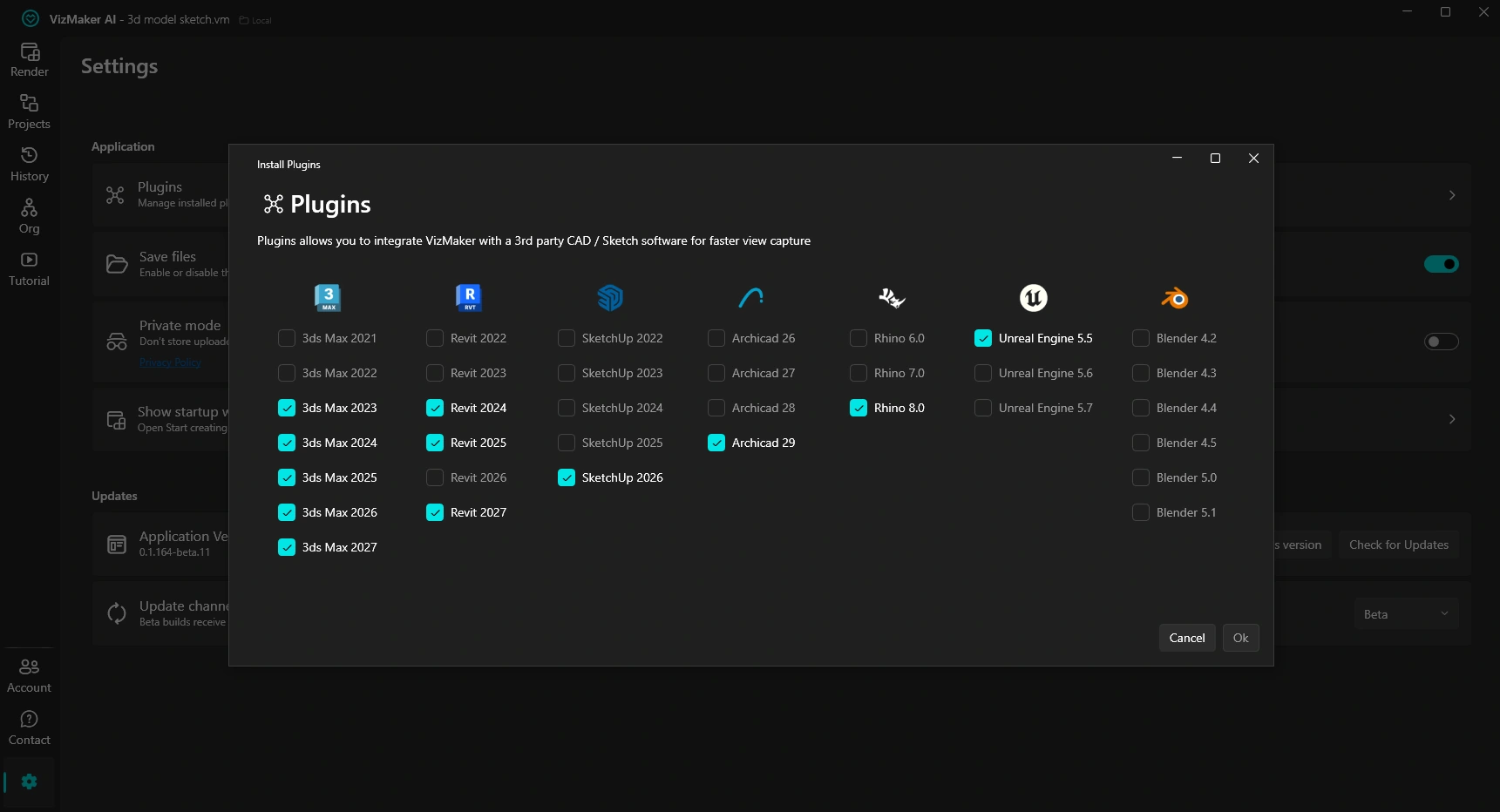
Open VizMaker and select Settings > Plugins. Choose the SketchUp version offered for your installed setup and confirm. Reopen SketchUp if needed so the integration can load. The guide shows a VizMaker toolbar beside a working kitchen model; use the view-transfer workflow to bring the current composition into the app.

The plugin is the connection between the modelling application and the AI workspace. Image generation, editing and the later video or upscaling stages are managed in VizMaker. Check the installer for the versions available in your build before setting up the workflow on a studio computer.
Prepare a SketchUp view that communicates the design
A useful source does not have to be a finished photorealistic render. It does need to show the important forms clearly. Set the camera at an appropriate height, frame the intended focal point and make the relationship between openings, joinery and furniture readable. Hide modelling guides or overlays that do not contribute to the presentation.
For an AI interior rendering brief, name the room, the material direction and what should stay fixed. For example: “Develop this kitchen into a natural daylight interior with pale oak cabinets, a honed limestone island and warm neutral walls; retain the camera, window positions and island dimensions.” This is a proposed prompt, so review the output against the source rather than assuming every instruction was followed.
Compare material options with a consistent camera
Keeping one viewpoint makes design alternatives easier to compare. Create separate image branches for each palette, then inspect them side by side. One might test warmer joinery; another might explore darker cabinetry with quieter worktops. Change one main decision at a time so the client can explain which option works and why.
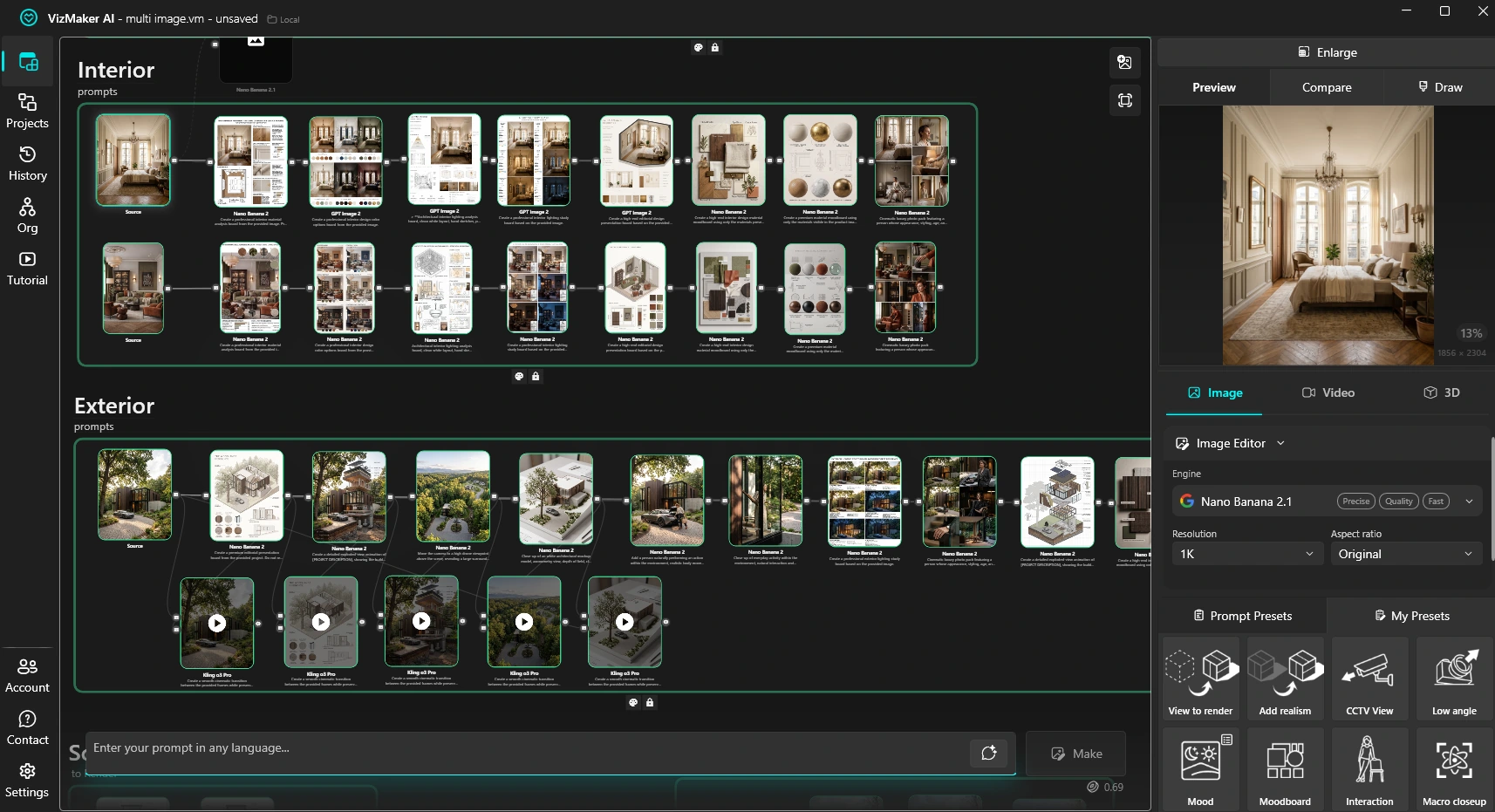
The supplied VizMaker workspace shows related interior and exterior studies arranged as connected outputs. For a SketchUp project, the same structure can keep an overview, detail studies and presentation boards together. Apply approved choices to the model separately: an AI image edit does not automatically replace SketchUp materials or rebuild the joinery.
Use a reference to explain a difficult styling request
“Make it more welcoming” can mean different things to different people. A relevant reference image can clarify the palette, lighting or furniture character behind that request. Combine the source view with a reference you are entitled to use and describe the specific qualities you want to explore.
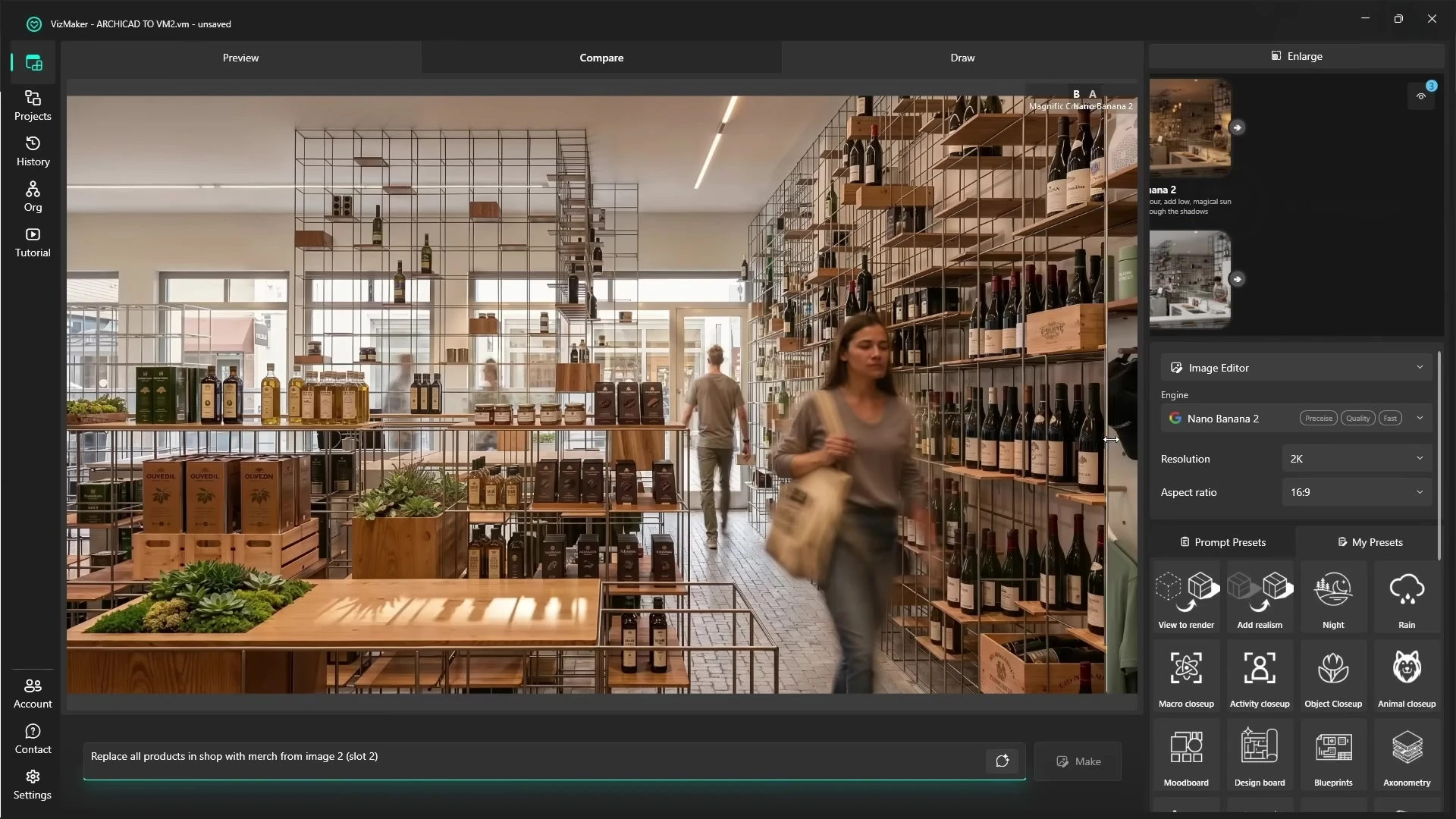
The video example begins in Archicad, then demonstrates reference-led interior editing in VizMaker. This shared image-editing stage can follow a SketchUp view as well. Review the entire room afterwards, including window shapes, the number of chairs and clearances around furniture, because a visual styling change can also alter unintended details.
Generate a furniture concept from a sketch or image
A custom chair or sculptural side table can define a room, yet searching for a suitable asset can interrupt the design process. VizMaker’s image-to-3D model generation offers another starting point. The supplied example follows a chair sketch into a developed image and then into a Tripo 3D model.
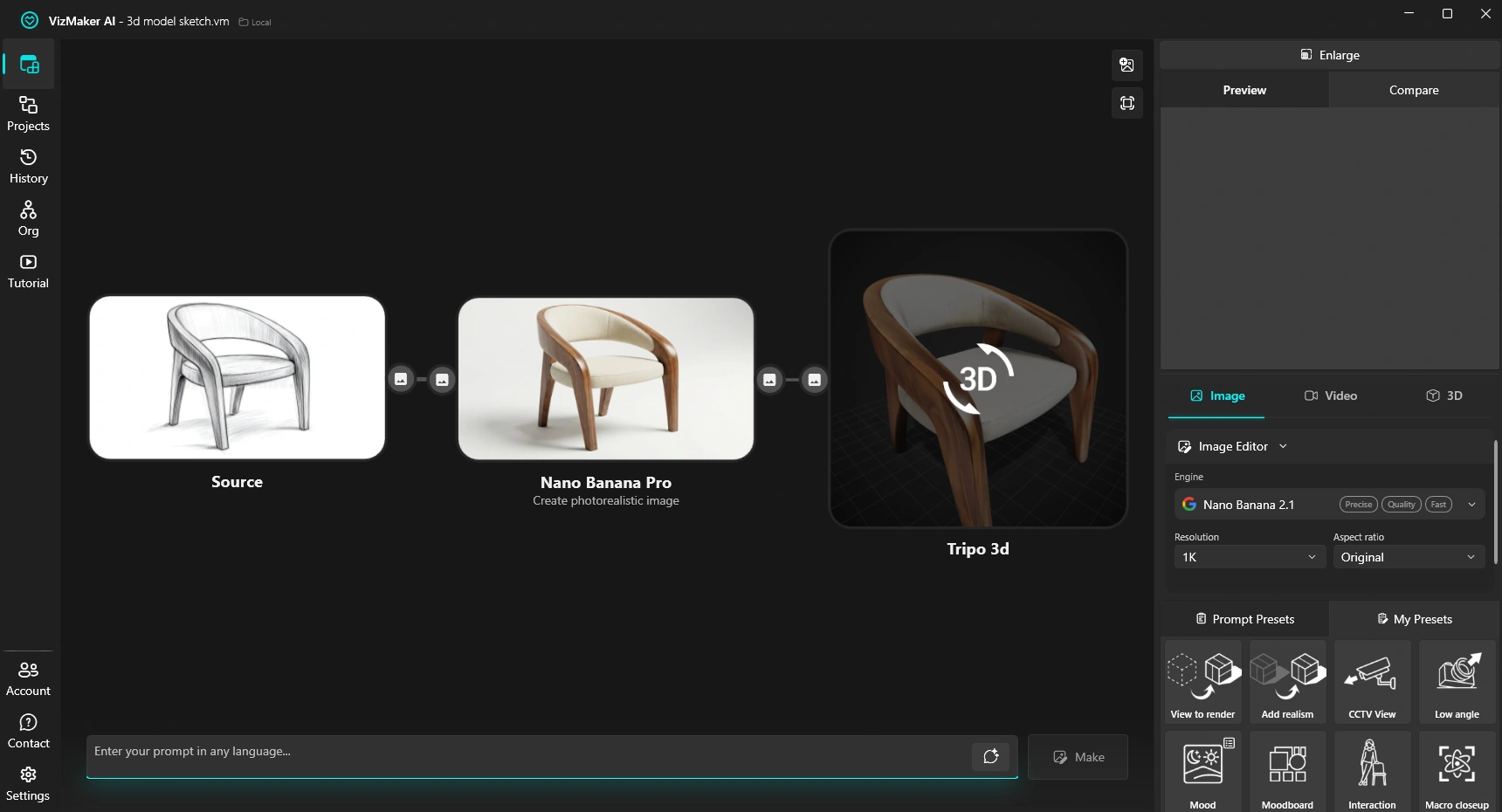
Use a clear object image on a neutral background, select 3D Model Creator and choose an available engine such as Tripo 3D or Meshy AI. Inspect the result from several angles before export. Bring it into the wider SketchUp workflow using a compatible import or bridge route, then check real-world size, geometry and materials. A plausible image of furniture does not by itself establish the dimensions or construction of the object.
Finish the chosen render with upscaling and animation
Use AI upscaling for interior renders once the design direction is settled. VizMaker’s guide documents Pro Upscaler and Magnific tools, with comparison controls for judging the result. Examine cabinetry edges, handles, fabric patterns and stone veining at full size. Choose settings that preserve specified details when fidelity matters.
For a moving presentation, send a selected image into Video Creator. A slow approach to the kitchen island or a short reveal of the living area can communicate atmosphere. Supported engines can also use first and last images to guide a transition. Review furniture continuity and camera movement before delivery; a generated video is a presentation clip rather than an editable SketchUp scene animation.
Choosing a rendering workflow for a SketchUp interior
If you are looking for a SketchUp rendering engine, consider the decision you need to support. VizMaker’s AI tools are useful for exploring looks and finishing presentation images. A scene-based rendering workflow remains valuable when the deliverable needs exact, repeatable geometry, materials and lighting across multiple views. The two stages can support the same project: explore the direction, resolve it in the model and prepare the final presentation.
The following tutorial uses Archicad as the source application and demonstrates the common VizMaker image, upscaling and video tools. The SketchUp integration is shown in the ebook screenshot above.
Frequently asked questions
Can I use VizMaker with a basic SketchUp model?
Yes. The documented integration sends a working model view into VizMaker. A clear camera angle, readable forms and useful material cues give the image workflow a stronger starting point.
Do AI material edits update SketchUp materials?
The workflow edits the generated image. Apply approved material and geometry decisions to the SketchUp model separately.
Can I make an interior video from a SketchUp view?
Develop the source view into a suitable image, then use VizMaker's Video Creator. One-image and supported first-and-last-frame workflows can create short presentation clips.
Can I make a 3D furniture asset from a sketch?
Yes. The supplied example develops a chair sketch into an image and then a Tripo 3D model. Inspect the mesh and use a compatible import or bridge workflow before placing it in a scene.
Continue your VizMaker workflow
Explore other VizMaker integrations: 3ds Max · Revit · Archicad · Rhino · Blender · Unreal Engine
Bring your next SketchUp view into VizMaker
Download VizMaker, install the integration for your setup and explore AI rendering, image editing, upscaling, animation and 3D creation from one workspace.
Download VizMakerAbout this guide: VizMaker was created by designer Wojciech Jurkowski. This article draws on the supplied VizMaker Guide Ebook, original application screenshots and the VizAcademy UK Archicad tutorial. The cover is an AI-generated editorial illustration; the in-article software screenshots and video frames show the real application. Interface details, available engines and supported host versions can change. Check the current plugin manager and VizMaker website for your setup.

VizMaker for Archicad: AI Rendering, Upscaling and Animation
Install the VizMaker Archicad plugin and develop model views into exterior renders, interior concepts, AI animations, upscaled images and 3D asset ideas.
VizAcademy PRO or LITE? How to Choose Your Online 3ds Max Training
Compare VizAcademy PRO and LITE: tutor-supported ArchViz training or self-paced study. Understand the support, resources and learning format before enrolling.
Inside the VizAcademy 7-Week ArchViz Course: From 3D Modelling to AI Animation
Explore VizAcademy's seven-week ArchViz programme: 3ds Max modelling, lighting, materials, AI with VizMaker, animation and interior and exterior projects.