VizMaker Live Preview turns recorded 3D viewport motion into an AI-generated presentation. A simple scene supplies camera movement and object motion; reference images supply the intended appearance. For architects and interior designers, that creates a way to explore a design from several angles without fully detailing and rendering every frame of the scene.
In this demonstration, Wojciech Jurkowski connects VizMaker to 3ds Max, SketchUp and Revit, then develops an interior walkthrough and a more complex animated scene. The “live preview” effect is produced from a captured movement and a subsequent AI generation, rather than a continuously rendered real-time viewport.
Why use a simple model to direct AI animation?
A still image can communicate a beautiful room, but it does not specify exactly how the camera should move through it. A written prompt alone can also leave too much freedom over the direction, speed and reveal of a shot.
The workflow in the video separates those decisions. You use a 3D scene to establish motion and spatial relationships, then use reference renders to communicate materials, lighting and atmosphere. This is particularly useful when the design direction is already clear but the animation would otherwise need a more elaborate production setup.
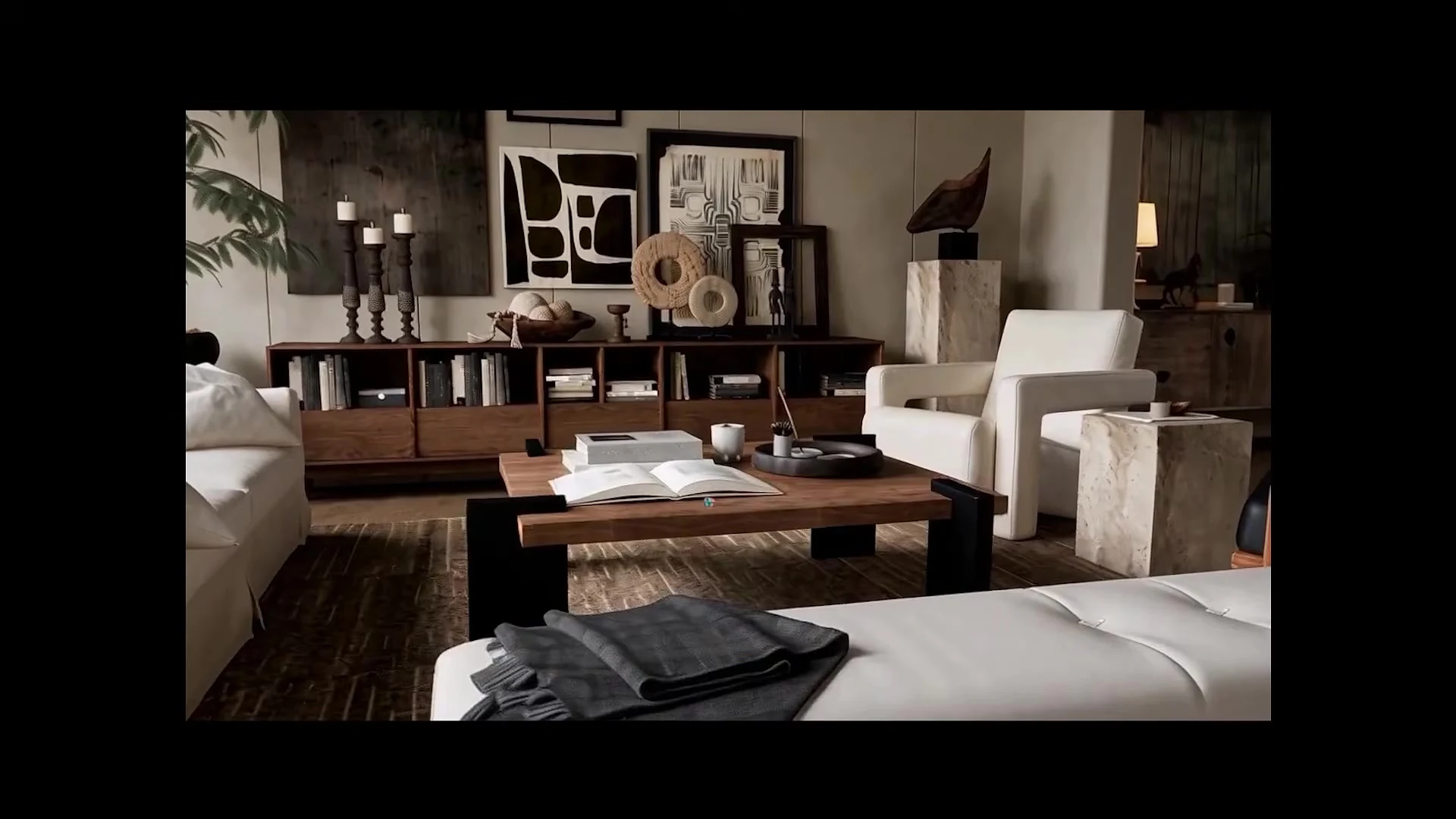
Capture the viewport and preserve the first frame
The first step is to define the viewport capture region in the VizMaker plugin. Save a view for the reference image, switch to a suitable perspective view and record the movement. The tutorial uses a clay view so the recording communicates forms and motion without relying on the final materials.
You can trim the recording and adjust its speed in the editor before sending it into the workspace. The important constraint is matching the first video frame to the reference render. Wojciech shows how a mismatch can disrupt the result. Trimming away an idle section should not accidentally change that starting perspective.
After creating the reference visualisation, connect it to the captured video and describe the desired transformation. The example uses the Seedance 2.5 engine available in the demonstrated version. The same basic sequence is shown with Revit and SketchUp.
Create a multi-room AI interior walkthrough
One reference image may not contain enough information for a camera travelling between rooms. In the walkthrough example, different parts of the interior need their own visual references to communicate the intended finishes consistently.
The tutorial creates a camera path in 3ds Max, captures the movement and prepares several textured views. Those views become reference visualisations connected to the video. The prompt describes approximately when each reference should appear and how the rooms should look.
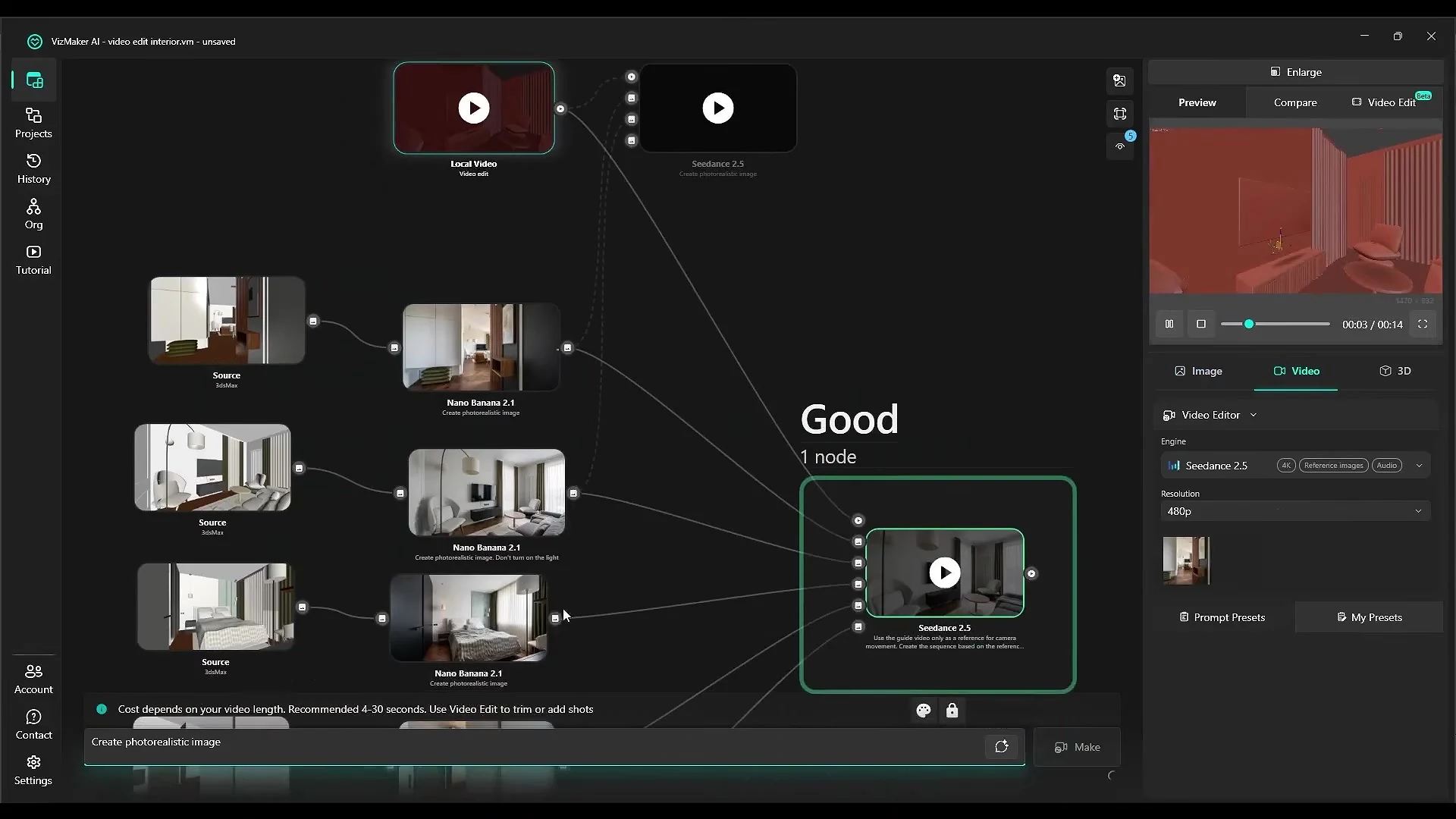
For AI interior walkthroughs, the practical lesson is to plan the references around what the camera reveals. Check the references against one another before generating: conflicting furniture, finishes or lighting can introduce ambiguity. The recording includes unsuccessful attempts as well as the improved result, making this a useful guide to iteration.
Control objects and explore product designs
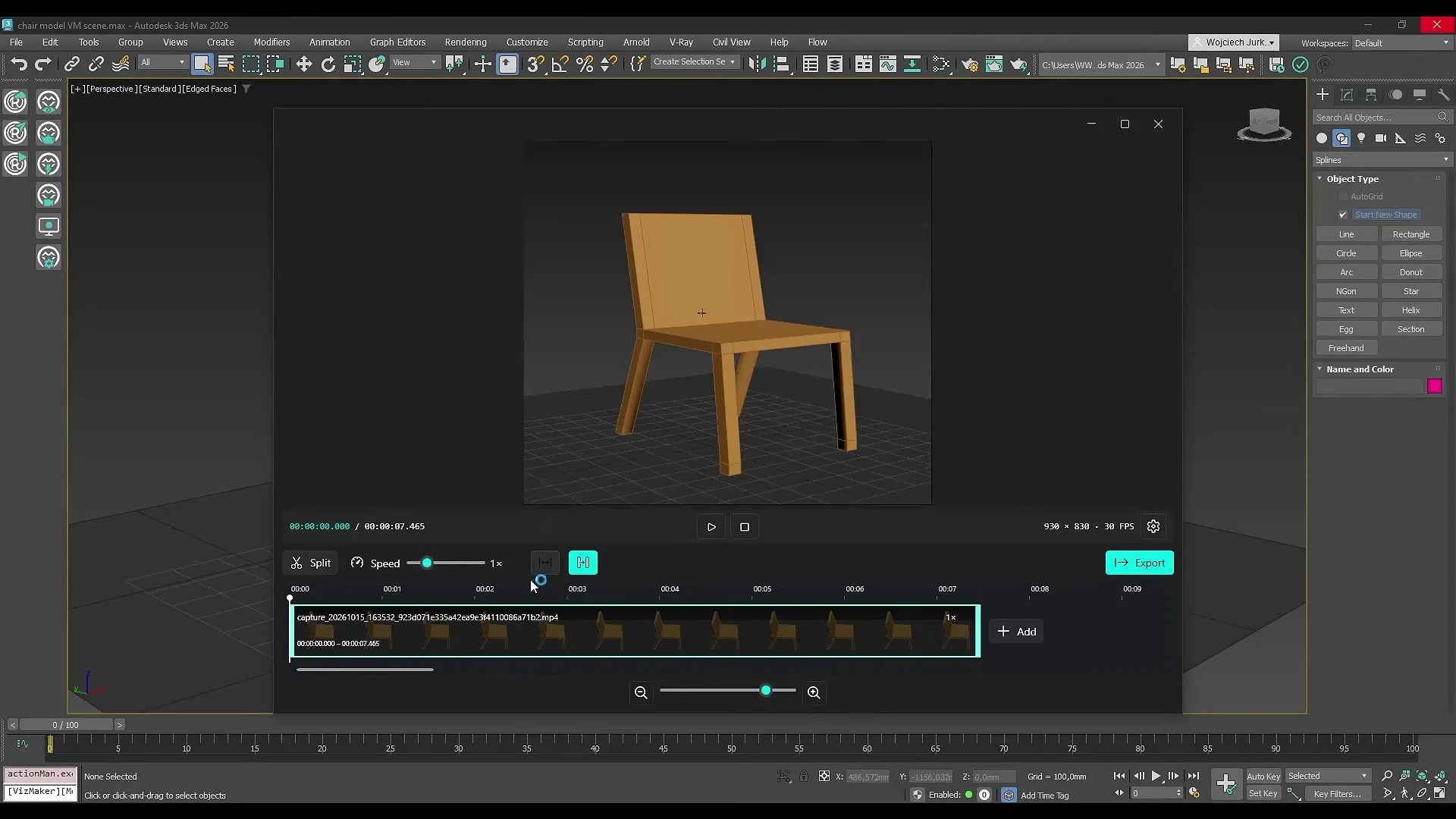
Viewport capture can record more than camera movement. The video demonstrates moving objects and using a simple animated figure to guide a character. It also uses a basic chair model to explore a more developed design image from different perspectives.
For a product or furniture designer, the simple geometry becomes a way to communicate how to orbit, approach and inspect the object. The appearance still needs reviewing: an AI-generated view is a visual interpretation, not a measurement or a physically accurate material simulation.
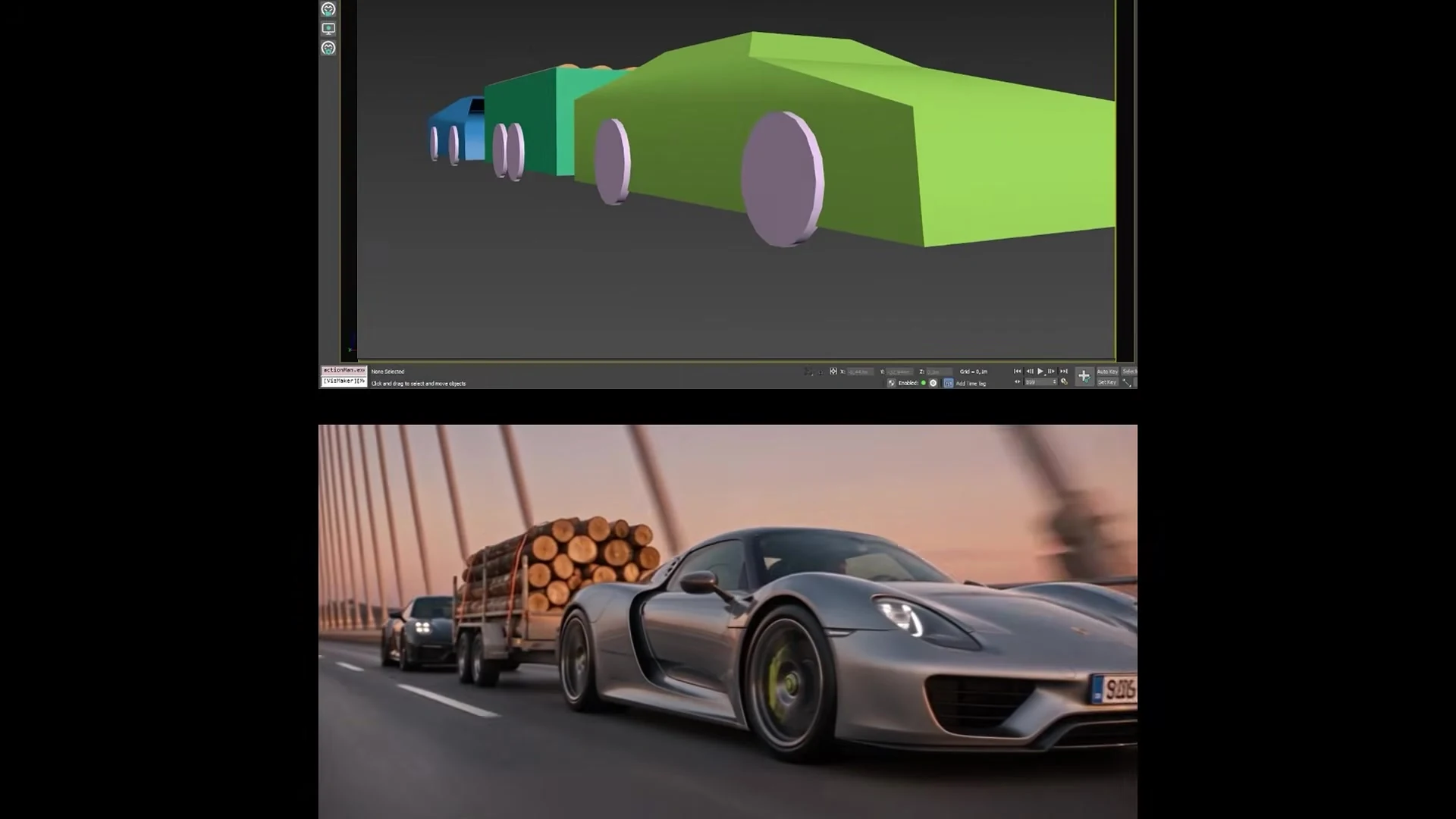
Plan complex shots with several reference frames
The final example uses simplified vehicle shapes, a trailer and a camera path to direct a more involved animation. Key views are prepared and corrected in VizMaker before they are connected to the captured movement.
This illustrates the broader method for AI architectural animation: block out the action, prepare the important appearances, then describe their order. A simple model can be an effective directing tool when the camera, references and prompt tell the same story.
A reliable starting sequence
- Save the starting view and prepare a reference render.
- Capture a short, deliberate camera movement from the same perspective.
- Trim the clip while retaining a matching first frame.
- Add further references for spaces or objects revealed later in the shot.
- Generate, compare the source and result, and correct visible continuity problems.
Begin with a short movement around one room or object. Once that works, extend the method to a more ambitious route. This makes it easier to understand which input caused an unwanted change.
Frequently asked questions
Is VizMaker Live Preview a real-time renderer?
The demonstrated effect uses a captured viewport recording followed by AI generation. The recording supplies the motion, while reference images guide the finished appearance.
Why should the first frame match the reference render?
Matching the starting perspective helps connect the motion recording to the intended image. The tutorial shows an example where a mismatch disrupts the result.
Can this workflow cover several rooms?
Yes. The tutorial prepares several reference visualisations, connects them to the recording and describes approximately when each view should appear.
Continue your VizMaker workflow
- AI Interior Redesign from Video: Present Your Ideas with VizMaker
- From 3D Viewport to Client Presentation: An AI ArchViz Workflow
Try this workflow in VizMaker
Start with a source image or project that you know well, follow the demonstration and compare the result against your design brief.
Download VizMakerVideo source: This AI Plugin Turns ANY 3D Scene into Live Preview Effect – Incredibly Realistic!, published 16 October 2026. Video by Wojciech Jurkowski; voice by Michał Wojcieszczyk. All screenshots above were extracted from this recording. This guide describes the demonstrated workflow; available models, interface details and offers may change. Visit the official VizMaker website for current product information.

Build a consistent AI avatar, product photoshoot, edited images, video ad and posters in VizMaker with Anna Jurkowska's practical campaign workflow.
VizMaker for SketchUp: AI Interior Rendering and Design Variations
Use VizMaker with SketchUp to explore interior materials, create AI renders and animations, upscale selected images and generate furniture from references.

Computer graphics and various types of 3D visualisations, photographs and animations make use of all sorts of advanced software, applications and tools that enable people to work on their own projects much more easily and pleasantly.