Guide updated: 29 October 2026.
VizMaker for Unreal Engine adds an AI image and presentation workflow alongside a real-time architectural scene. Transfer a working view into VizMaker, explore an alternative visual direction, refine a still, generate a short video or develop an image-based 3D asset concept. The integration is useful when a project needs presentation material as well as an interactive environment.
Architectural storytelling often involves several outputs: a live walkthrough, a hero still, a short promotional sequence and focused material or atmosphere studies. Those outputs do not always need the same production method. VizMaker gives the artist a place to develop image-based ideas while the Unreal project remains the source for the controlled real-time experience.
Install and enable the Unreal Engine plugin
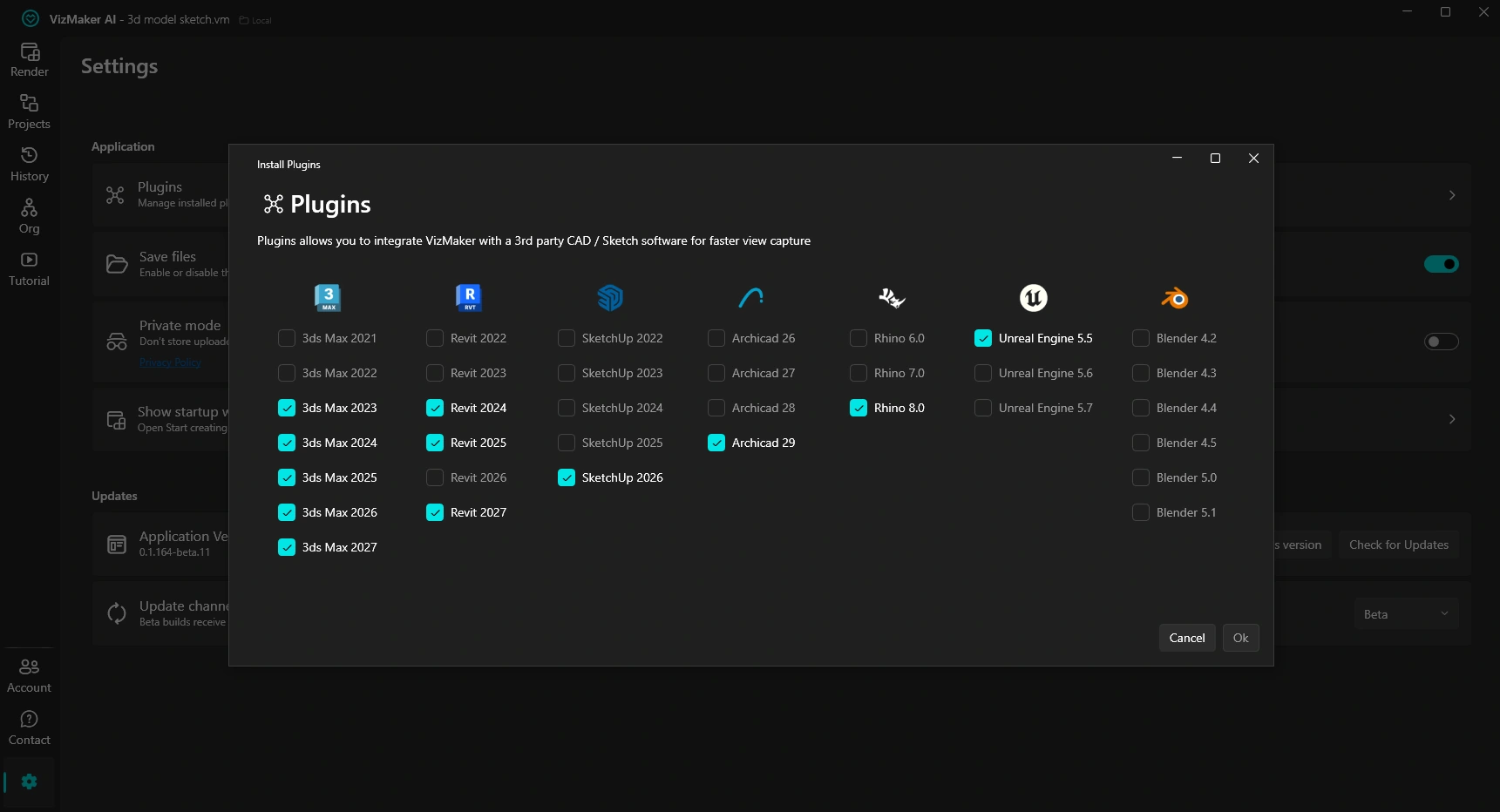
Start in VizMaker Settings > Plugins, select the Unreal Engine version offered for your installed setup and confirm. The supplied guide then shows the editor-side steps: open Edit > Plugins, locate VizMaker in the installed AI category, enable its checkbox and restart the editor when prompted.
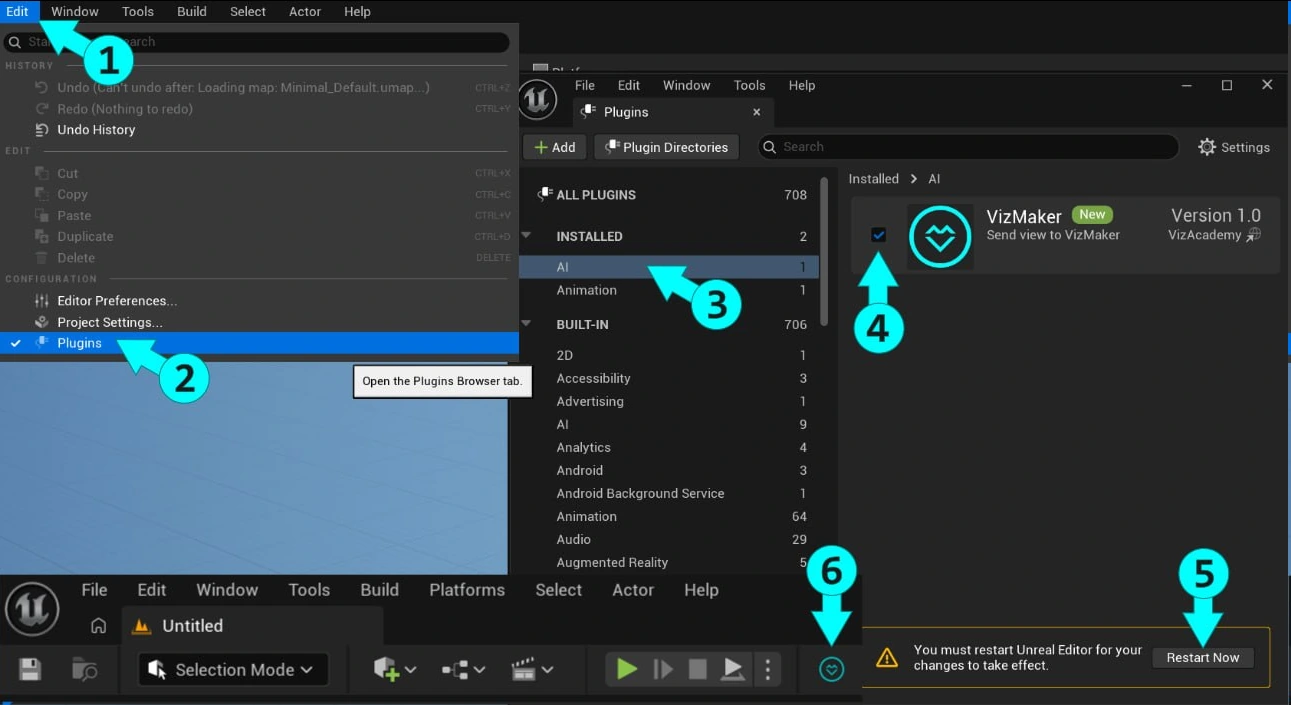
After enabling the integration, use the VizMaker toolbar command to transfer the working view. Check the current installer for the supported version before configuring a project. The available choices can differ between application builds.
Develop a hero image from the architectural scene
Choose a view that communicates the building or interior clearly. A pavilion reflected in water, an entrance framed by planting or a lobby with a strong material contrast can each support a different story. Compose that view in Unreal Engine before transferring it.
In VizMaker, select Image Editor and an available AI engine. Write a brief tied to the presentation goal: “Develop this courtyard view with a calm dusk atmosphere, warm interior light and restrained planting; keep the building silhouette, openings and camera composition.” Compare the result with the source, particularly where a generated image introduces new details.
AI architectural rendering is useful here as visual development. An approved mood can inform later decisions in the Unreal scene, but the generated image does not automatically update the project’s materials, lights or objects. Keep that handover explicit when several artists work on the same project.
Use AI video for a short architectural story
A strong still can become a starting point for AI architectural animation. In Video Creator, choose an available engine and describe a deliberate action: move towards the entrance, reveal the building from the landscape or hold a composition while activity brings it to life.
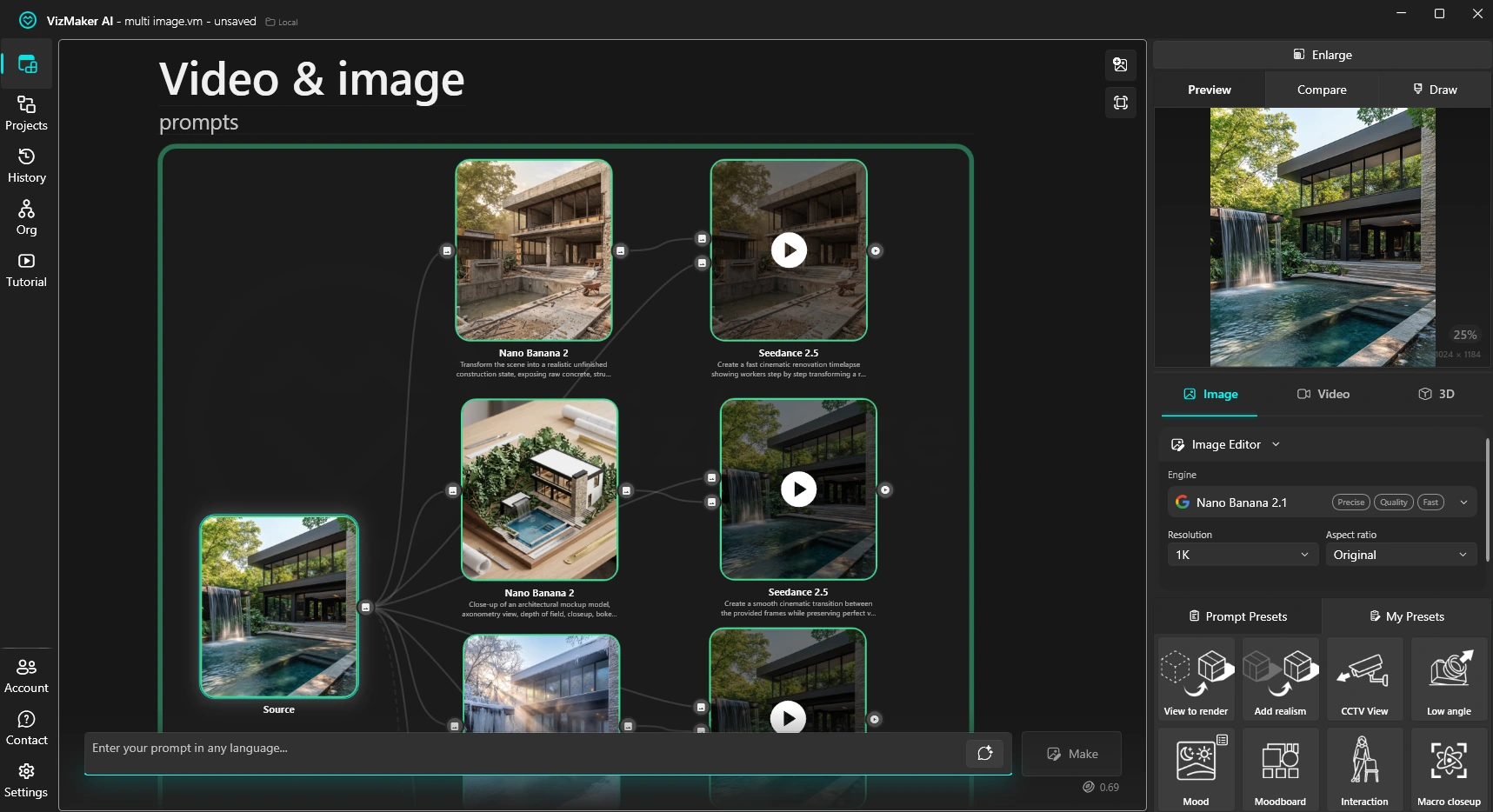
The supplied VizMaker workspace shows image branches feeding video nodes. Engines that support first and last frames can use two prepared images to guide a transition. Keep each shot focused on one visual idea and inspect the whole sequence for changing geometry, drifting objects or inconsistent reflections.
This produces a video output. It does not automatically reconstruct an editable Unreal camera sequence or preserve the exact physical state of the real-time scene. When the brief calls for precise camera choreography, interactive navigation or repeatable scene behaviour, keep those requirements in the Unreal production workflow.
Upscale the selected still for presentation use
Once the image direction is agreed, AI render upscaling can improve resolution and apparent detail. VizMaker’s guide describes Pro Upscaler and Magnific options, along with comparison tools. Use a restrained approach where façade patterns, signage or specified products need to remain faithful to the source.
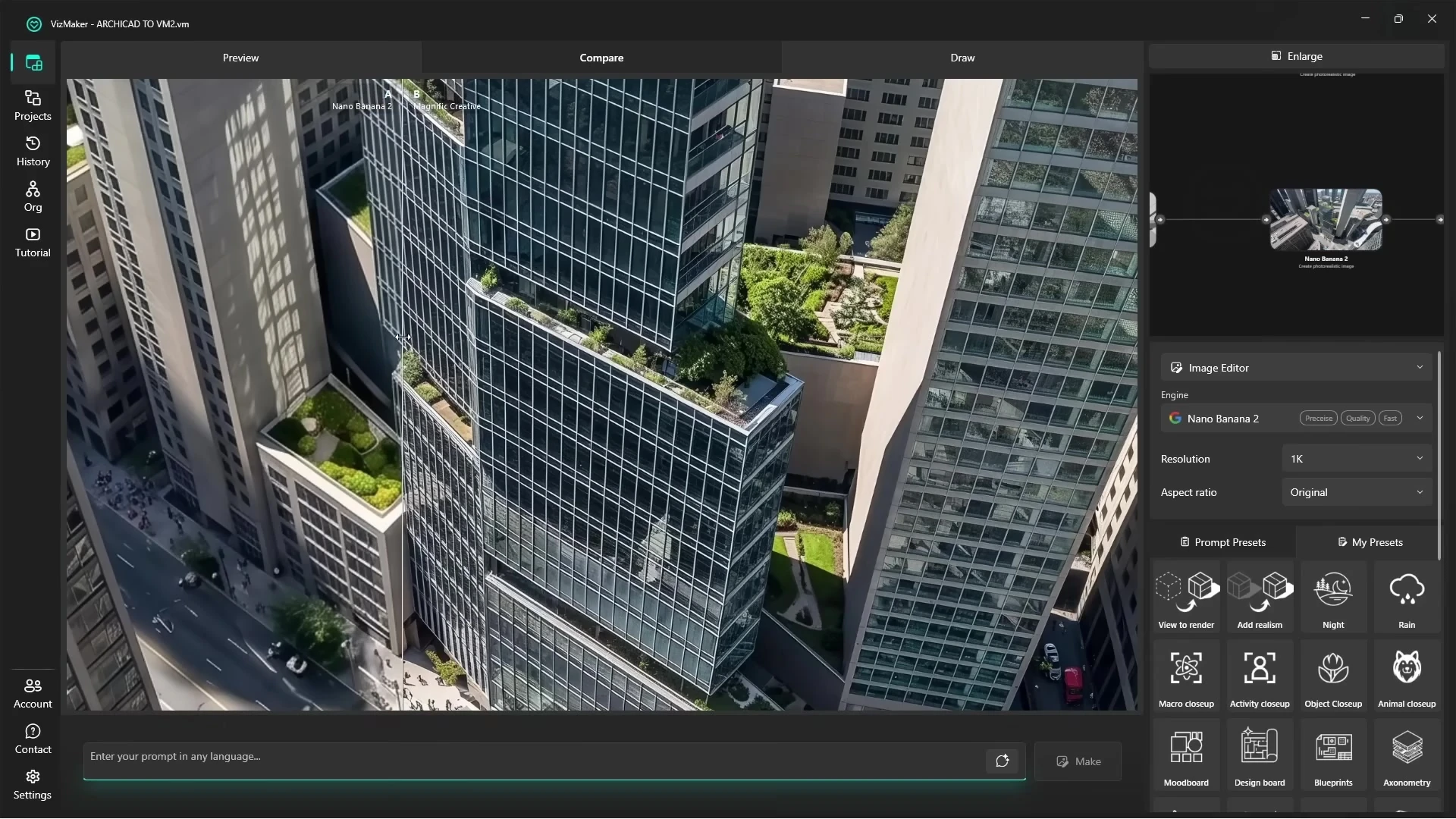
The tutorial examines details such as greenery, concrete and reflections after enhancement. For an Unreal-sourced image, also check fine railings, glazing divisions and repeated surfaces. A convincing overall atmosphere should not hide local changes that misrepresent the design.
Generate a 3D asset concept for further scene work
AI 3D model generation can provide a starting point for furniture, planting containers or sculptural props. In VizMaker, prepare an isolated object image, choose 3D Model Creator and use an engine such as Tripo 3D or Meshy AI. Inspect the generated object from several angles before exporting a suitable format.
Prepare the asset for the requirements of the Unreal project before use. Check its real-world scale, mesh quality, materials and visual performance at the intended viewing distance. Collision, optimisation and other scene-specific needs remain part of that preparation. A generated mesh should not be treated as production-ready simply because its preview looks convincing.
Build a coherent set of presentation outputs
A real-time project can support a wider communication package. Select one hero image, a useful material or atmosphere study and a short clip that explains the experience. VizMaker’s node workspace helps keep those outputs connected to their starting images, making it easier to review alternatives with the design team.
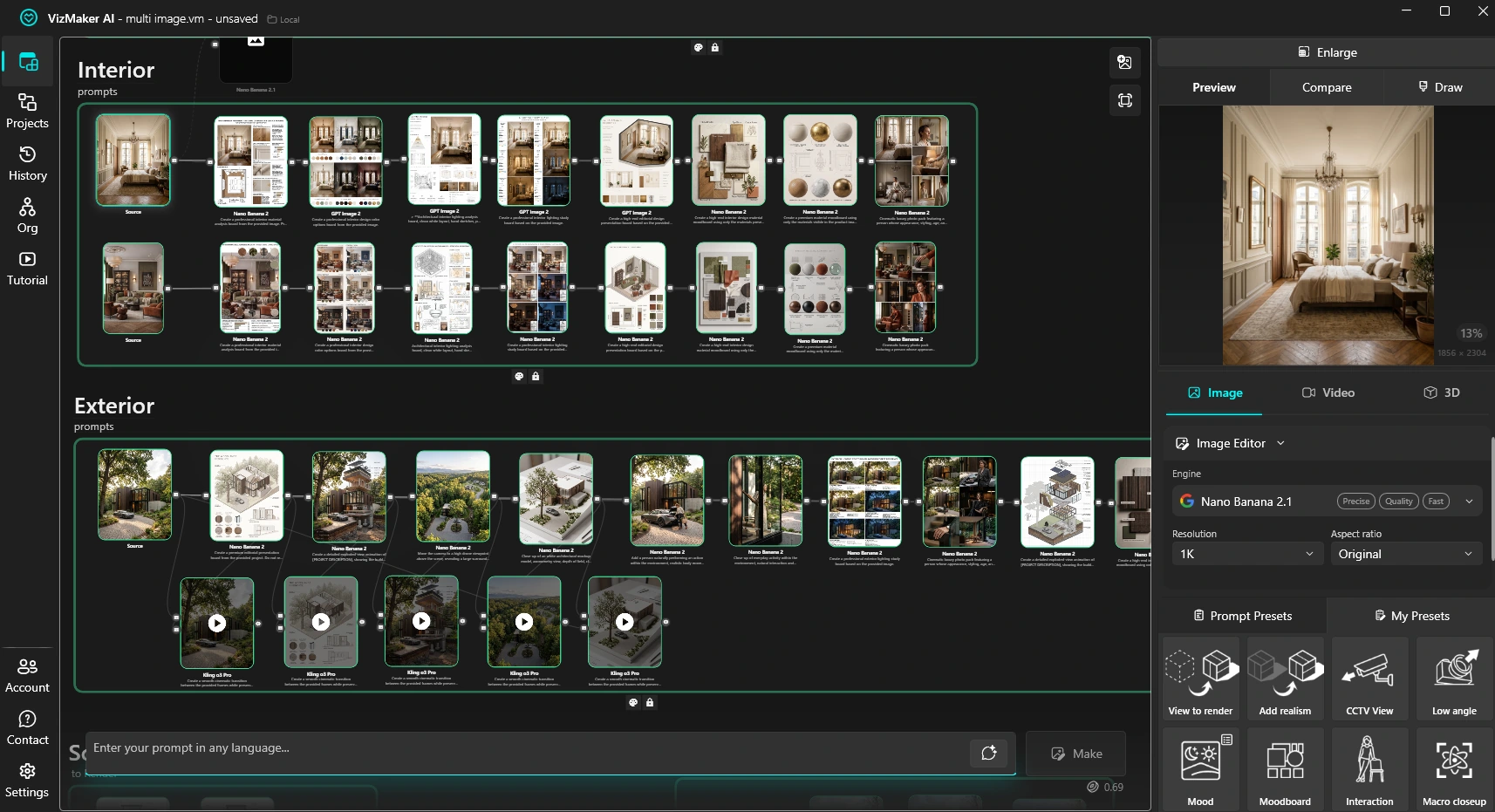
For artists comparing Unreal Engine rendering workflows, the practical benefit is another route for visual exploration and presentation finishing. Use the interactive scene where control and navigation matter, then use the AI workspace where an image-led study answers the next design question.
The accompanying tutorial starts in Archicad and demonstrates the common VizMaker editing, upscaling and video stages. The Unreal Engine setup is documented in the ebook screenshots above.
Frequently asked questions
How is the VizMaker plugin enabled in Unreal Engine?
After installing the matching integration, the guide shows Edit > Plugins, the installed AI category and the VizMaker checkbox. Restart the editor when prompted, then use the VizMaker toolbar command.
Does VizMaker replace Unreal Engine's real-time rendering?
The documented workflow sends a view to VizMaker for AI image work. The Unreal project remains the place to build and control the interactive scene.
Can I turn an Unreal view into an AI animation?
Yes. Develop the view into a reference image, then use VizMaker's Video Creator to generate a shot or a supported first-and-last-frame sequence.
Are generated 3D models automatically ready for an Unreal project?
No. Review the exported mesh, scale, materials and suitability for your scene. Prepare any collision, optimisation or other project-specific requirements before use.
Continue your VizMaker workflow
Explore other VizMaker integrations: 3ds Max · Revit · Archicad · SketchUp · Rhino · Blender
Bring your next Unreal Engine view into VizMaker
Download VizMaker, install the integration for your setup and explore AI rendering, image editing, upscaling, animation and 3D creation from one workspace.
Download VizMakerAbout this guide: VizMaker was created by designer Wojciech Jurkowski. This article draws on the supplied VizMaker Guide Ebook, original application screenshots and the VizAcademy UK Archicad tutorial. The cover is an AI-generated editorial illustration; the in-article software screenshots and video frames show the real application. Interface details, available engines and supported host versions can change. Check the current plugin manager and VizMaker website for your setup.
VizMaker for 3ds Max: AI Rendering, Batch Views and Animation
Explore VizMaker for 3ds Max: send viewports, batch-render camera views, edit interiors, upscale images, create AI animation and generate furniture models.
Inside the VizAcademy 7-Week ArchViz Course: From 3D Modelling to AI Animation
Explore VizAcademy's seven-week ArchViz programme: 3ds Max modelling, lighting, materials, AI with VizMaker, animation and interior and exterior projects.

Daylighting in Architecture Today, architecture and design are closely intertwined with each other, together forming a coherent image of buildings and structures, because without proper design of the entire volume of the building can not get a beautiful interior solutions.