ArchiCAD AI rendering can help you compare interior styles using images from a design you have already developed. In this VizMaker tutorial, Maksymilian explores Japandi, biophilic and mid-century directions across office-related interiors, including a shared space and cafeteria.
The problem is familiar: the room arrangement may be acceptable, while the materials and overall character still need discussion. The demonstrated workflow uses image editing to explore those alternatives before rebuilding the material setup in the model.
Start with an interior image that already explains the room
The source images have been developed from ArchiCAD and already contain materials, lighting and shadows. They provide the basis for another stage of design exploration rather than starting from an empty prompt.
In VizMaker, select an image and describe the style change. The tutorial uses Nano Banana 2 at 2K for these examples and repeats the process across several views.
A useful instruction names the desired style and explains whether the change should focus on materials. If the room layout must stay recognisable, make that requirement explicit and compare the result with the source.
Biophilic design: decide how much change is appropriate
The biophilic interior variations introduce planting, natural materials and more organic forms. Some results appeal to the presenter, while others are judged too organic or too different from the starting space.

This is a useful design lesson. A style label describes a broad direction, so an AI may interpret it more strongly than you intended. Refine the instruction around the elements you actually want—such as planting or timber—then review how much of the original design has changed.
Japandi and mid-century options reveal different priorities
The Japandi interior examples explore a calmer, more restrained atmosphere. The presenter finds one shared-space interpretation cosy, but describes another office version as too flat for the intended use.
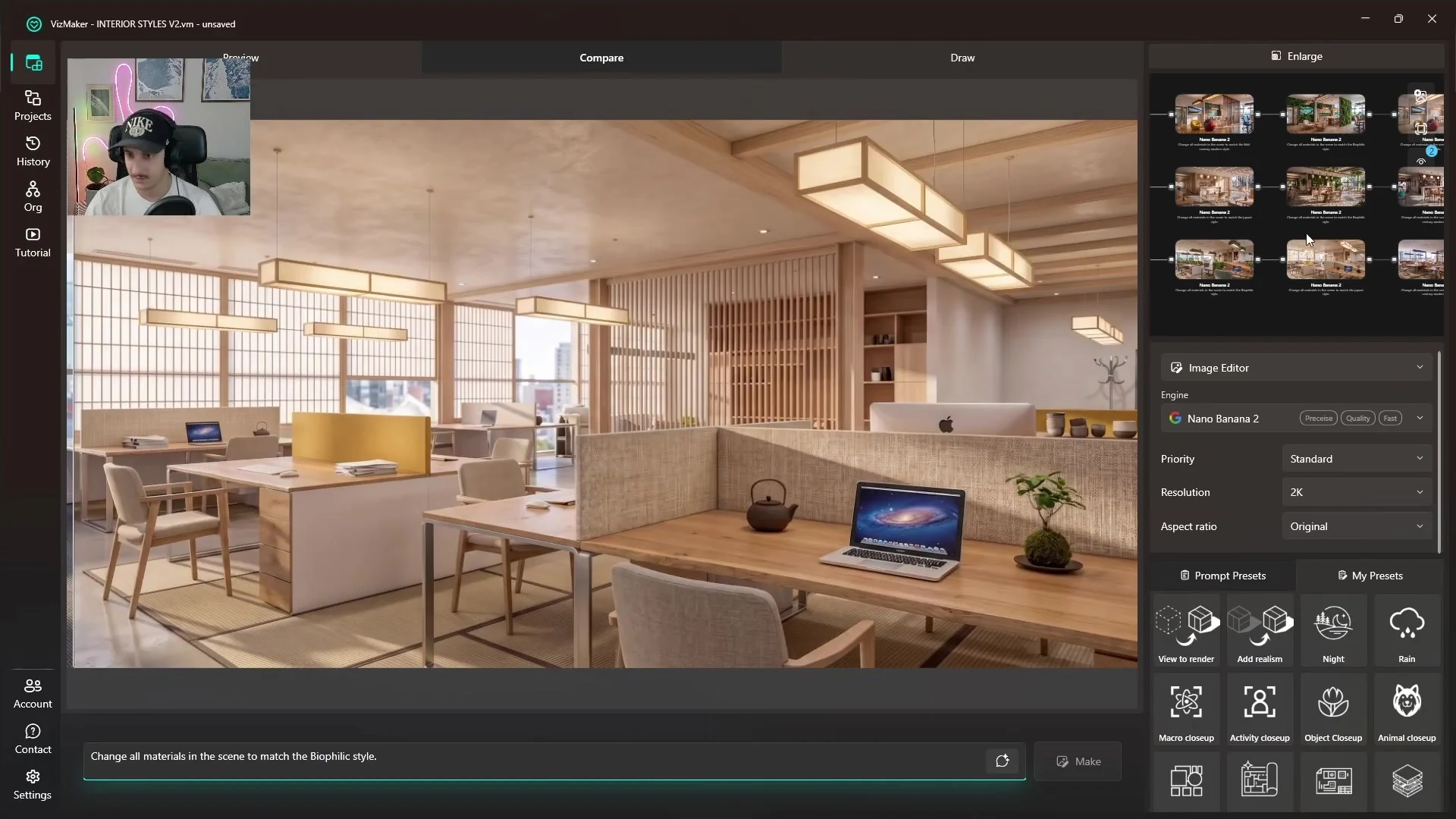
The mid-century variations create another direction for furniture, colour and finish. The cafeteria example is particularly well received in the tutorial, while another view raises a practical concern about whether the suggested carpet suits an office.
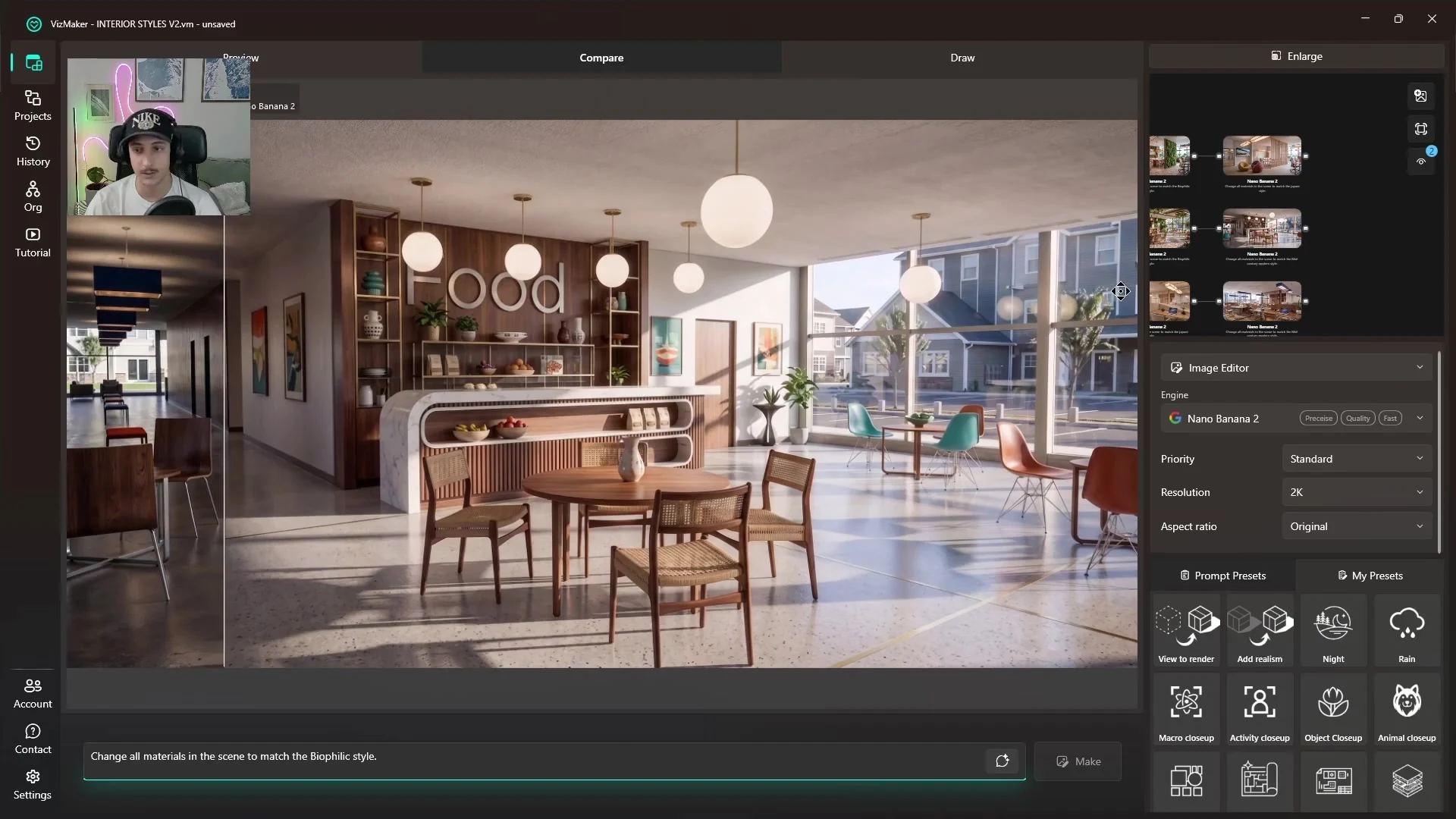
The important point is that a successful style image must also fit the programme. An office, cafeteria and residential lounge have different demands, even when the same style vocabulary is used.
Use A/B comparisons to make the client discussion clearer
VizMaker’s comparison tools let the tutorial inspect the original and revised images directly. For a client presentation, keep the viewpoint consistent so that changes in materials and atmosphere are easier to understand.
Instead of asking which image is “best”, ask a more precise question: which feels appropriate for the people using the space, which surfaces support the intended atmosphere, and which details should be carried into the design?
Turn the preferred image into a design decision
AI interior style exploration is useful for narrowing a direction. It does not automatically update the ArchiCAD model or confirm that every proposed product, material and spatial detail is appropriate.
- Generate a small set of style alternatives from the same view.
- Compare them for suitability as well as appearance.
- Identify the specific materials and details worth keeping.
- Resolve those choices in the project model and specification.
- Use further editing or upscaling to prepare the selected presentation image.
This keeps the AI stage connected to the design process: visual alternatives help the team reach a decision, and the project documentation records what that decision actually means.
Frequently asked questions
Can I explore interior styles from ArchiCAD images?
Yes. This tutorial uses interior images developed from ArchiCAD as sources for style and material variations in VizMaker.
Which styles are shown?
The recording compares Japandi, biophilic and mid-century directions across office-related spaces, including a shared area and cafeteria.
Does the generated image update the ArchiCAD model?
The demonstrated process edits visualisations. The designer still needs to resolve selected materials and design choices in the model and project documentation.
Continue your VizMaker workflow
- VizMaker Draw Tools: Change Materials, RAL Colours and Local Detail
- AI Interior Redesign from Video: Present Your Ideas with VizMaker
Try this workflow in VizMaker
Start with a source image or project that you know well, follow the demonstration and compare the result against your design brief.
Download VizMakerVideo source: Change Interior Styles in Seconds (ArchiCAD + AI Rendering Workflow), published 1 June 2026. Presented by Maksymilian Wiśniowski for VizAcademy UK. All screenshots above were extracted from this recording. This guide describes the demonstrated workflow; available models, interface details and offers may change. Visit the official VizMaker website for current product information.
VizAcademy PRO or LITE? How to Choose Your Online 3ds Max Training
Compare VizAcademy PRO and LITE: tutor-supported ArchViz training or self-paced study. Understand the support, resources and learning format before enrolling.
Explore Japandi, biophilic and mid-century interiors from ArchiCAD images in VizMaker. Compare material and style options before revising your design model.

Top 3D tips and tricks to use in setting up specific features in the rendering process Below you will find our 3D tips and tricks to use when creating specific features in the interior, exterior, or Archviz rendering.