Guide updated: 29 October 2026.
VizMaker for Revit turns a working BIM view into a starting point for AI architectural visualisation. The integration transfers the view to VizMaker, where architects and interior designers can explore finishes, lighting and atmosphere, develop presentation images, create short animations and upscale selected results.
A Revit model may contain the information a project team needs while still feeling difficult for a client to interpret. Early meetings often need a convincing sense of place before every material and visual detail is resolved. An AI image workflow helps bridge that communication gap while the BIM model continues to carry the project information.
From the Revit model to an image you can discuss
The supplied guide shows a Send to VizMaker command in Revit. Install the matching integration through VizMaker’s Settings > Plugins, open the intended 3D view and use the command to transfer it into the app. This is the entry point for the image workflow: the view communicates the building’s form and composition.
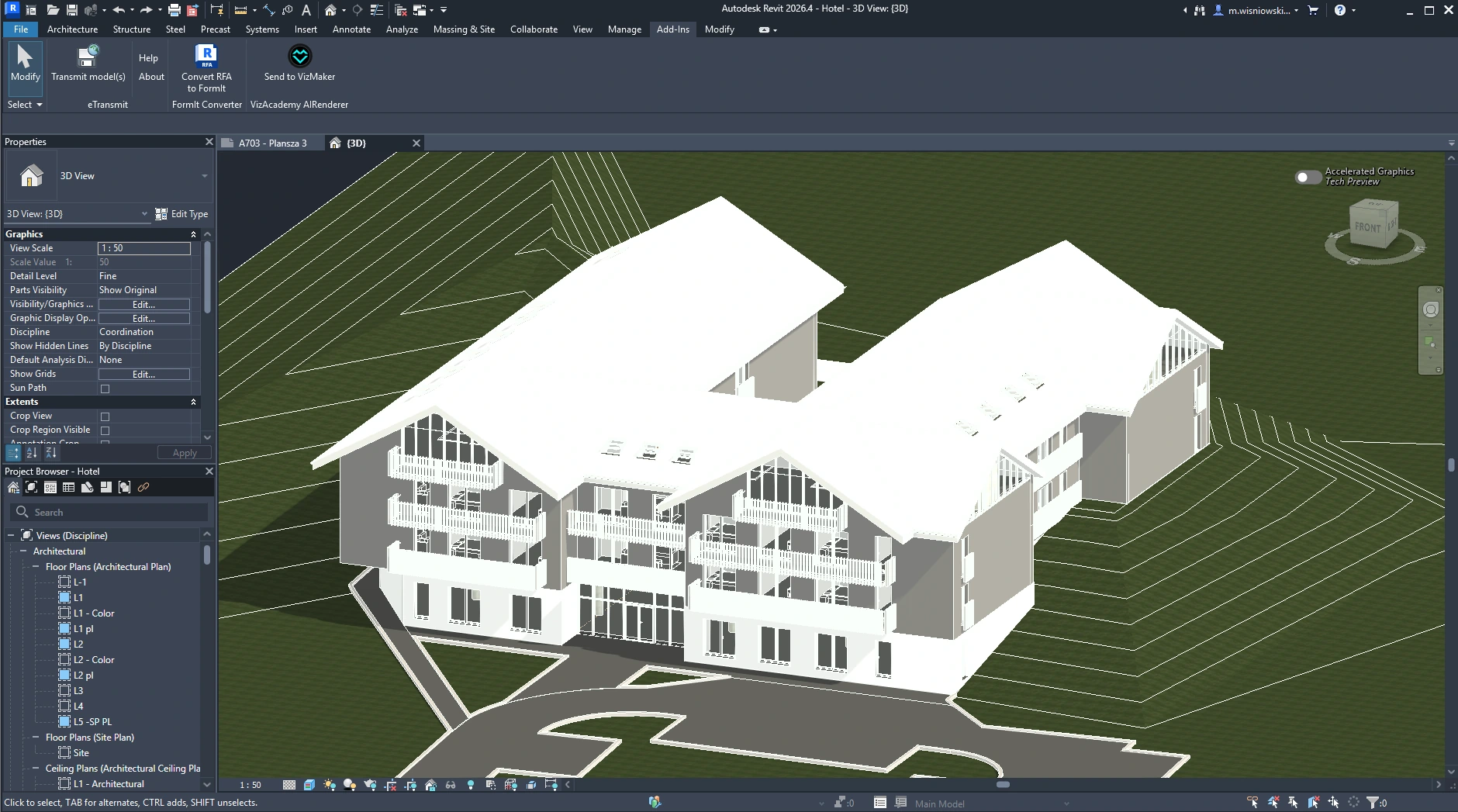
Choose a view that answers a specific question. An exterior perspective can compare a light stone façade with a warmer brick direction. A lobby view can explore how timber, planting and softer light change the arrival experience. A residential interior can help a client understand a proposed furniture arrangement.
Hide information that would distract from that question, compose a useful camera angle and make the primary volumes readable. Clear source images reduce ambiguity. After the view arrives in VizMaker, select Image Editor and an available engine, then use a relevant preset or write the desired visual brief.
Install the plugin and organise the handover
The integration is managed inside the desktop app under Settings > Plugins. Select the Revit version available for your installed setup and confirm. Restart the host application after installation if needed. Check the current installer for compatibility instead of assuming that every Revit release is supported by every VizMaker build.
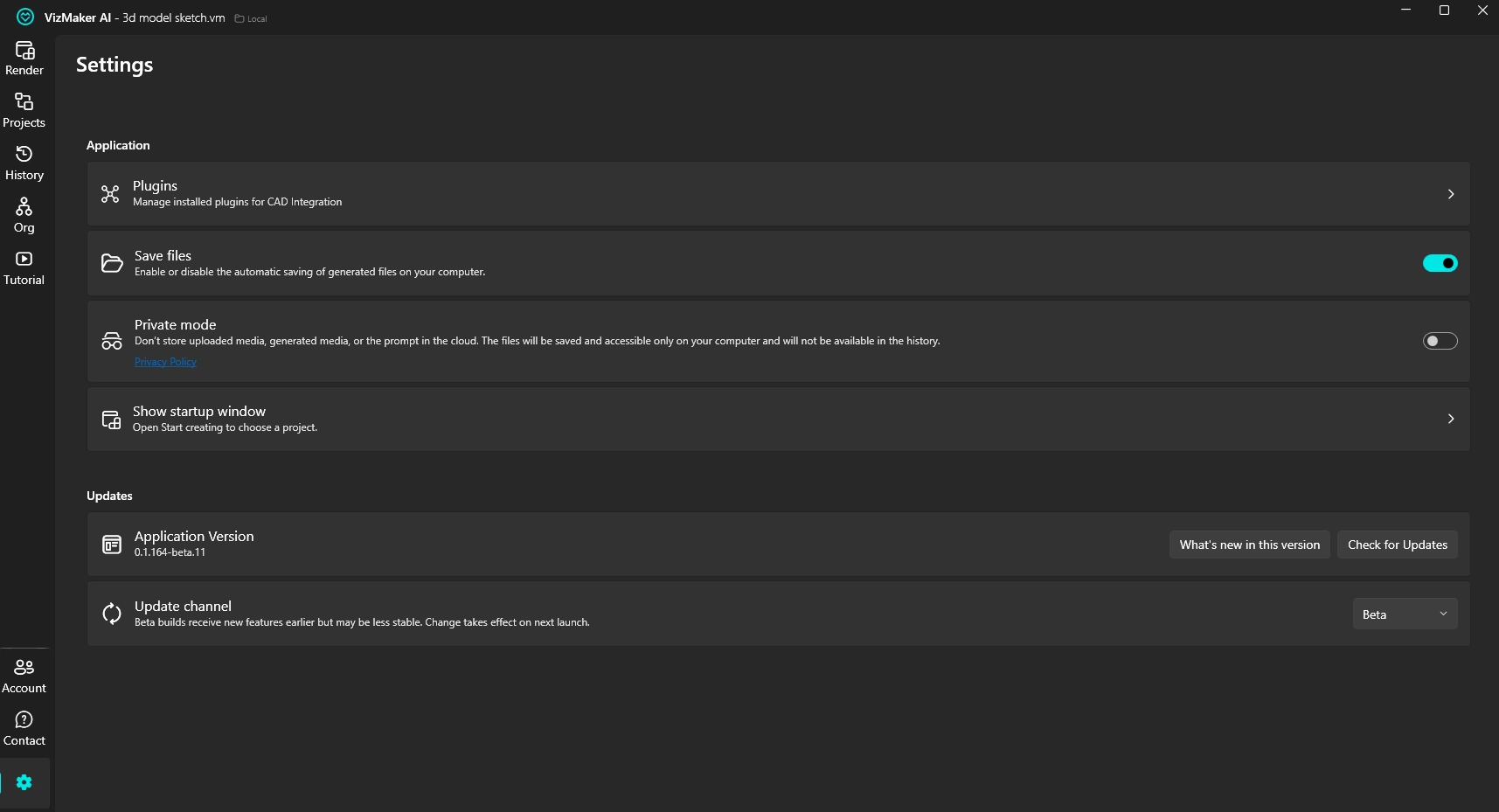
For a studio, a simple naming convention helps: project, view and design option. Keep the original transferred view beside each generated branch. That gives the architect and visualisation artist an understandable record of which image came from which source and which changes were requested.
Explore façade, season and lighting options without losing the design question
AI rendering for Revit is especially useful when the question concerns appearance. The supplied VizMaker workspace shows a single exterior feeding several branches: rain, snow, daylight, a warmer sun angle and a night-time mood. These alternatives can support a conversation about the building’s character and how it is presented.
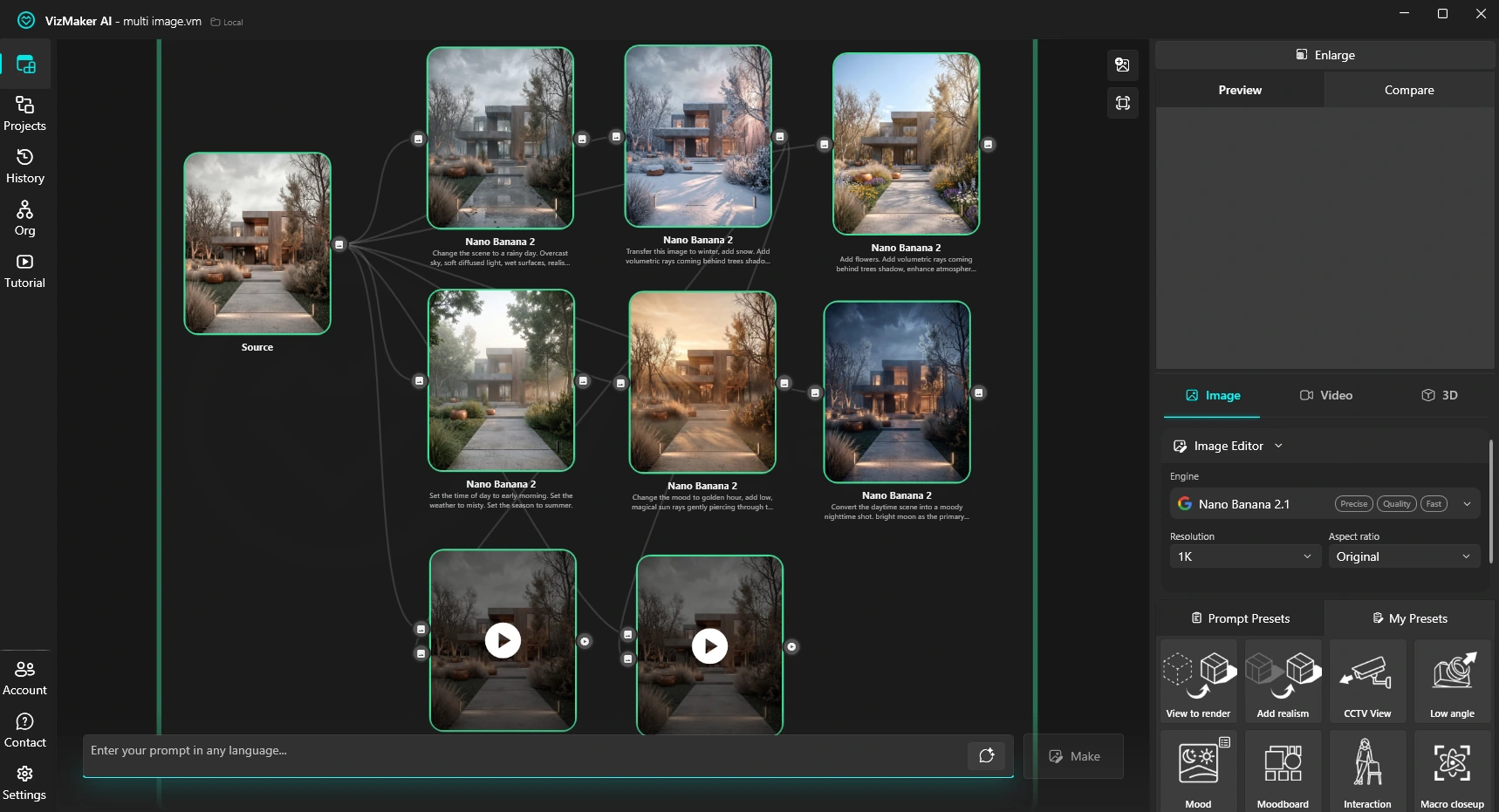
Keep the prompt anchored to the source. Specify the material change and the elements that should remain recognisable, then compare the result against the model view. In the shared tutorial, one generated option removes a background building. That is a useful reminder to inspect the whole image, including context, windows and entrances.
An AI image does not update the BIM model. Once the client selects a direction, the architect still resolves the relevant Revit elements, materials and documentation. Treat generated design boards and diagram-like views as communication material rather than automatically coordinated project information.
Turn one model view into a richer client presentation
A presentation often needs more than one hero image. An interior overview can become the starting point for a palette discussion, a detail study or a more focused visual explanation. The supplied workspace shows related interior and exterior branches arranged together, allowing the design team to compare outputs instead of losing them in separate files.
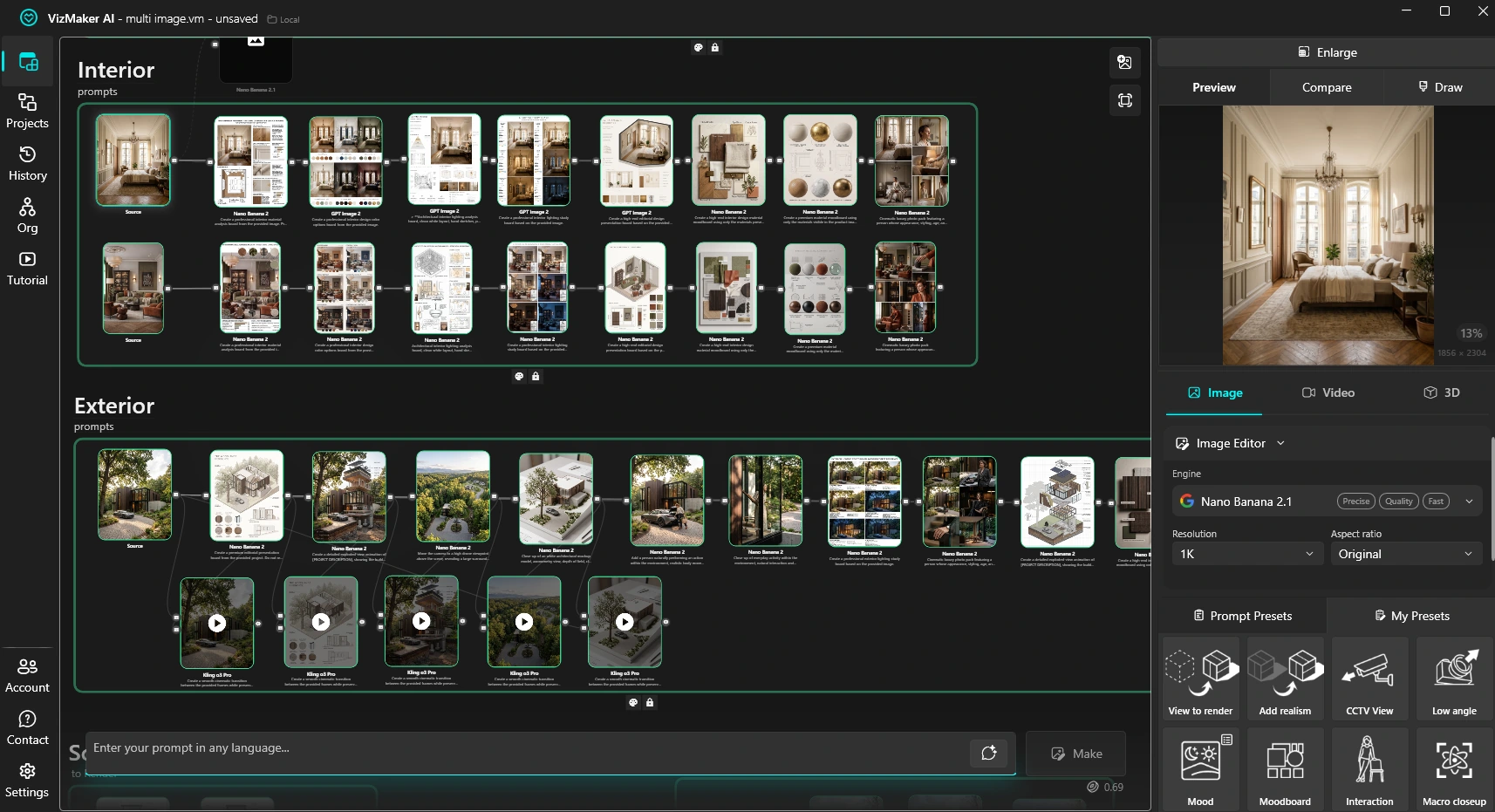
Use a small, purposeful set of images: the original model view, the preferred visual direction and one detail that explains the choice. A warm lighting option and a cooler neutral option can be more useful than ten nearly identical renderings. The aim is to make decisions easier for people who are not working inside the BIM model every day.
Upscale the approved image and build a short animation
When the concept is agreed, AI upscaling can improve the resolution and apparent detail of the selected image. VizMaker’s guide includes Pro Upscaler and Magnific tools, plus side-by-side comparison. Review façade edges, patterned surfaces, furniture and people after enhancement so that added detail does not undermine the design.
For a moving presentation, send the developed image into Video Creator. Choose an available engine and describe a restrained move: approach the entrance, move back to reveal the courtyard or hold the view while people provide a sense of scale. A supported first-and-last-frame workflow can connect two prepared views. The result is a video presentation; it does not become an editable Revit camera path.
Use AI-generated 3D assets with a clear BIM boundary
AI 3D model generation can help when a design discussion needs a distinctive furniture object, planter or sculptural feature. VizMaker can generate a mesh from an object image using Tripo 3D or Meshy AI, and the guide demonstrates reviewing and exporting the result.
That mesh is a visual asset, not automatically a parametric Revit family with schedules, constraints and the information a BIM deliverable requires. Decide whether it belongs in a separate visualisation scene or needs a deliberate content-authoring workflow. Check the object’s dimensions and appearance before it influences a client decision.
See the common AI tools in a complete architectural example
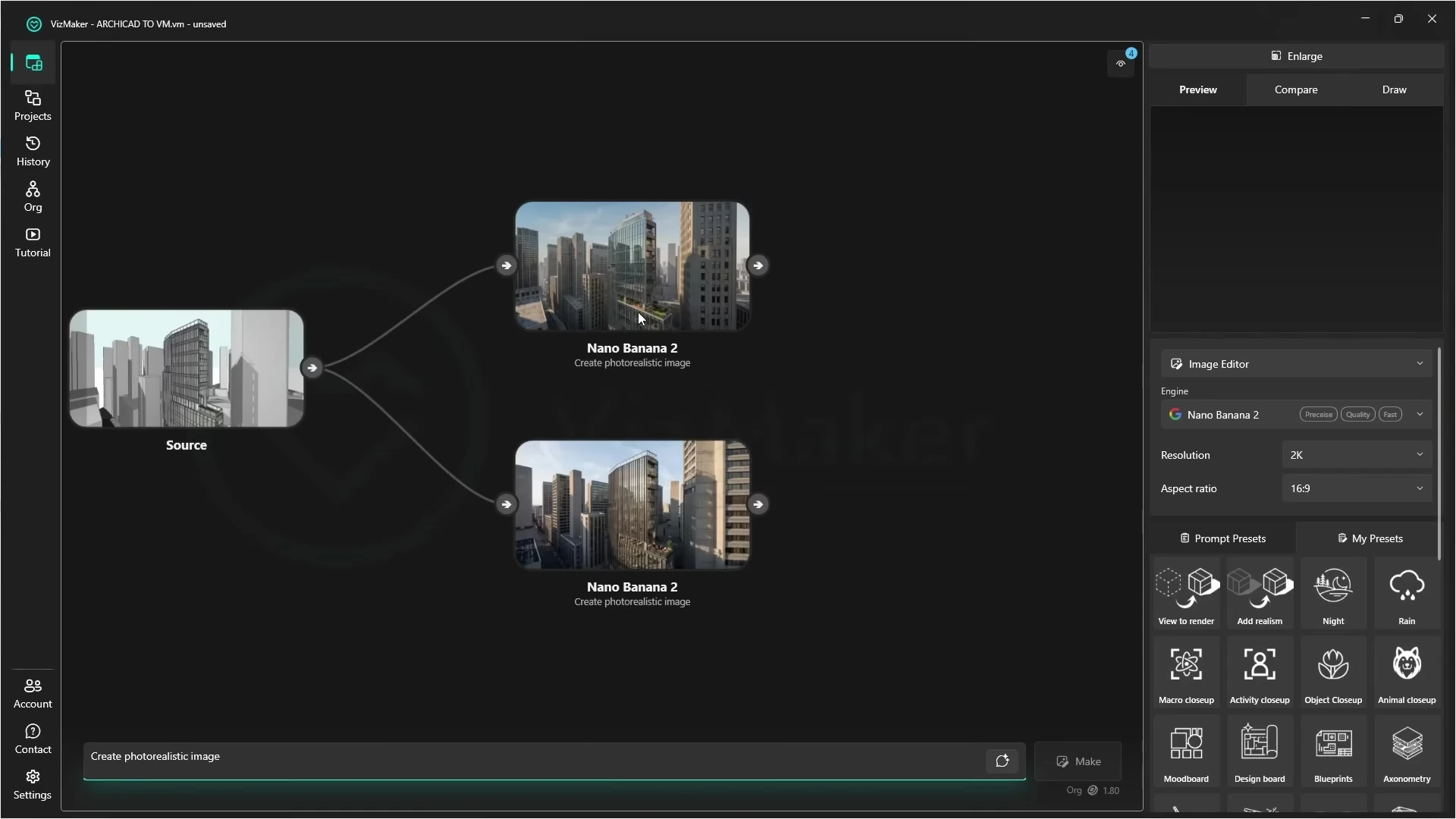
The accompanying video begins in Archicad and then develops exterior and interior images in VizMaker. It is included to demonstrate the shared image, upscaling and animation tools. The Revit connection itself is documented in the guide screenshot near the start of this article.
Frequently asked questions
How do I send a Revit view to VizMaker?
Install the matching Revit integration in VizMaker's Settings > Plugins. The supplied guide shows a Send to VizMaker command in Revit for transferring the current model view.
Does VizMaker change my Revit BIM model?
The workflow described here develops images from model views. AI-generated changes to finishes, objects or atmosphere do not automatically update Revit elements, families or schedules.
Can I create an animation from a Revit view?
Yes. After developing a suitable image in VizMaker, use Video Creator to generate a shot. Engines supporting first and last frames can use two images to guide the transition.
Are AI-generated furniture models Revit families?
A generated mesh is a separate visual asset. It should not be treated as a ready-made parametric Revit family; use an appropriate conversion or content-authoring workflow and check scale and suitability.
Continue your VizMaker workflow
Explore other VizMaker integrations: 3ds Max · Archicad · SketchUp · Rhino · Blender · Unreal Engine
Bring your next Revit view into VizMaker
Download VizMaker, install the integration for your setup and explore AI rendering, image editing, upscaling, animation and 3D creation from one workspace.
Download VizMakerAbout this guide: VizMaker was created by designer Wojciech Jurkowski. This article draws on the supplied VizMaker Guide Ebook, original application screenshots and the VizAcademy UK Archicad tutorial. The cover is an AI-generated editorial illustration; the in-article software screenshots and video frames show the real application. Interface details, available engines and supported host versions can change. Check the current plugin manager and VizMaker website for your setup.
VizMaker for SketchUp: AI Interior Rendering and Design Variations
Use VizMaker with SketchUp to explore interior materials, create AI renders and animations, upscale selected images and generate furniture from references.

Build a consistent AI avatar, product photoshoot, edited images, video ad and posters in VizMaker with Anna Jurkowska's practical campaign workflow.

Below you will find a new way to skyrocket your rendering time with our partner RebusFarm