AI interior redesign from video starts with footage of a real room or a recorded 3D viewport. In this VizMaker tutorial, reference images guide how that footage should look after a redesign. The result is a moving concept presentation that follows the source recording through the space.
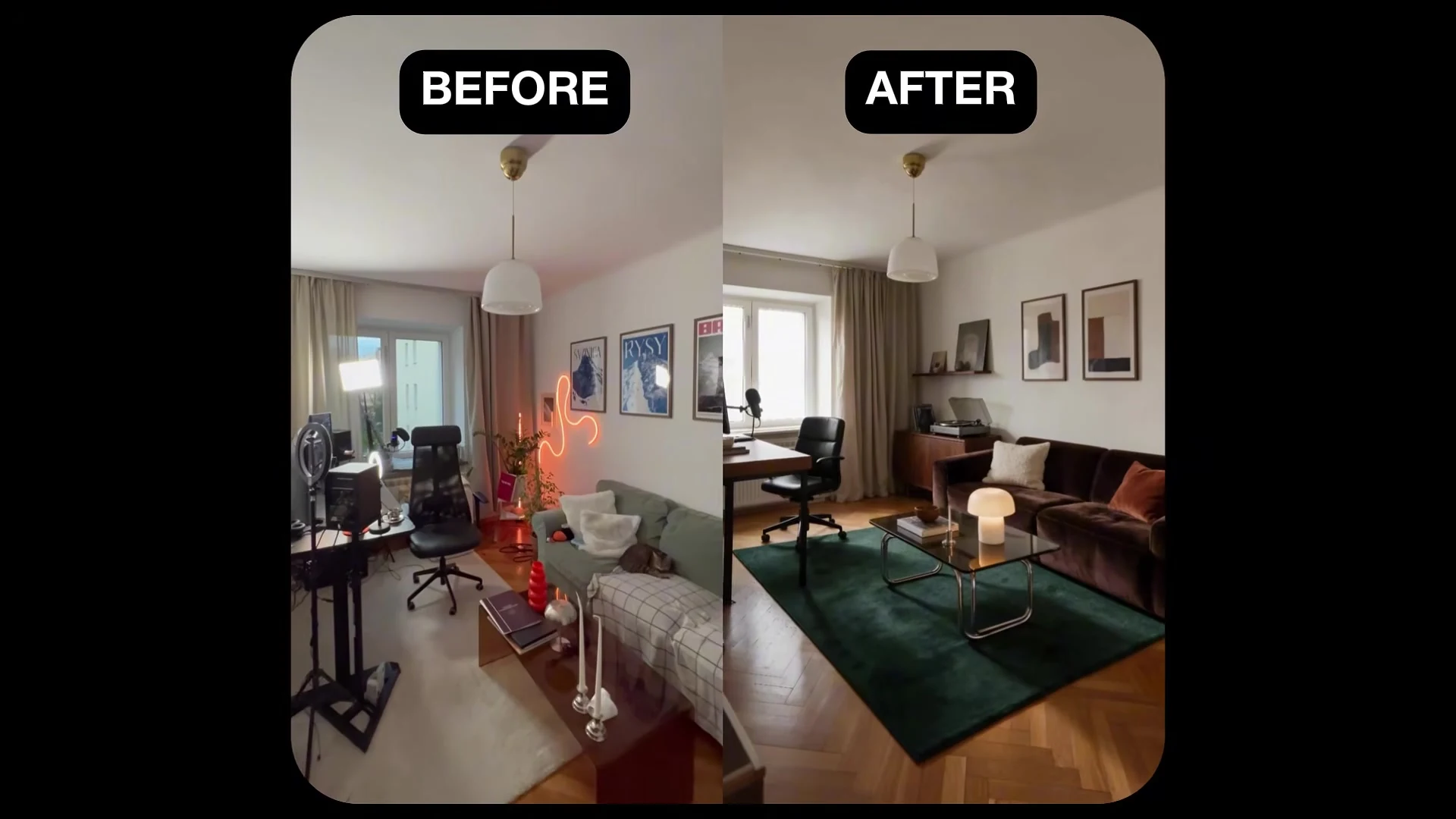
The examples include a construction-stage interior, a furnished apartment and a room whose objects are rearranged. The workflow is useful when a client needs to understand a proposed atmosphere or layout through a sequence rather than a single still.
Start with a recording that communicates the space
You can use a phone recording or capture a view from design software. The video demonstrates the VizMaker recording workflow with 3ds Max, SketchUp and Revit, and explains the Record Screen option for capturing another application.
Prepare a short clip with a useful route through the room. The built-in editor can adjust the aspect ratio and trim sections before the recording becomes the source for video-to-video AI.
A clear source gives you something concrete to compare against later: where the walls and windows are, how the camera moves, and which objects enter or leave the frame.
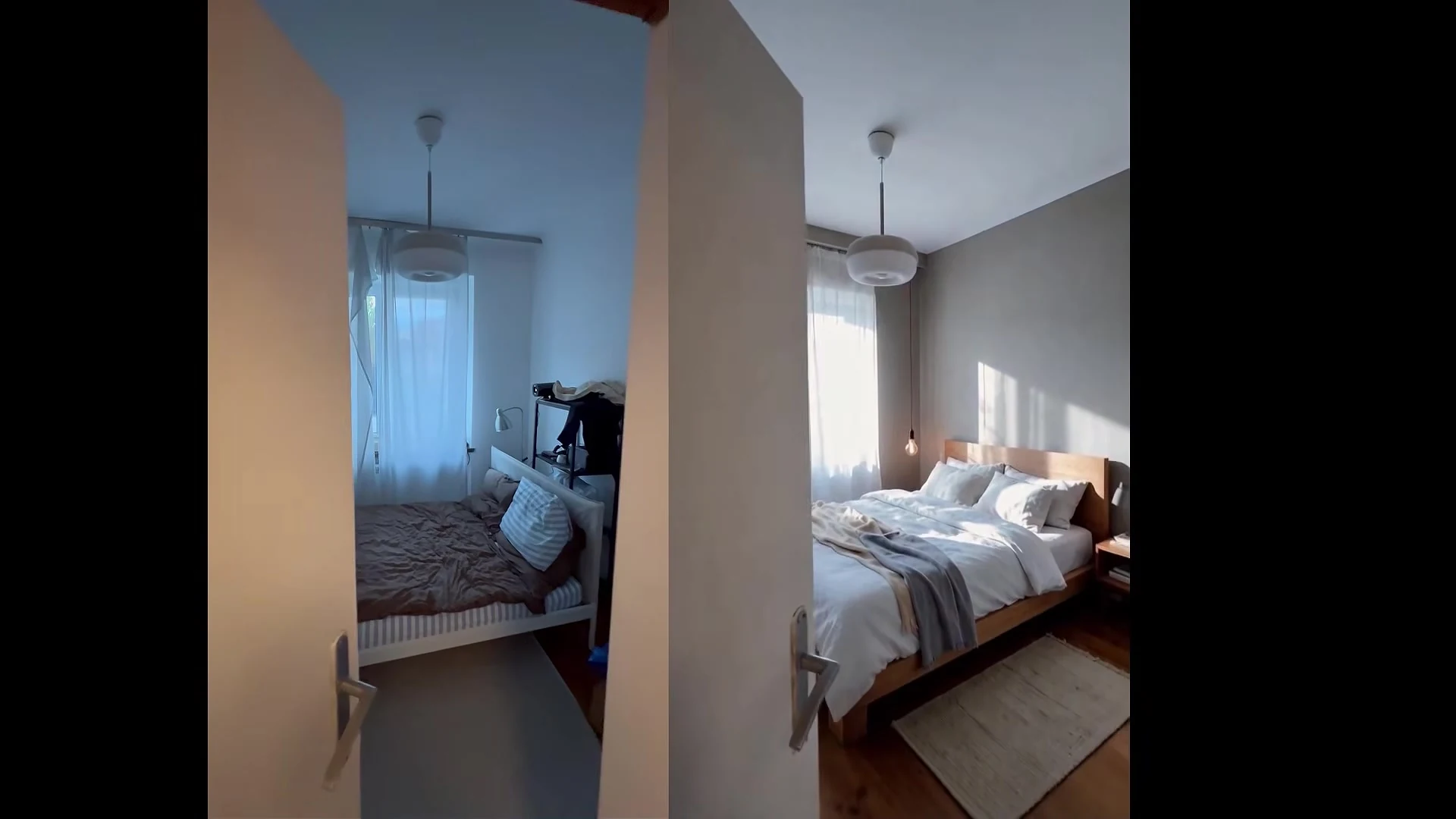
Apply inspiration to views of the actual room
An unrelated inspiration photograph can communicate a style but may contain a different room layout. The tutorial recommends preparing redesigned versions of your own views, while retaining the original arrangement of walls and windows.
Upload the room image and the inspiration, connect them in VizMaker and describe how the style should be applied. Repeat this for the important parts of the recording. These references should tell a consistent story about materials, furniture and light.
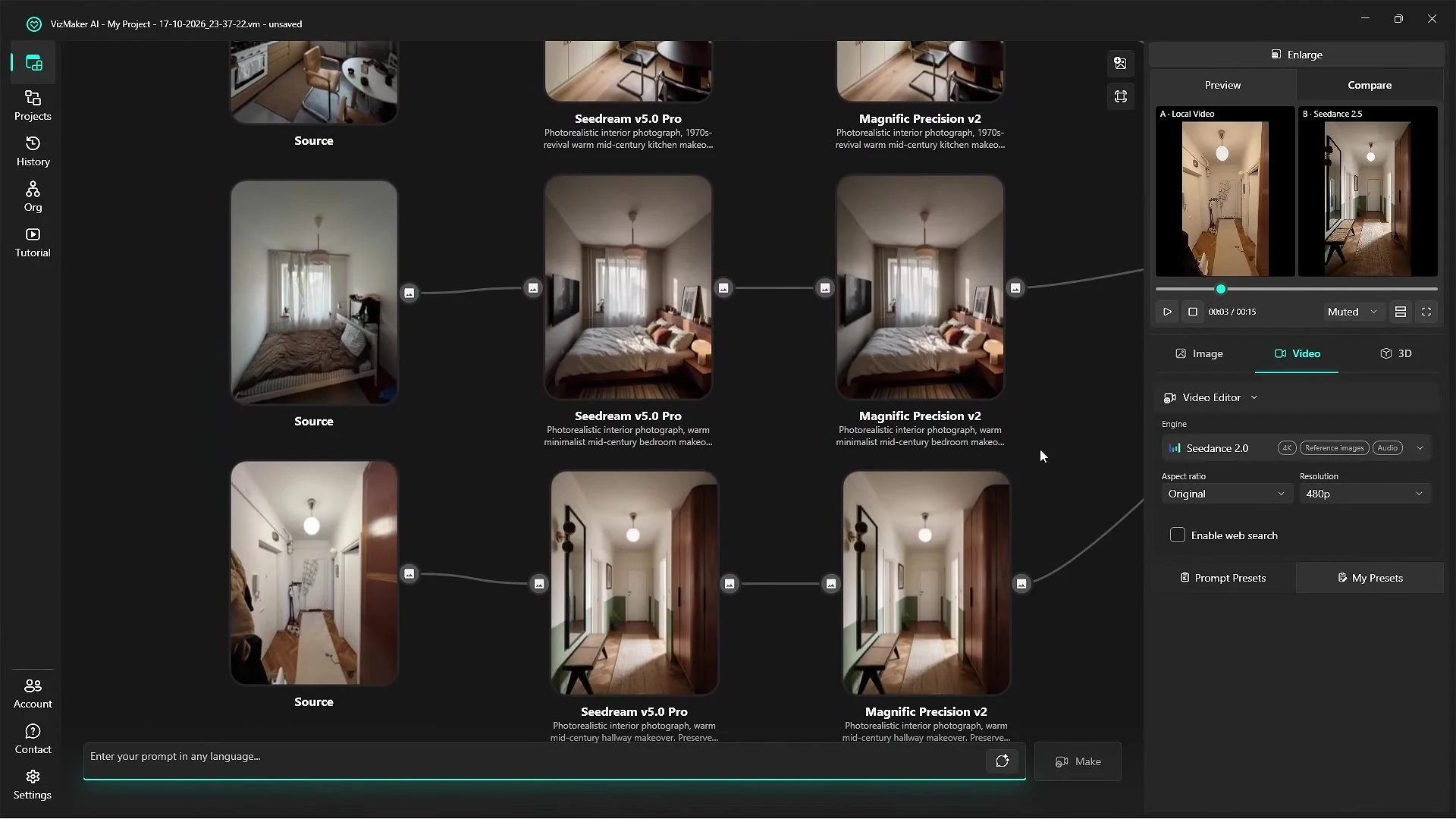
This step addresses a common problem in AI interior design animation: a convincing individual frame can still conflict with the next room or the next camera position. Consistent references reduce that ambiguity before the video is generated.
Connect references in the order the camera encounters them
The demonstrated node setup begins with the source video, followed by the redesigned room images in their intended sequence. The prompt explains what happens through the clip and how the new design differs from the source.
For timing, the tutorial recommends approximate instructions such as “around” a particular second. Its reported experience is that rigid timing can produce stutters or abrupt speed changes. Use the timeline to communicate an approximate progression, then inspect the generated motion rather than assuming exact control.
Compare engines using the same design task
The tutorial reports that Seedance 2.5 Turbo performed best for its interior video-to-video examples, following the camera more reliably than Seedance 2.0 in those comparisons. It also describes favourable cost and speed trade-offs for the demonstrated setup.
That finding is specific to the examples and engine versions shown. It is more useful to repeat a short comparison on your own footage than to assume one engine will win every task. Judge camera continuity, room geometry, furniture stability and the consistency of finishes.
Finish the clip and show alternatives clearly
VizMaker’s A/B comparison lets you review two videos side by side without exporting them first. The tutorial then demonstrates video upscaling and editing tools for trimming or assembling the final result.
The last example captures changes to furniture placement in a 3D scene and carries that movement into the generated presentation. This suggests a practical way to compare alternative arrangements: keep the visual brief consistent while changing the layout decision you want the client to assess.
Review the entire clip before presenting it. The source video explicitly acknowledges that errors still occur; a short, controlled concept sequence can be more useful than a longer clip with unstable details.
Frequently asked questions
Can I use a phone video for an AI interior redesign?
Yes. The tutorial starts from phone footage or a recorded viewport, then connects redesigned room references to guide the generated video.
How can I reduce unwanted changes to walls and windows?
Prepare references from views of the actual room and keep its wall and window arrangement consistent. Review the resulting video for changes and continuity errors.
Which engine performed best in this tutorial?
The presenter reports that Seedance 2.5 Turbo worked best for the demonstrated video-to-video examples. That result is specific to those inputs and engine versions.
Continue your VizMaker workflow
- VizMaker Live Preview: Turn 3D Viewport Motion into AI Animation
- ArchiCAD AI Rendering: Explore Interior Styles with VizMaker
Try this workflow in VizMaker
Start with a source image or project that you know well, follow the demonstration and compare the result against your design brief.
Download VizMakerVideo source: The Fastest Way to Show Clients Your Interior Ideas | VizMaker, published 23 October 2026. Tutorial published by VizAcademy UK. All screenshots above were extracted from this recording. This guide describes the demonstrated workflow; available models, interface details and offers may change. Visit the official VizMaker website for current product information.

VizAcademy answers your questions: How do I install the student version of 3ds Max? Autodesk 3ds Max is easy to download and install on your computer. It gets better: there’s a free trial version for students. The student version of 3ds Max is functionally the same as the licensed option.

Telephones, cars, furniture, buildings - everything is constantly being redesigned and remade. Everything that is made or remade is initially modelled in 3D. Blueprints are initially created and agreed upon by sharing. Modelling is therefore crucial to manufacture.

Build a consistent AI avatar, product photoshoot, edited images, video ad and posters in VizMaker with Anna Jurkowska's practical campaign workflow.