Seedance 2.5 in VizMaker turns architectural renders into animated presentation sequences, including occupied interiors, exterior camera moves and construction timelapses. The useful question for an architect is how well those moving images communicate the original design: do the windows stay in place, do people interact convincingly with the furniture, and does a camera move preserve the building?
In the source tutorial, Adrian Mazur explores four applications of AI video within VizMaker. His examples show where animation adds value to an existing visualisation and where careful preparation of reference images makes a difference.
Bring an interior render to life with people and sound
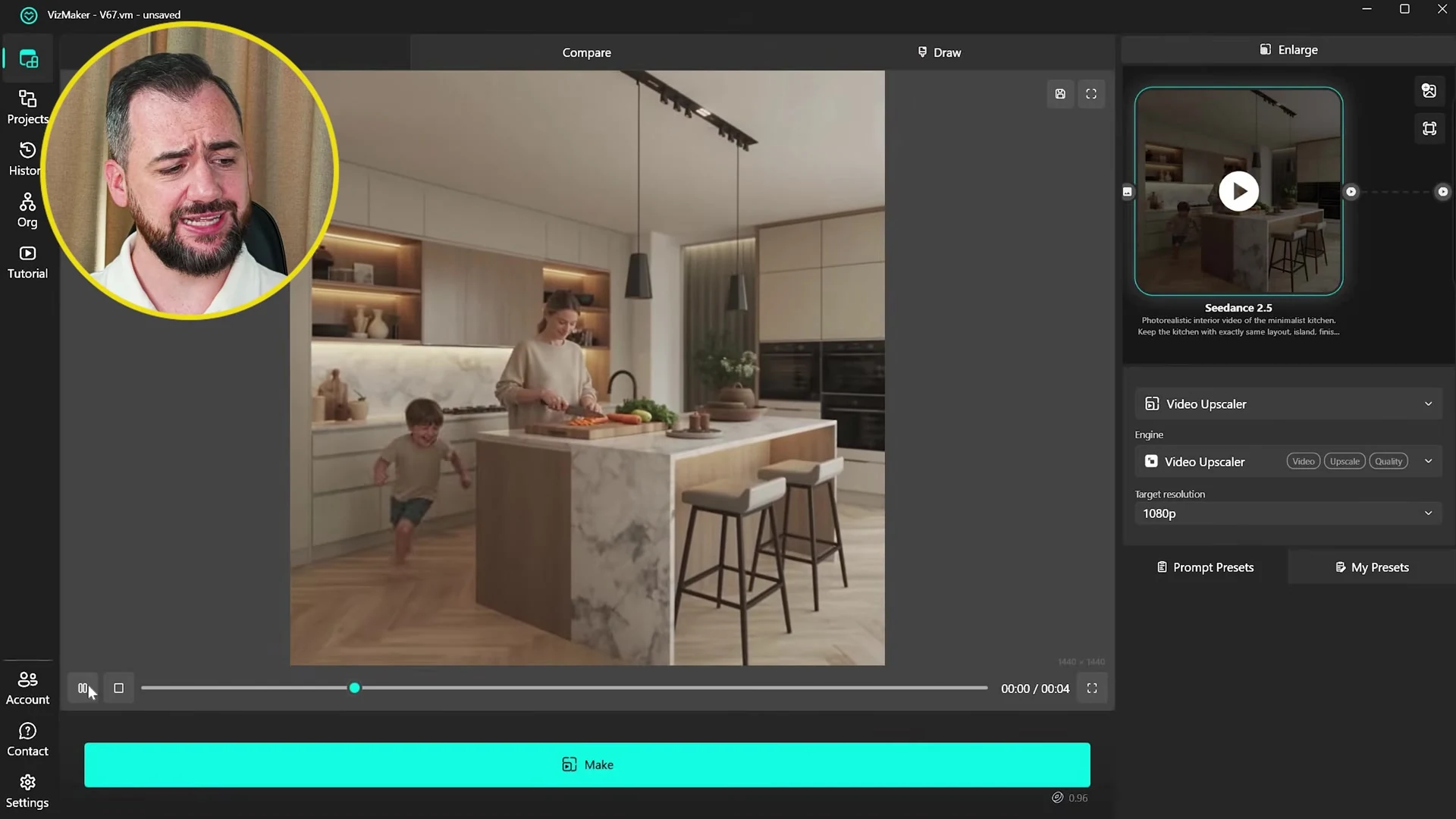
An empty room can explain materials and lighting, yet say little about how the space will feel in use. An AI interior animation can introduce that missing layer: a conversation on a sofa, movement around a kitchen island or the small actions that make a home feel occupied.
Adrian starts with short sequences in Seedance 2.5 through VizMaker’s Video Creator. The tutorial shows people interacting with two interiors, with generated audio accompanying their movement. The room remains the reference against which he judges the result.
For a client presentation, give each clip one clear purpose. A kitchen sequence might communicate circulation around an island; a living-room sequence might establish the atmosphere of a seating area. Review contact with furniture, faces, hands and the edges of fixed architectural elements before selecting the shot.
Add a presenter: prepare references before generating video
The next example combines an interior render with a reference of the presenter. Adrian prepares the person against a plain background using Nano Banana 2, then describes a short entrance and spoken line for the animation.
This section contains a useful failed attempt: the presenter appears stretched. Adrian attributes the problem to combining a vertical character reference with a horizontal render, and shows an improved result after matching their proportions. Consistent aspect ratios are a practical preparation step when combining references for AI video.
Use a clear reference, compatible framing and a short sequence of actions. Check the result for identity, body proportions and lighting as well as lip movement. A convincing generated presenter can introduce a project, while the architectural images still need to carry the actual design information.
Build an exterior sequence from existing renders
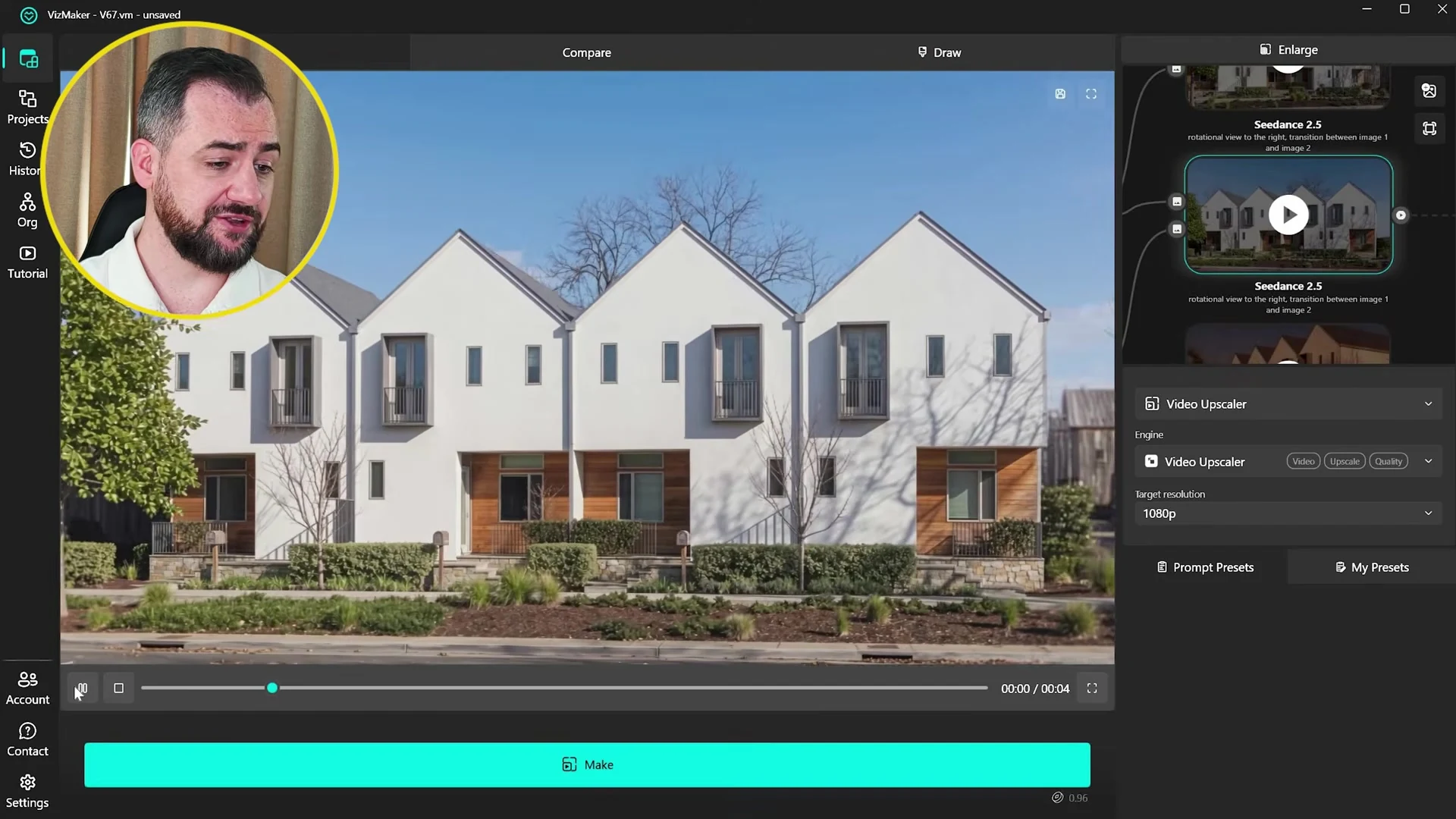
Three exterior views become a series of shots: an aerial reveal, connected views around the building and a day-to-night transition. This is a useful way to plan architectural animation from still images: each approved render anchors a different part of the story.
An establishing view explains the setting. A closer camera move reveals the facade. A lighting transition communicates the evening atmosphere. Keeping those roles distinct helps an architect or visualisation artist assemble a sequence with a readable beginning, middle and end.
The tutorial also shows why generated context needs review. Adrian notices repetitive surroundings in the aerial result. When a presentation must represent a specific site, compare the generated landscape and neighbouring buildings with the project references before using the shot.
Create an AI construction timelapse
The final workflow starts with a tower concept created through VizMaker’s Image Creator using Nano Banana 2 and architectural presets. The completed image is then developed into earlier construction stages. These images provide reference points for a sequence progressing from the site towards the finished building.
Adrian compares two approaches: connecting several short transitions and producing one continuous generation from the beginning and end states. The demonstrated Seedance 2.5 interface offers clips of up to 30 seconds, allowing him to explore the longer approach within the same workspace.
For an architectural marketing presentation, the choice depends on how much direction each stage needs. Separate clips let you review and replace individual transitions. A longer shot may provide a more continuous visual rhythm. Check camera alignment, changes to the surroundings and the order in which major elements appear.
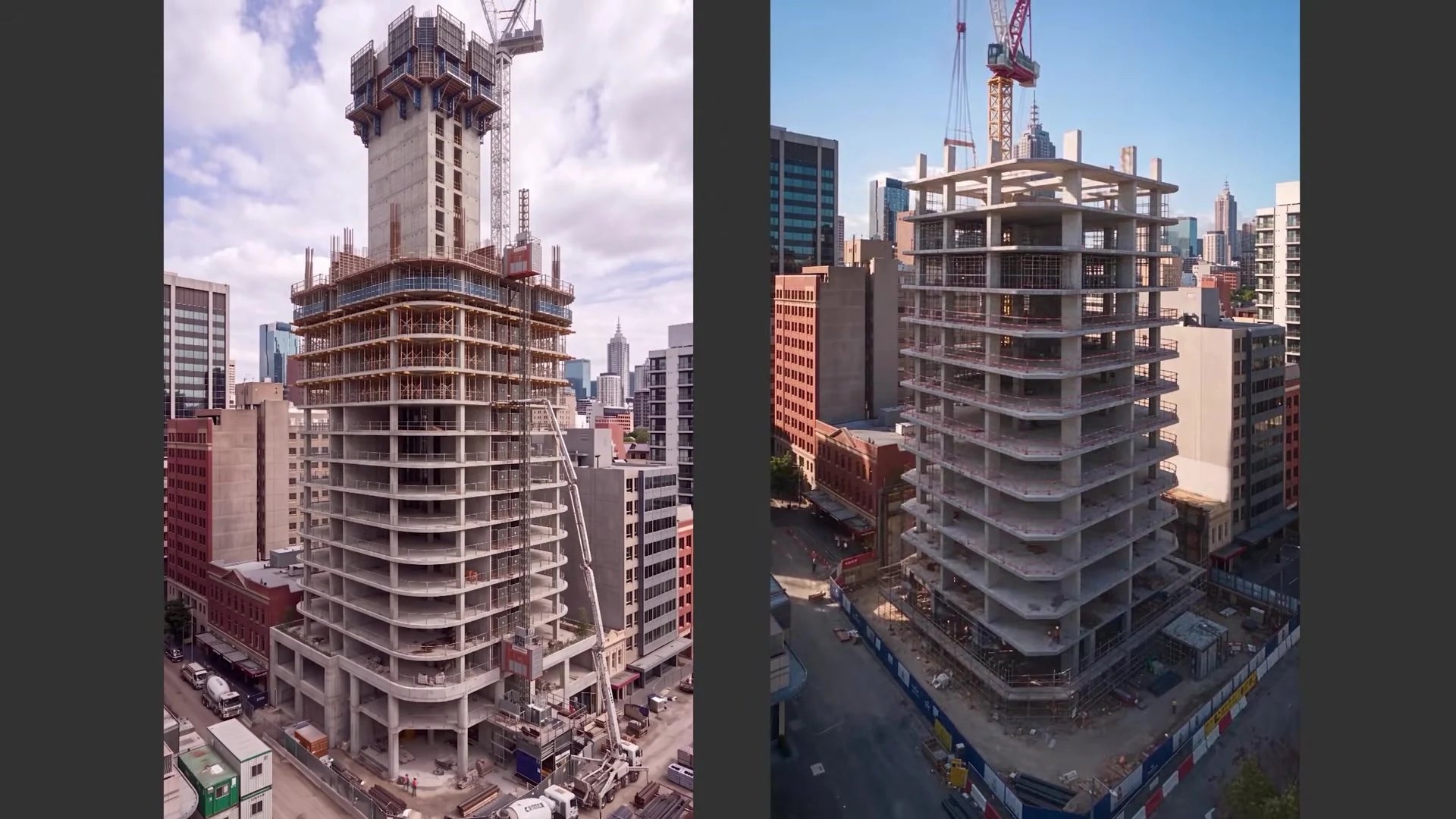
An AI construction timelapse communicates a visual story of transformation. If it is intended to explain an actual building sequence, reconcile the imagery with the project’s construction information; generated intermediate stages do not establish engineering or programme accuracy.
A practical workflow for architects and visualisation artists
- Choose the communication goal. Decide whether the shot explains occupation, exterior form, lighting or transformation.
- Prepare consistent references. Align image proportions and check that architecture agrees across views.
- Generate a short candidate first. Judge the movement and scene stability before developing a longer sequence.
- Review against the design. Inspect openings, furniture, people and background context.
- Assemble the presentation. Combine useful shots with still renders, drawings and clear project captions.
VizMaker brings image preparation and video generation into one workflow, so an approved image can become the starting point for another presentation format. Check the current engine options and credit estimate in the app when choosing resolution and duration.
Frequently asked questions
Can Seedance 2.5 animate an architectural render in VizMaker?
Yes. The tutorial demonstrates interior and exterior animations starting from rendered images, including people, camera movement and lighting transitions.
How long are the Seedance 2.5 videos shown in the tutorial?
The recorded interface offers up to 30 seconds for a generation. Adrian also uses shorter clips for individual shots. Check the current options in VizMaker before generating.
How can I reduce problems when combining a presenter image with a render?
Prepare references with compatible aspect ratios and framing, describe a short sequence of actions, and review body proportions and lighting. The tutorial shows an improved result after correcting mismatched image proportions.
Is an AI construction timelapse a verified building sequence?
No. It is generated presentation imagery. Reconcile it with the actual construction information if it needs to explain the project's building sequence accurately.
Continue your VizMaker workflow
- Google Omni, Seedance 2.0 or Kling 3.0? AI Video for Architecture in VizMaker
- VizMaker Live Preview: Turn 3D Viewport Motion into AI Animation
Bring your next design into VizMaker
Create and refine architectural images, explore 3D workflows and develop your next presentation.
Download VizMakerVideo source: Seedance 2.5: The Most Complete AI Video Model for Architecture?, published 11 October 2026. Source video by Adrian Mazur, Adrian Mazur | AI for Architects. Screenshots are extracted from this recording. The article describes the demonstrated version; current engine options and credit requirements are available in VizMaker.

How to make a world class 3D landscape model or 3D garden model?
Trying to make a 3d landscape model or 3d garden model? Anxious about modeling irregular landscape features manually from scratch? We can help! In this article you will find three good methods to make a world class 3d landscape or 3d garden model you can be proud of.
VizMaker for Blender: AI Rendering, Animation and 3D Asset Creation
Connect Blender views to VizMaker for AI look development, image editing, animation, upscaling and 3D asset generation for interiors and creative scenes.

VizMaker for Unreal Engine: AI Visuals for Architectural Storytelling
Add VizMaker to Unreal Engine for AI architectural look development, image-based animation, upscaling and 3D asset concepts alongside your real-time scene.