VizMaker is an AI rendering and image-editing application for architects, interior designers and visualisation artists. It turns sketches, 3D viewport captures and existing renders into visual concepts, then brings image editing, upscaling and animation into the same workspace. For anyone exploring AI rendering for architects, its value becomes clear in the everyday work: developing a concept, responding to a client’s revision and presenting the result.
This practical guide follows VizMaker – Powerful AI Tool for Designers, a demonstration created by Wojciech Jurkowski, designer and creator of VizMaker. The examples below come directly from his recording: an architectural exterior, a detailed interior and a car-design sketch.
Explore VizMaker and download the app to follow the workflow with your own design.
What can you do with VizMaker?
The recording shows a connected workflow for AI architectural visualisation: bring in an image, generate alternatives, refine the chosen direction and prepare it for presentation. These are the main problems it addresses.
| Design problem | VizMaker workflow shown in the video | Practical use |
|---|---|---|
| A model or sketch is difficult for a client to imagine. | Generate an image from a viewport capture or sketch. | Communicate an architectural or product concept. |
| A revision affects one object or part of the composition. | Guide an edit with arrows, coloured marks, text or a reference image. | Add, remove or replace elements in an existing visualisation. |
| An AI image needs more detail for presentation. | Upscale the image and inspect it at full size. | Refine a selected render or close-up. |
| A still image needs to communicate movement or atmosphere. | Generate video from one image or a start and end frame. | Create short interior and exterior presentation sequences. |
1. Turn a 3D viewport into an architectural visualisation
A working 3D model communicates space, but a raw viewport can leave materials, light and atmosphere to the client’s imagination. Building a polished rendering setup for every early design direction can also interrupt concept development.
In the demonstration, VizMaker integrates with 3ds Max, Revit and SketchUp. A plugin button transfers the current view into the application. You can also bring in an existing render or another image. This makes viewport-to-render AI useful both at the concept stage and when developing work already in progress.
The interior example shows why the input matters. Wojciech starts with a viewport that already communicates the materials, then generates a more developed visualisation. Prepare a clear composition and readable surface information before generating: the image gives the AI a visual brief.
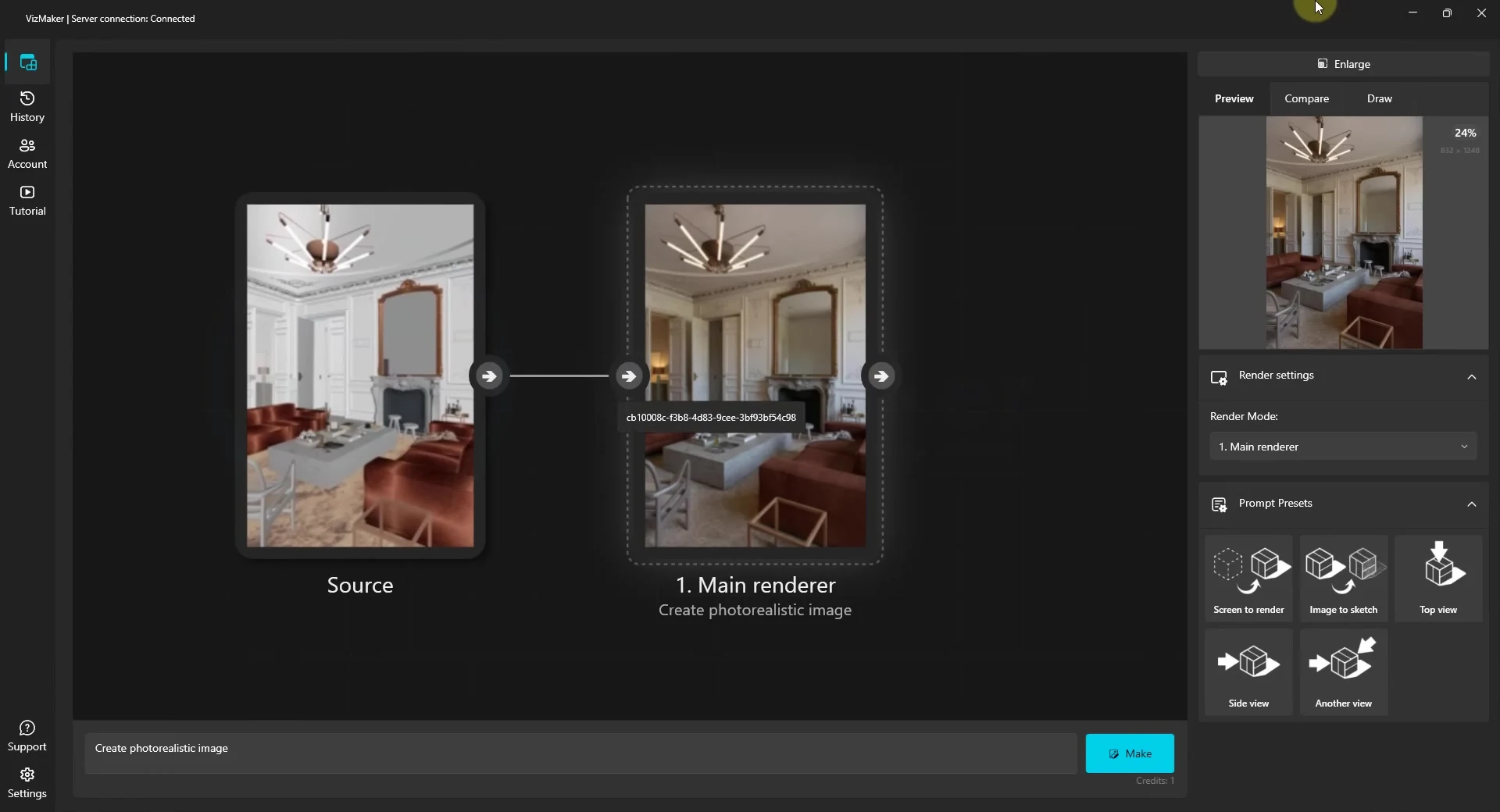
For an architect, this creates a practical way to discuss the mood of a room or the appearance of a façade before committing to a final presentation. Keep the model as the source of truth for dimensions and geometry, and check generated details against the design.
2. Explore design directions with sketch-to-render AI
Early sketches are deliberately incomplete. They capture an idea quickly, but they do not always explain the intended finish, lighting or context to someone outside the design team.
Sketch-to-render AI helps develop that conversation. In the video, a car sketch becomes a rendered concept. Wojciech tries different image engines using the same source and compares the results. The demonstration also includes a contemporary house exterior, showing how the same workspace supports architecture and product design.
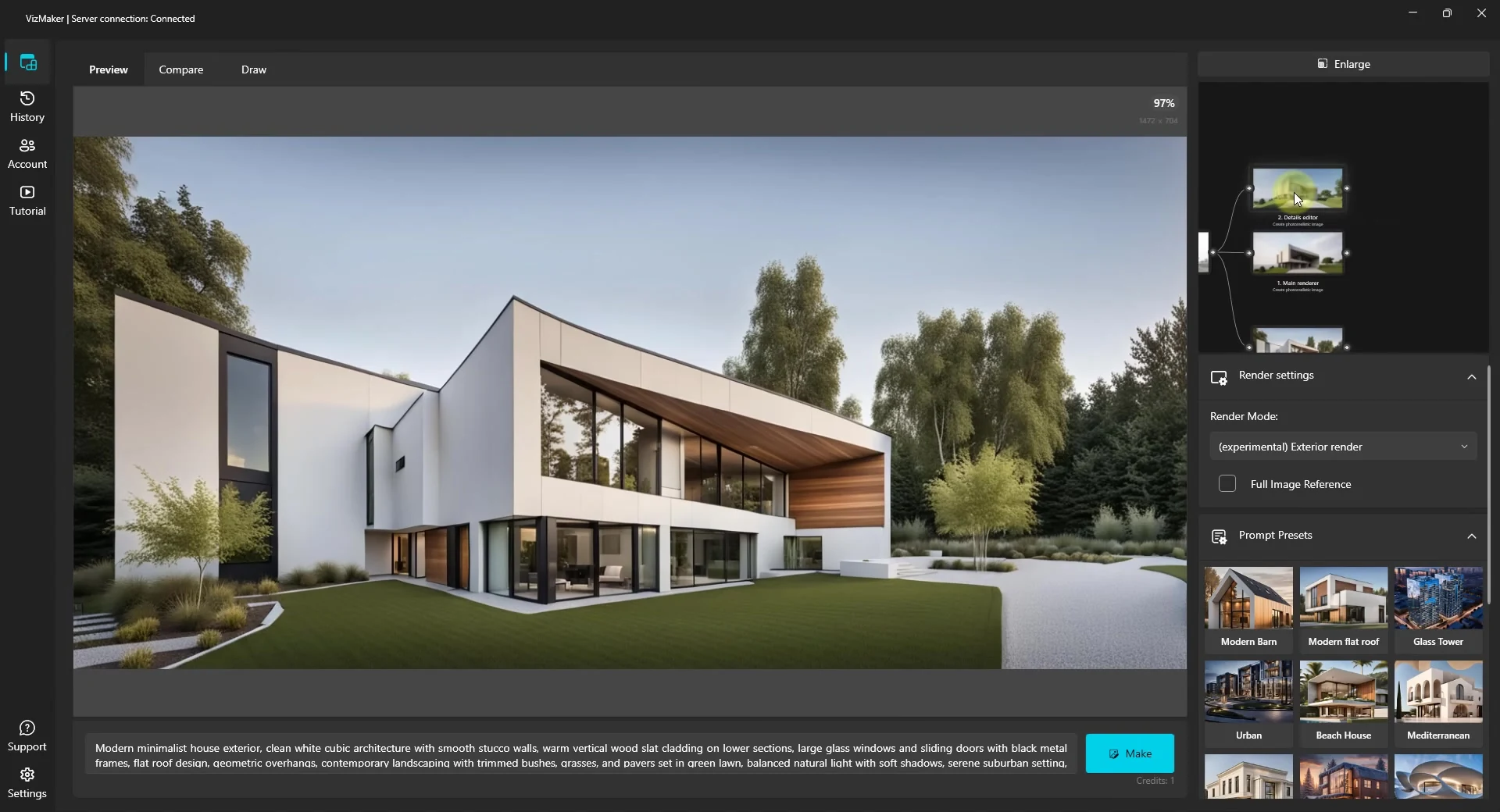
The useful habit is to compare alternatives against a design question: does the material read correctly, is the composition convincing, and does the image still express the original idea? Engine choice and source quality affect the result. A convincing image still needs the designer’s judgement.
3. Revise lighting and atmosphere without rebuilding the whole presentation
Clients often ask to see an interior brighter, an exterior at night or a space with more life. These requests are about how a design feels, and visual examples can make the discussion much clearer.
VizMaker’s Details Editor demonstrates AI render editing through presets and instructions. The tutorial brightens an interior, adds people and flowers, explores a day-to-night variation and later adds atmospheric lighting effects.
Each result can become another branch of the project. That means you can develop a daylight option and an evening direction from a shared starting point, then compare them before choosing what to present. The benefit is a shorter path from a revision request to a visual option the client can assess.
Lighting remains a design decision. For a stronger foundation, see our guide to natural and artificial lighting in 3D interior design.
4. Edit an existing visualisation with arrows, colours and reference images
A text prompt can be ambiguous when an image contains several people, chairs or decorative objects. The Draw tab lets you show the AI where the change belongs.
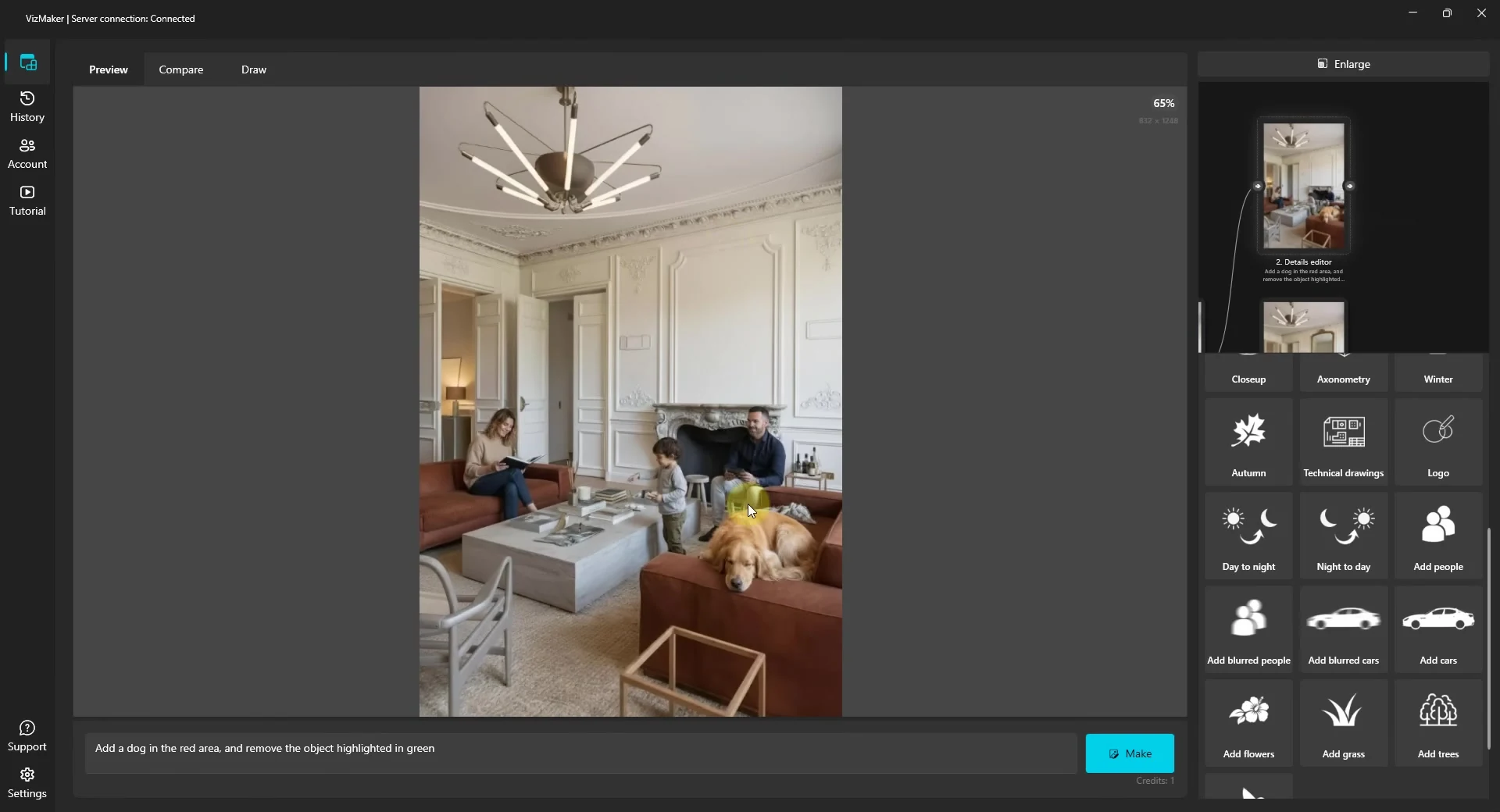
The recording demonstrates AI image editing for interior design in several concrete ways: pointing to a person to remove them, marking an object in green for removal, indicating where a dog should appear and sketching poses for new people. Text instructions explain what each mark means.
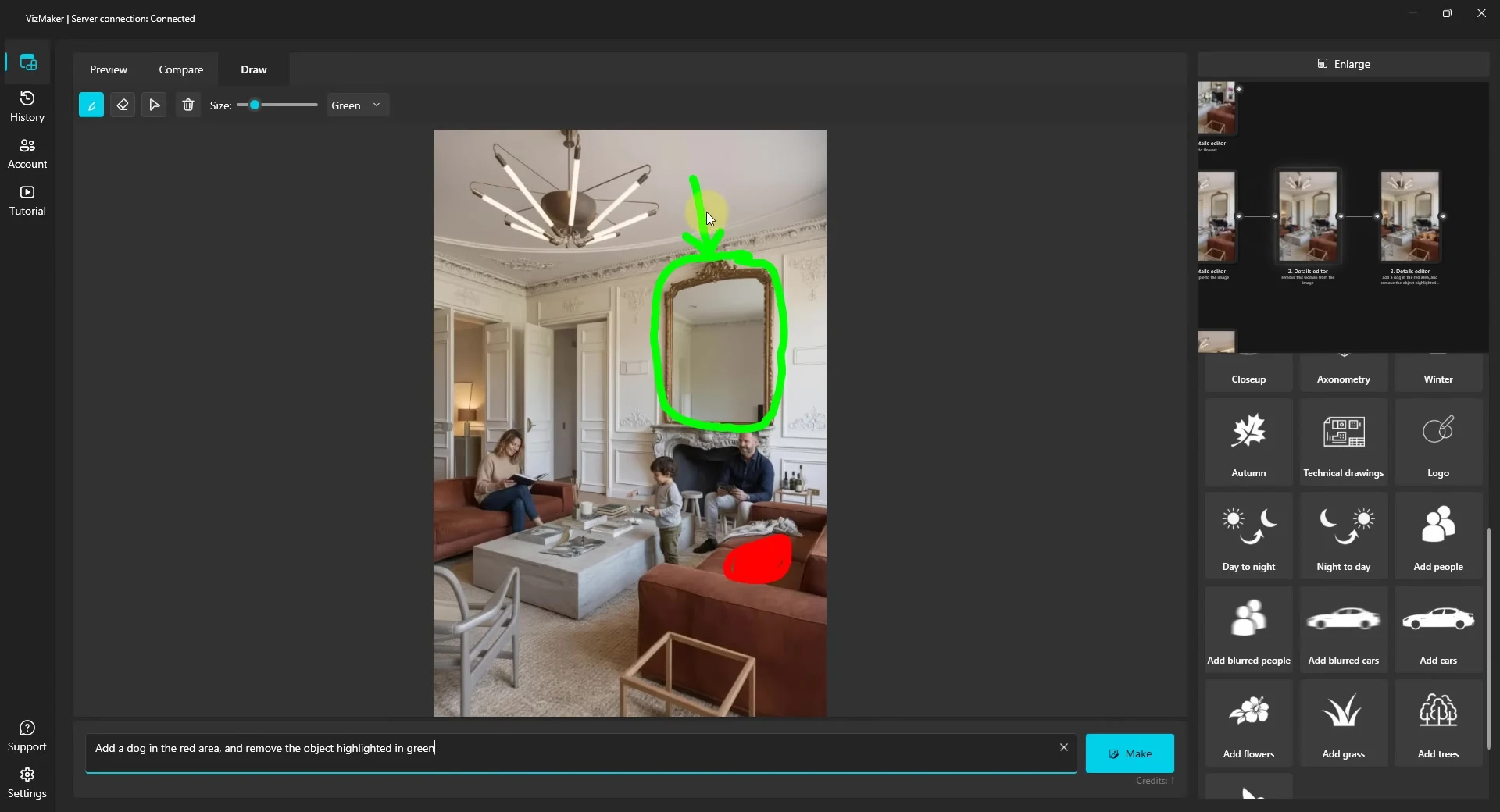
In the interior example, the instruction links a green annotation to the mirror and a separate marked area to the new dog. The resulting image removes the mirror and adds the dog on the sofa. This is an especially useful approach when a client can describe a revision more easily by pointing at the picture.
The same section shows reference-image editing: a car image is pasted into the canvas and used to guide a replacement. For a design workflow, a reference gives the AI additional visual information about the intended object, rather than relying entirely on a written description.
Inspect the result for changes to surrounding objects, proportions, reflections and shadows. An annotation guides the edit; it does not remove the need to review the whole image. For a more focused walkthrough of selection and masking tools, read our VizMaker guide to area selection, masks and the 3ds Max workflow.
5. Improve presentation detail with an AI upscaler
An image that works as a small concept preview may look soft when enlarged. This becomes obvious in furniture details, fabrics, foliage and close-up shots.
The tutorial uses the AI upscaler after selecting a promising image. It shows a 2× enlargement and describes an option for up to 4× in the demonstrated workflow. Later, an interior close-up is upscaled and compared with its earlier version to examine the improvement in detail.
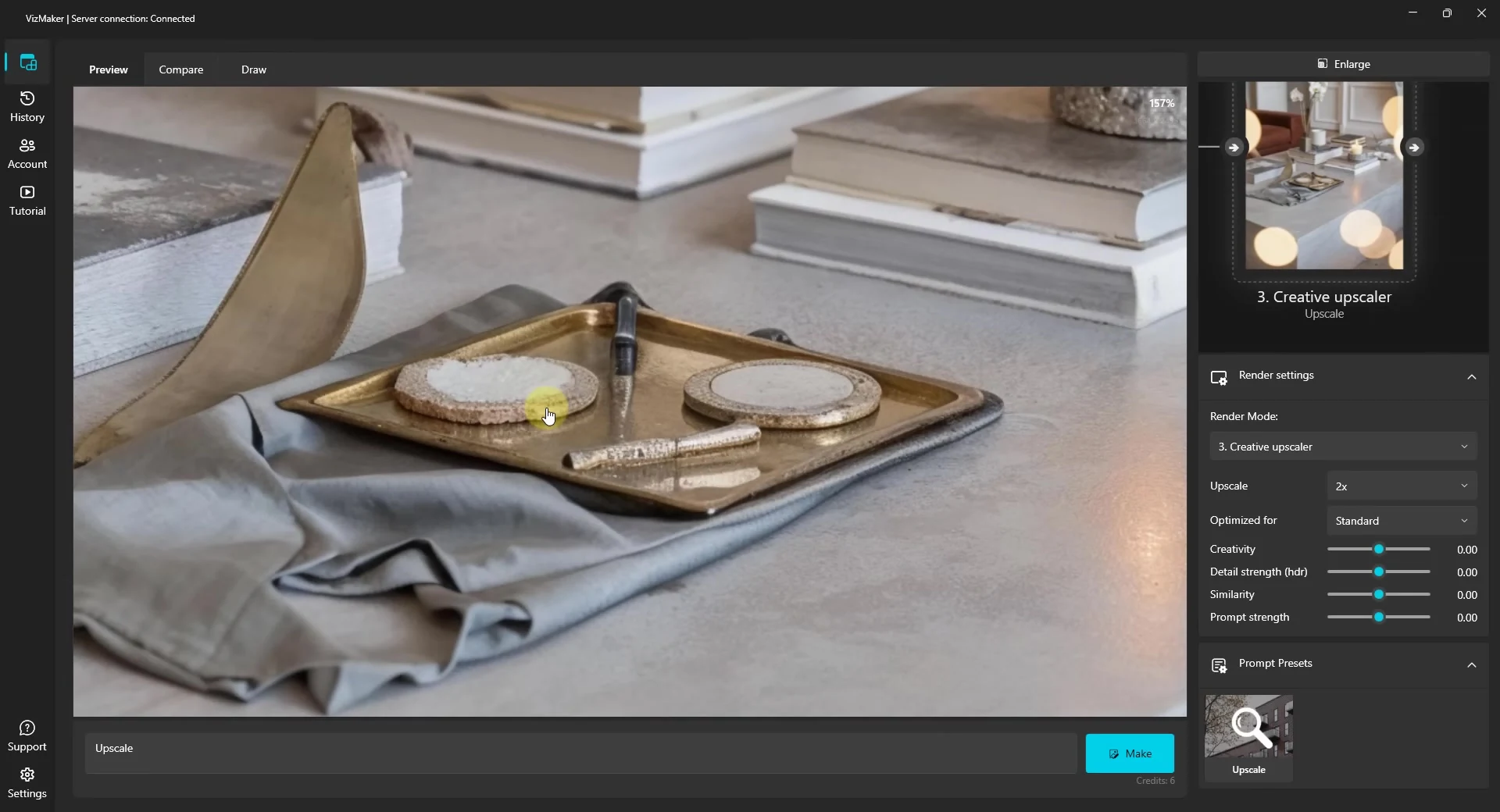
A useful sequence is to resolve the composition and major edits first, then upscale the version you intend to use. Review textures and edges at full size: AI can create plausible detail, so check that it supports the material and design you actually specified.
6. Create architectural animation from still images
A strong still image establishes a scene. A short animation can communicate movement, depth and atmosphere for a client presentation, portfolio or project launch.
VizMaker demonstrates two image-to-video AI workflows. One begins with a single image and a camera-movement instruction. The other uses a first and last frame to guide the sequence between two views.
In the interior example, Wojciech generates a closer view of the fireplace, then uses that image as the final frame of an animation. The tutorial also creates an exterior sequence from the house visualisation. You can follow the animation demonstration from 6:02.
For AI architectural animation, plan what the shot should reveal before generating. A move towards a fireplace might highlight the focal point of a room; an exterior movement might communicate the relationship between the building and its garden. Review continuity and geometry throughout the clip before using it in a client presentation.
7. Keep alternatives connected with a visual node workflow
Design work rarely follows one straight line. A single interior may lead to a brighter version, a populated version, a detail shot and an animation. Keeping those relationships visible helps you understand how each result was made.
VizMaker’s node-based workflow connects source images and generated results as branches. In the recording, Wojciech develops several directions in parallel, compares images using A/B slots and rearranges nodes to organise the workspace. He also demonstrates restoring earlier work through image history.
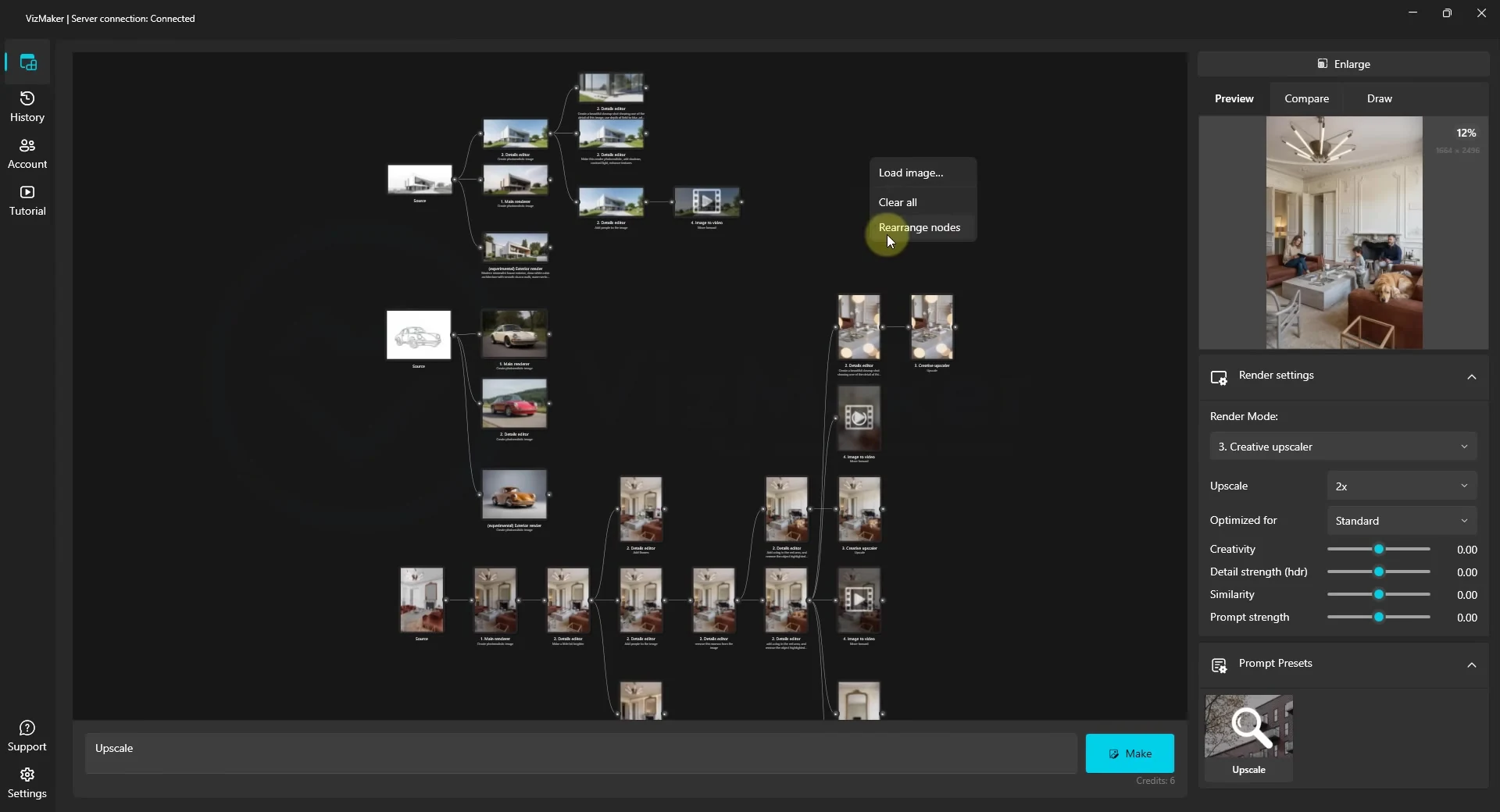
For a designer, the practical advantage is being able to return to the starting point and try another direction while retaining a clear view of previous choices. Treat each branch as an answer to a specific design question, then select the strongest result for the next stage.
A practical VizMaker workflow for your next design project
- Choose a clear source. Use a composed viewport capture, a readable sketch or an existing render.
- Generate and compare. Explore a small set of directions and judge them against the design brief.
- Make focused revisions. Use the Details Editor for atmosphere and the Draw tab for visually guided changes.
- Check the design. Review geometry, materials, furniture, people and any unintended changes.
- Prepare the presentation. Upscale the selected image or use it as the basis for an animation.
AI is most useful here when it supports deliberate design decisions. If you are developing your underlying modelling, composition and rendering skills, explore the VizAcademy 3ds Max and architectural visualisation course.
Frequently asked questions about VizMaker
What is VizMaker used for?
VizMaker is an AI rendering and image-editing application for architects, interior designers and other visual creators. The tutorial shows it turning sketches and 3D viewport captures into visualisations, editing existing images, upscaling details and creating animations from stills.
Does VizMaker work with 3ds Max, Revit and SketchUp?
Yes. The recording demonstrates integrations with 3ds Max, Revit and SketchUp that transfer a view into VizMaker. It also shows bringing in existing images and sketches.
Can I edit an existing architectural render with AI?
Yes. VizMaker accepts existing images, and the tutorial uses text instructions, arrows, coloured marks and reference images to guide changes. Examples include removing a person or mirror, adding a dog and replacing a car.
Can VizMaker create animation from a render?
Yes. The video demonstrates animation from a single image and a workflow using first and last frames. An interior view and a closer fireplace shot guide one of the example sequences.
Does AI rendering replace an accurate 3D model?
An AI visualisation helps communicate a design, but it does not verify dimensions, construction details or geometric accuracy. Keep the source model and project documentation as the reference, and review generated images and videos before presenting them.
Bring your next design into VizMaker
Start with one image from a real project: an interior viewport, an exterior concept or a product sketch. Use it to explore a visual direction, make a focused edit and prepare a presentation image. The tutorial shows how those stages connect inside one application.
Download VizMakerAbout the author: Wojciech Jurkowski is a designer and creator of VizMaker, and the author of the video used in this guide. All six screenshots were extracted from his original recording. Source: VizMaker – Powerful AI Tool for Designers, published by VizAcademy UK on 14 November 2025. This article describes the workflow in that recording; available engines and interface details may evolve. Visit the official VizMaker website for current downloads and product information.
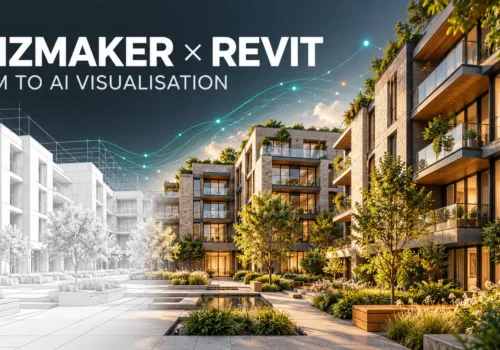
VizMaker for Revit: AI Rendering from BIM Views to Client Presentations
Turn Revit views into AI architectural visuals with VizMaker. Explore facade options, interior concepts, animation, image upscaling and 3D asset workflows.
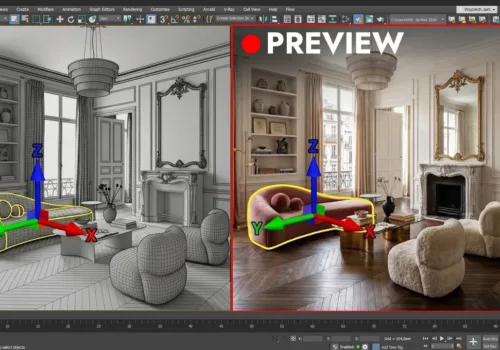
VizMaker Live Preview: Turn 3D Viewport Motion into AI Animation
Turn viewport recordings from 3ds Max, SketchUp and Revit into AI animation. Learn camera matching, reference frames and interior walkthroughs in VizMaker.
5 Reasons to Use VizMaker for Architectural Visualisation
See how VizMaker supports architectural visualisation with design variants, connected AI tools, reusable prompts, visual branches and free tutorials.